Getting started
Start from a template
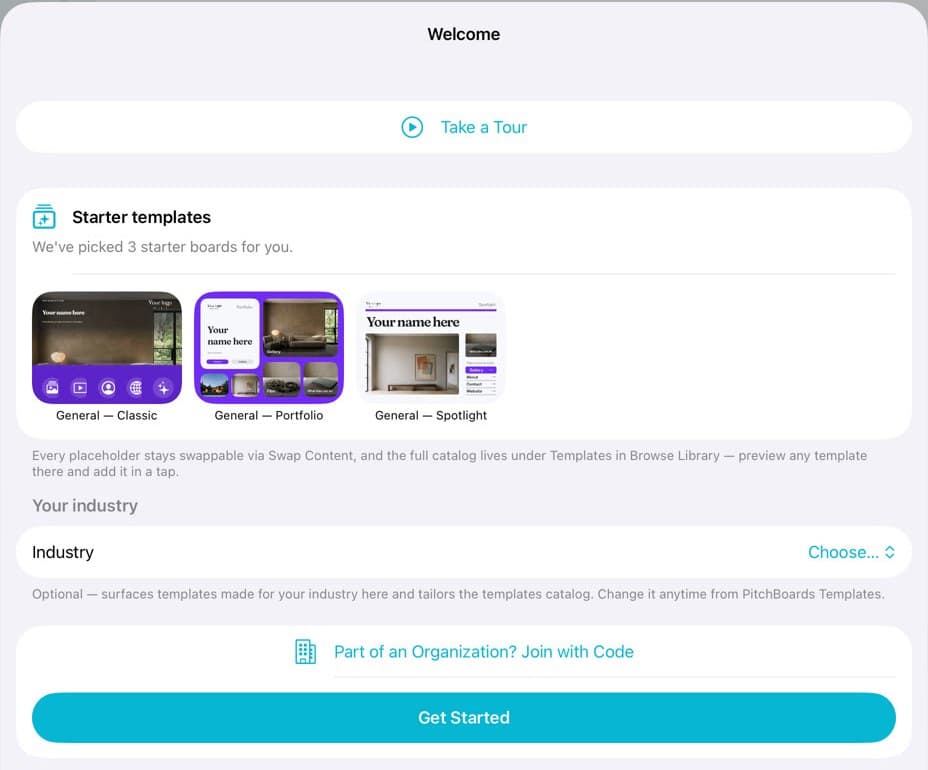
Sign in and PitchBoards opens a welcome with starter boards already in your account. Pick your industry and tap Get Started. For more, open Shared With Me, tap Browse Templates, tour any template full screen, and tap its copy icon. Your copy lands first in My Boards, ready for your own logo, photos and words.
Updated By Isaac Stalzer
Step 1 of 7
Say hello to the welcome
The first time you sign in, PitchBoards opens a welcome with starter boards already in your account.
Step 2 of 7
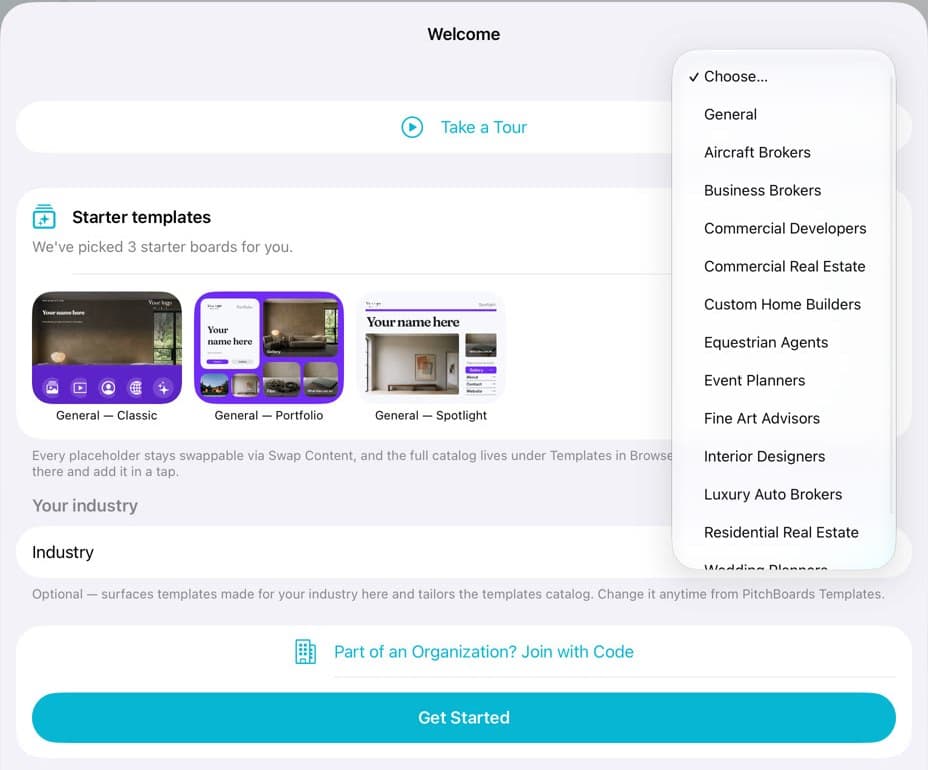
Pick your industry
Tap Choose… next to Your industry and pick yours. The template catalog then puts your industry first.
Step 3 of 7
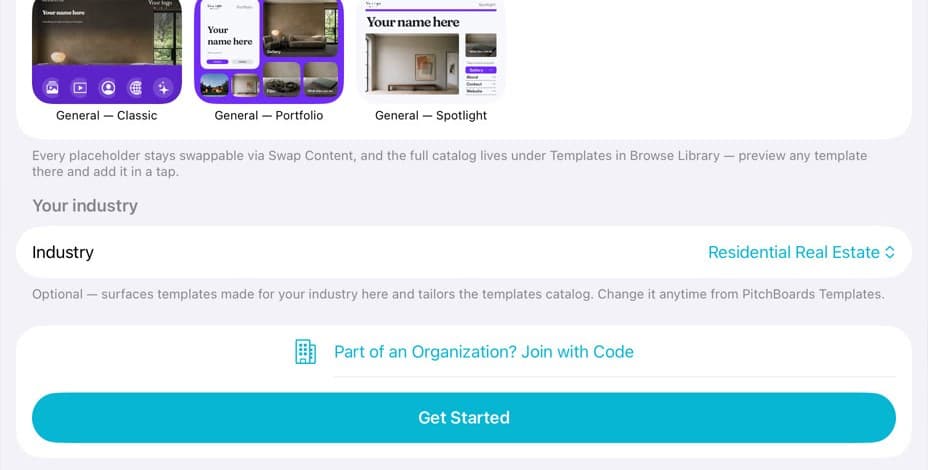
Tap Get Started
That's the welcome done. You can change your industry any time later.
Step 4 of 7
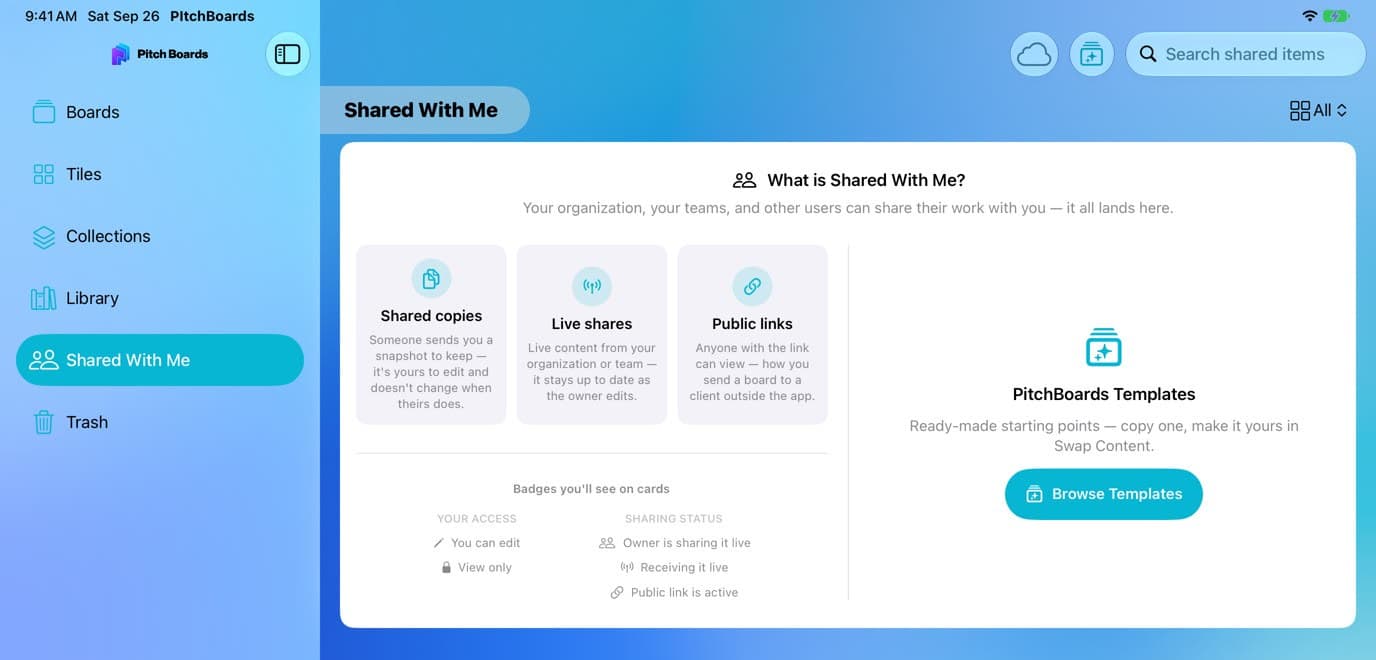
Open the template catalog
In the sidebar tap Shared With Me, then Browse Templates.
Step 5 of 7
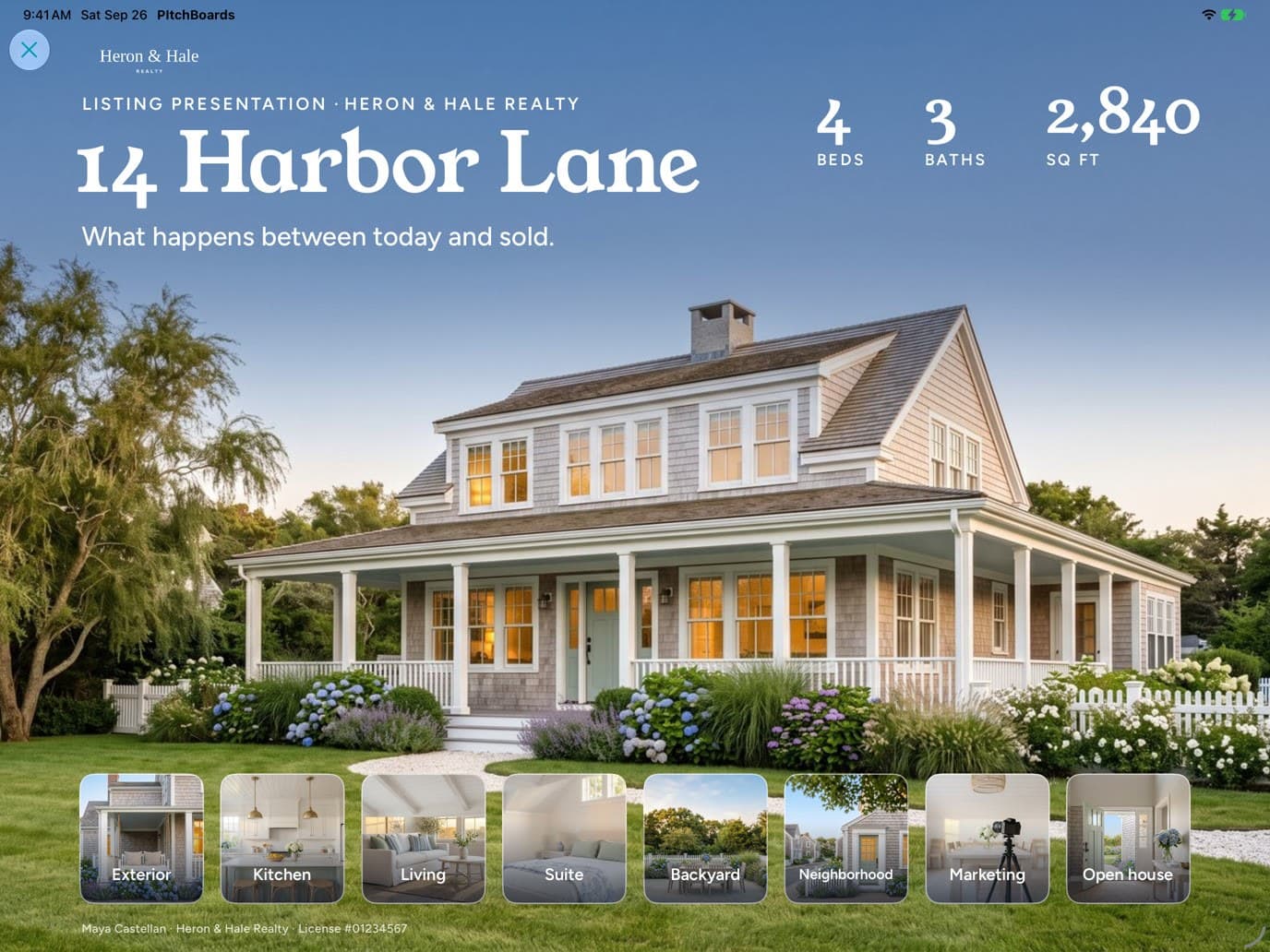
Tap a template to tour it
Every template opens full screen so you can click through it first. Tap ✕ at the top left when you're done looking.
Step 6 of 7
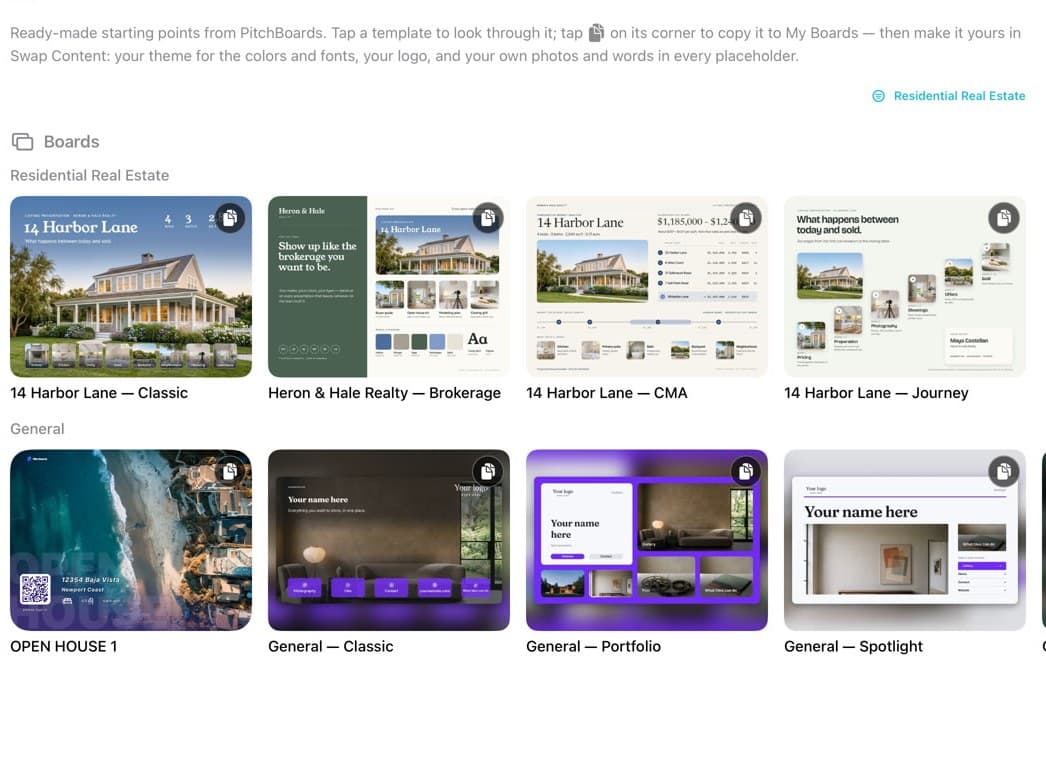
Copy the one you like
Tap the copy icon in the template's corner. You'll see Copied to My Boards.
Step 7 of 7
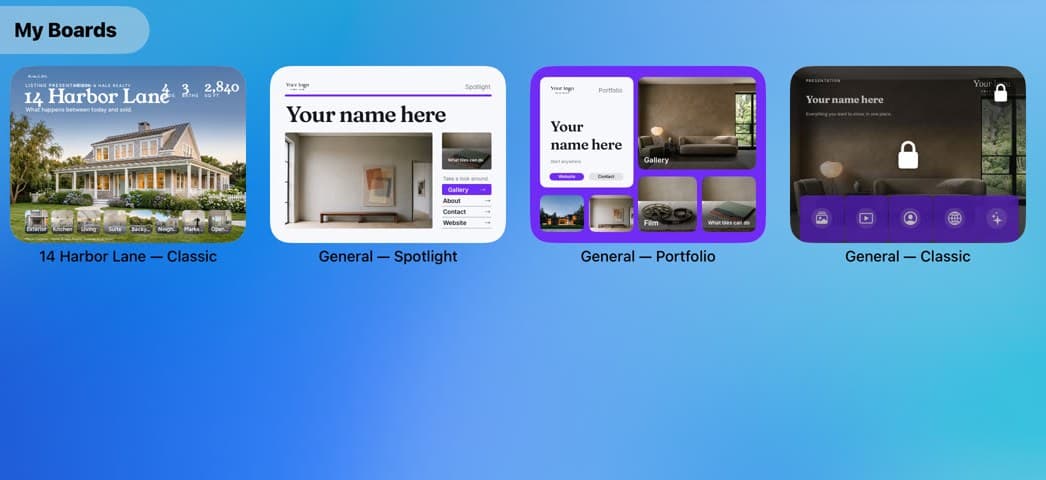
It's in My Boards
Your copy sits first in My Boards. Open it and use Swap Content to add your logo, photos and words.
Good to know
Missed the welcome? Go to Settings → Help Center → Replay Welcome. It adds any starter content you're missing and never duplicates boards.
On the Free plan, your 3 most recently updated boards stay active. Copy one more and the oldest locks, shown with a padlock. Locked boards aren't deleted, and they unlock when you upgrade.
Changed industry? Tap the industry chip at the top right of the template catalog.