Build
Add a tile and choose what it opens
Open a grid board in Edit Mode. Tap an empty square and pick New Blank Tile. Then tap the tile's ⋯ button and choose Add destination to pick what opens when someone taps it: photos, a video, a PDF, a website, an AI widget, or another board.
Updated By Isaac Stalzer
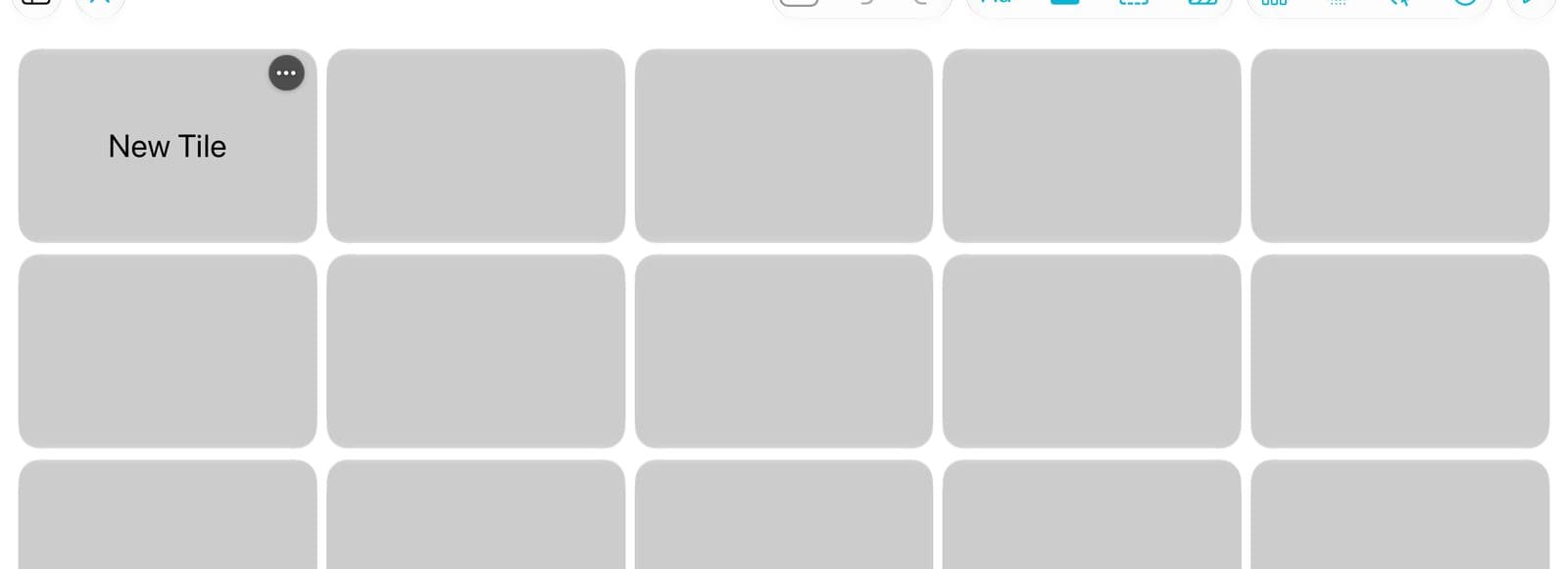
Step 1 of 6
Tap an empty square
Open your board in Edit Mode. Tap an empty square.
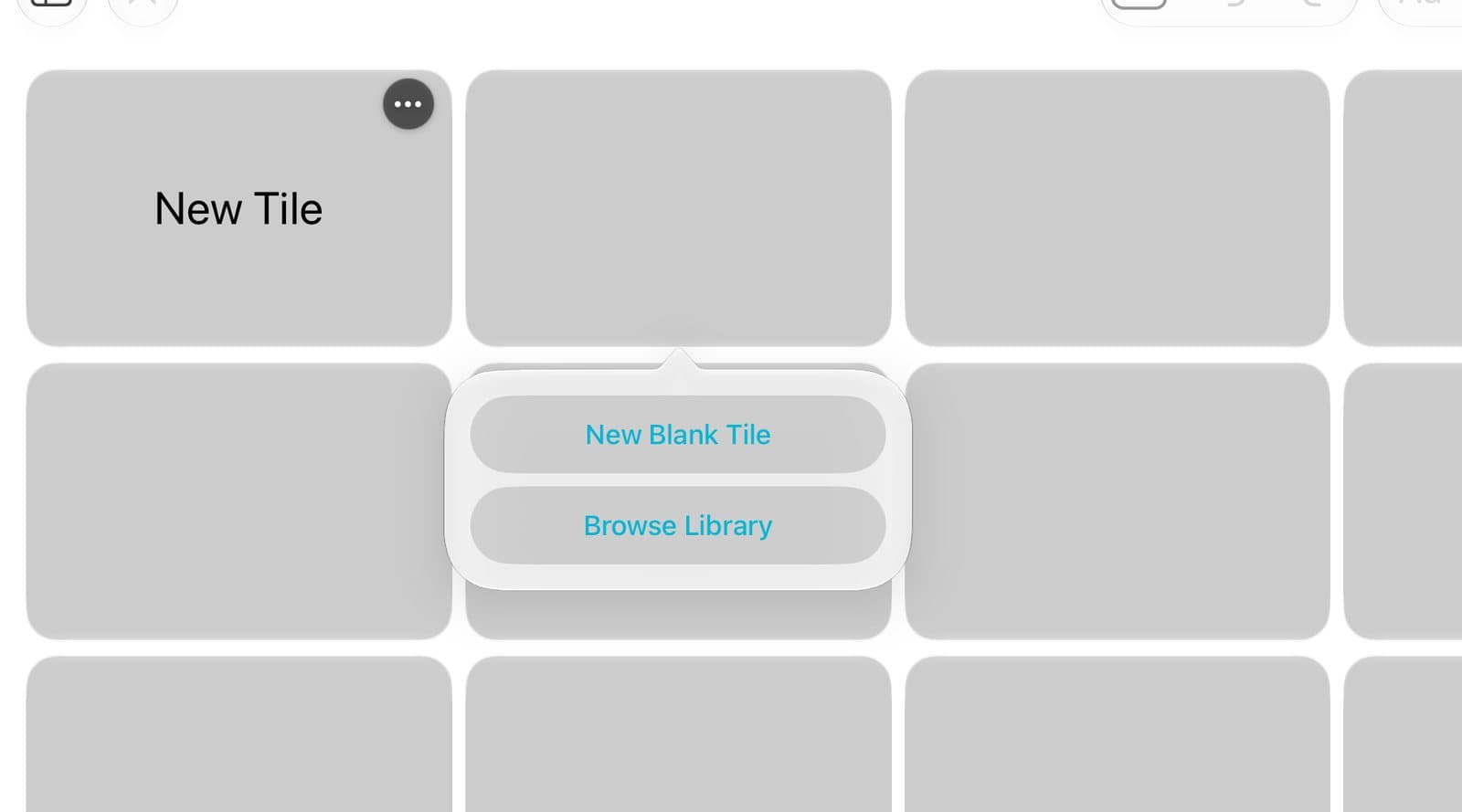
Step 2 of 6
Tap New Blank Tile
Or tap Browse Library to reuse a tile you made before.
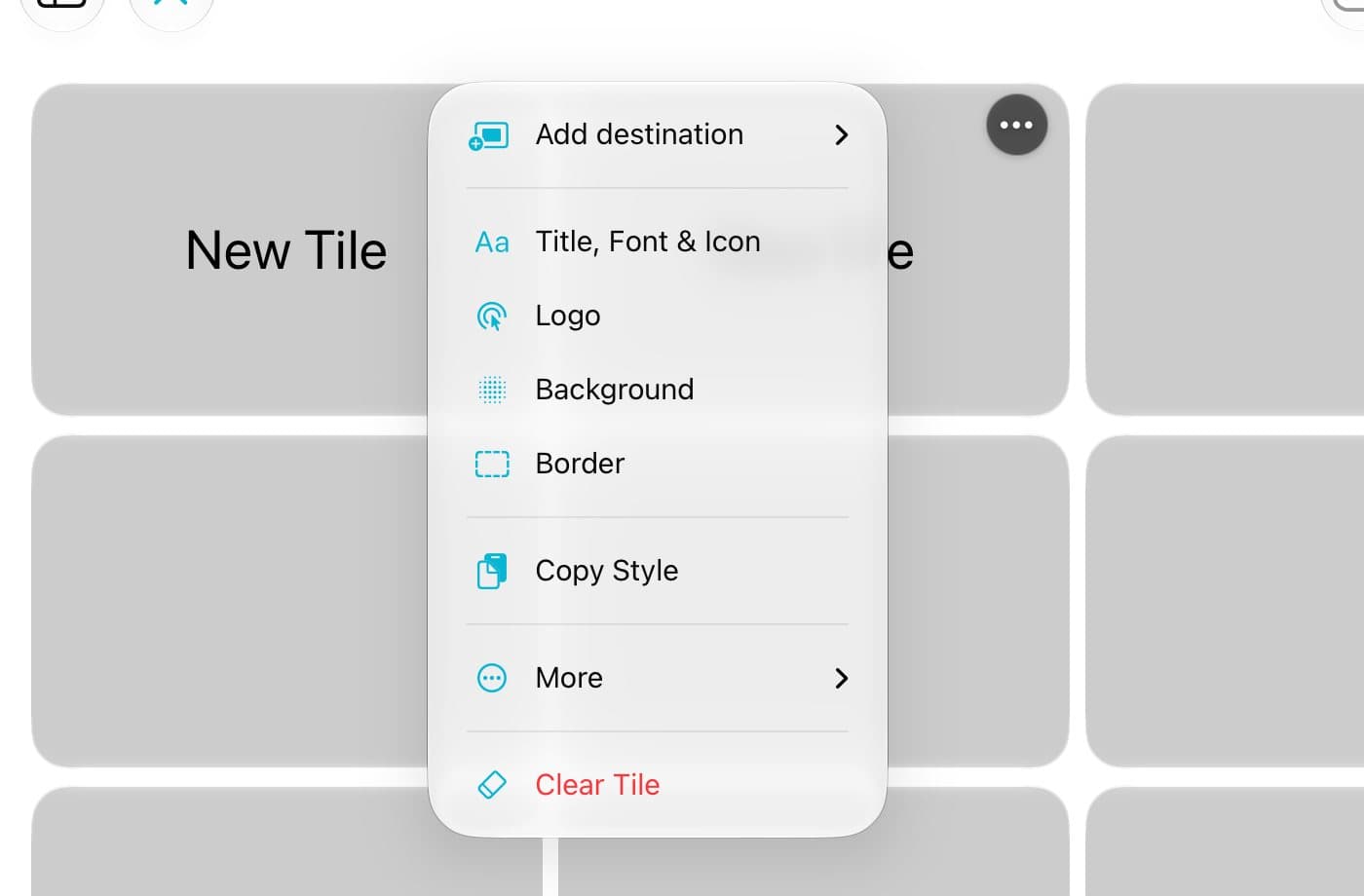
Step 3 of 6
Tap ⋯ then Add destination
Tap the tile's ⋯ button. Tap Add destination.
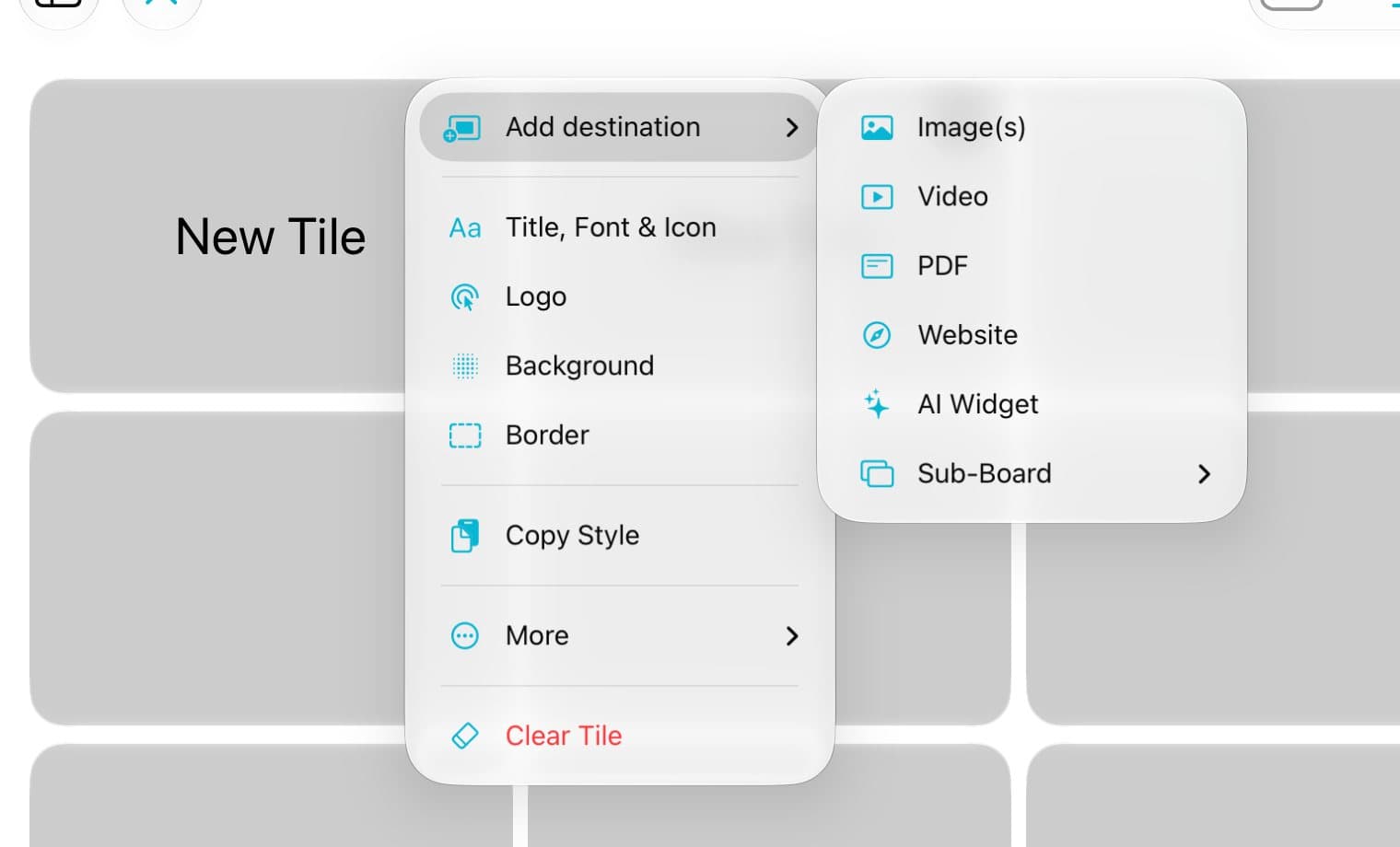
Step 4 of 6
Pick what it opens
Pick Image(s), Video, PDF, Website, AI Widget, or Sub-Board.
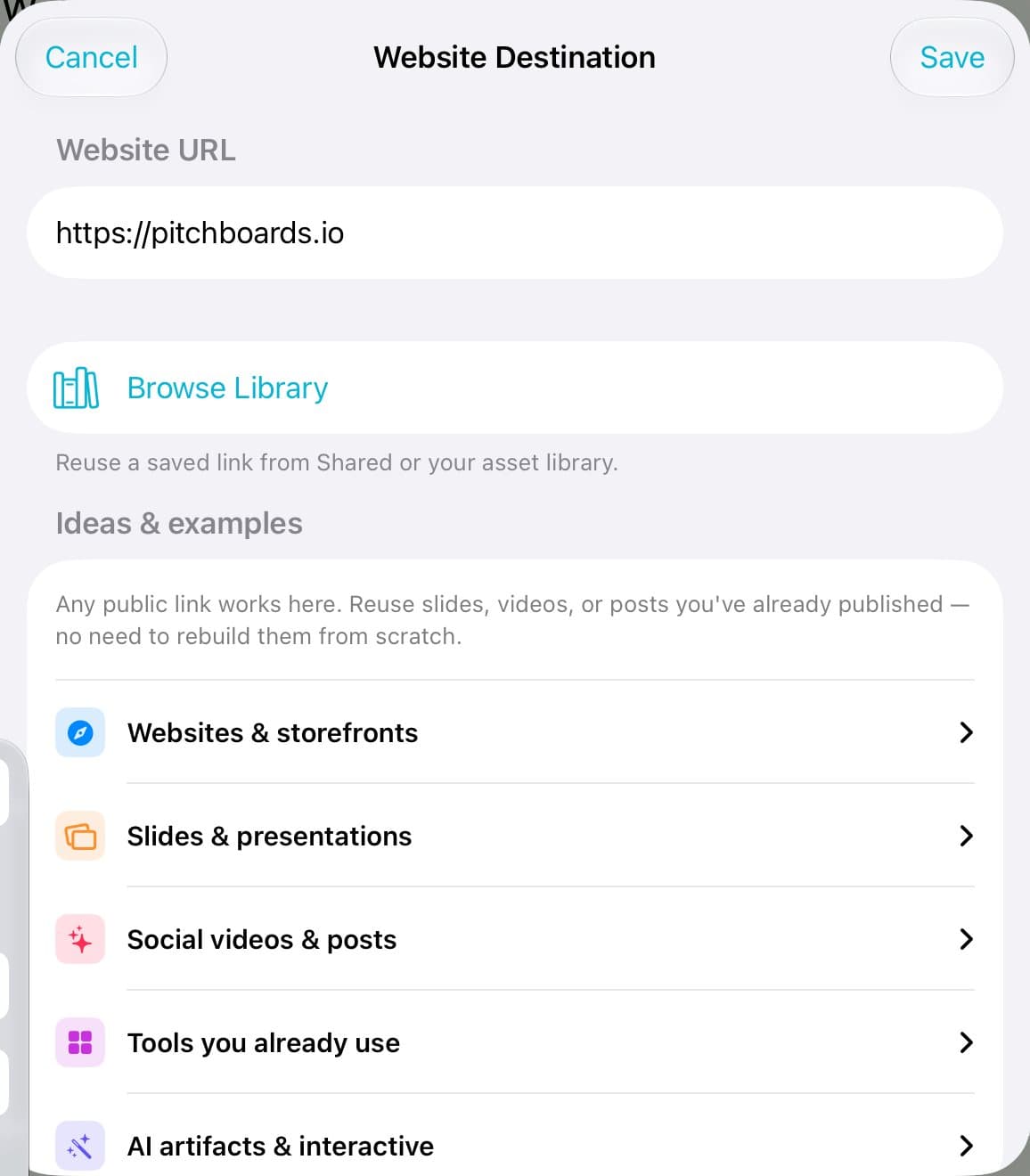
Step 5 of 6
Add it and tap Save
For a website, paste the link. Tap Save.
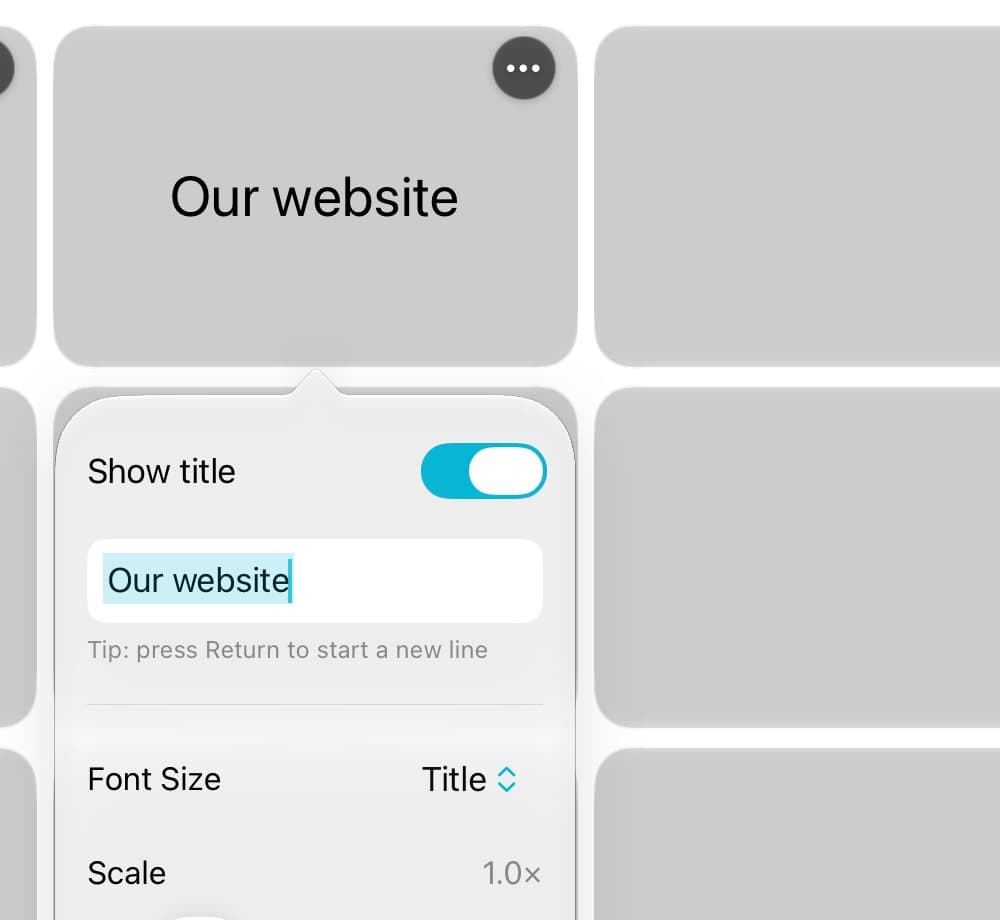
Step 6 of 6
Give it a name
Tap ⋯ → Title, Font & Icon. Type a name.
Good to know
A tile opens one thing at a time. A photo set counts as one.
Sub-Board puts a whole board behind one tile.