Getting started
Start a new board from scratch
Tap + at the top, then New Board, then Blank Board. Type a name. Then pick Add Grid for a board of tiles you tap to open things, or Add Canvas for a free page where you place text, photos, and shapes anywhere. Your new board opens, ready to fill.
Updated By Isaac Stalzer
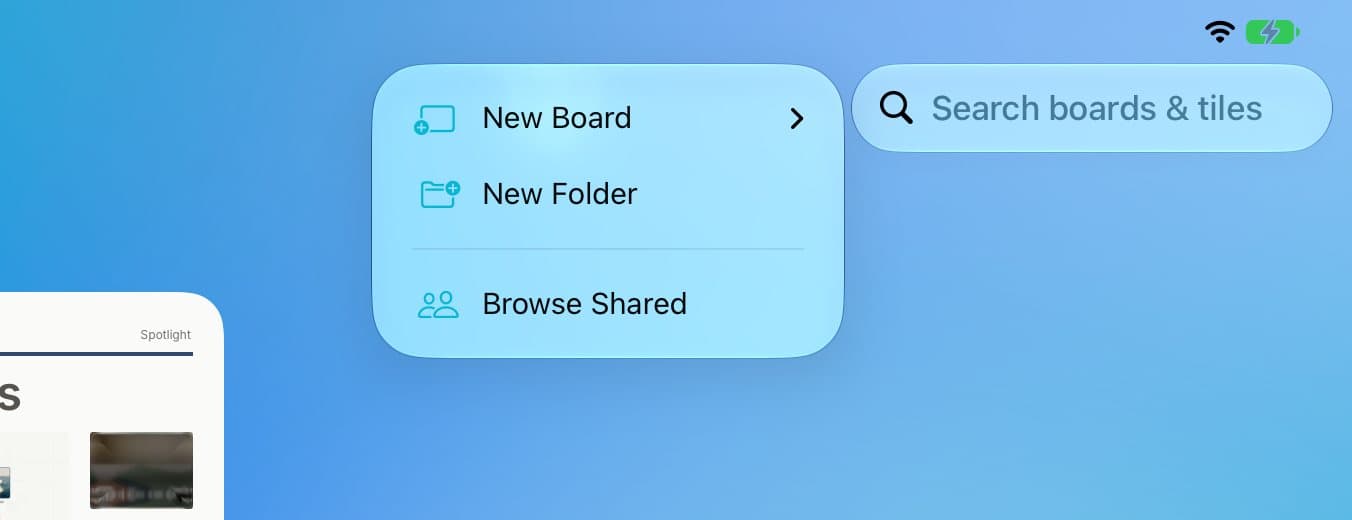
Step 1 of 5
Tap + then New Board
Tap + at the top right. Tap New Board.
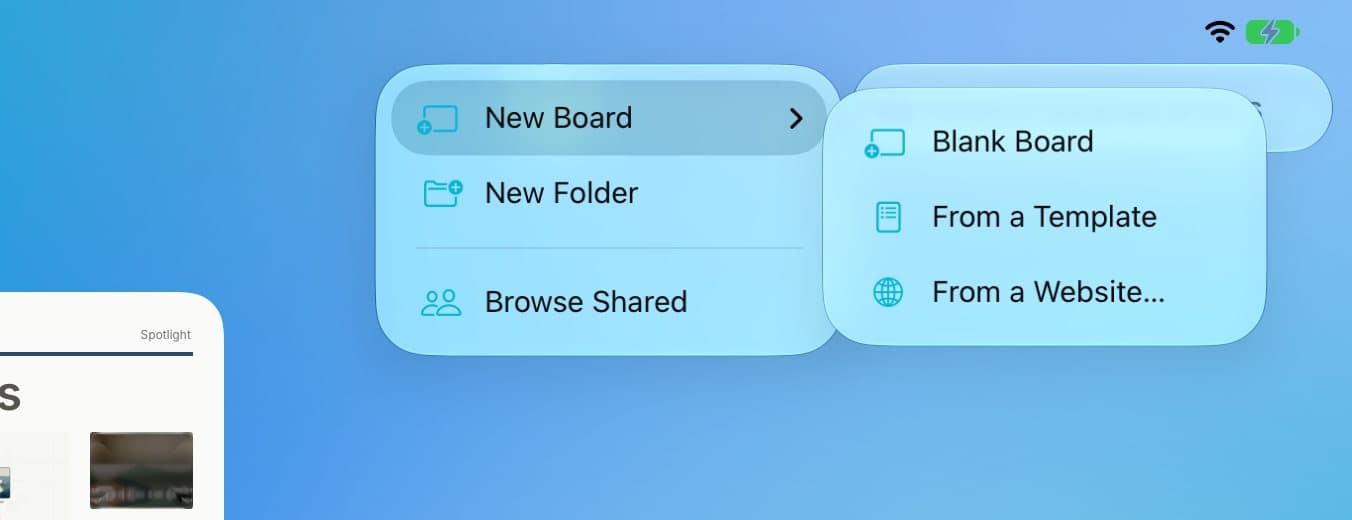
Step 2 of 5
Tap Blank Board
Or pick From a Template or From a Website… to get a head start.
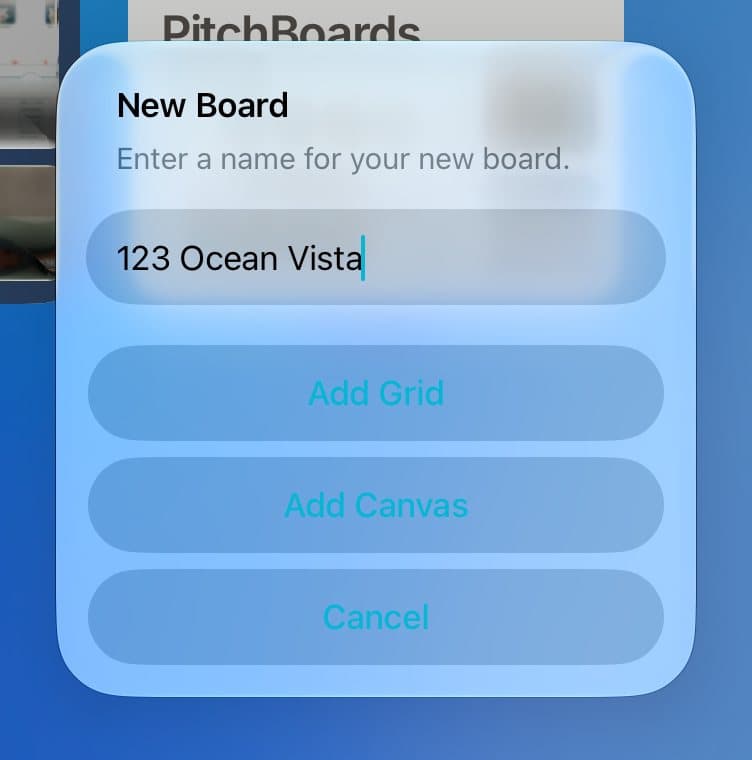
Step 3 of 5
Give it a name
Type a name, like the listing's address.
Step 4 of 5
Pick Grid or Canvas
Add Grid makes rows of tiles. Each tile opens something. Add Canvas makes a free page. You place things anywhere.
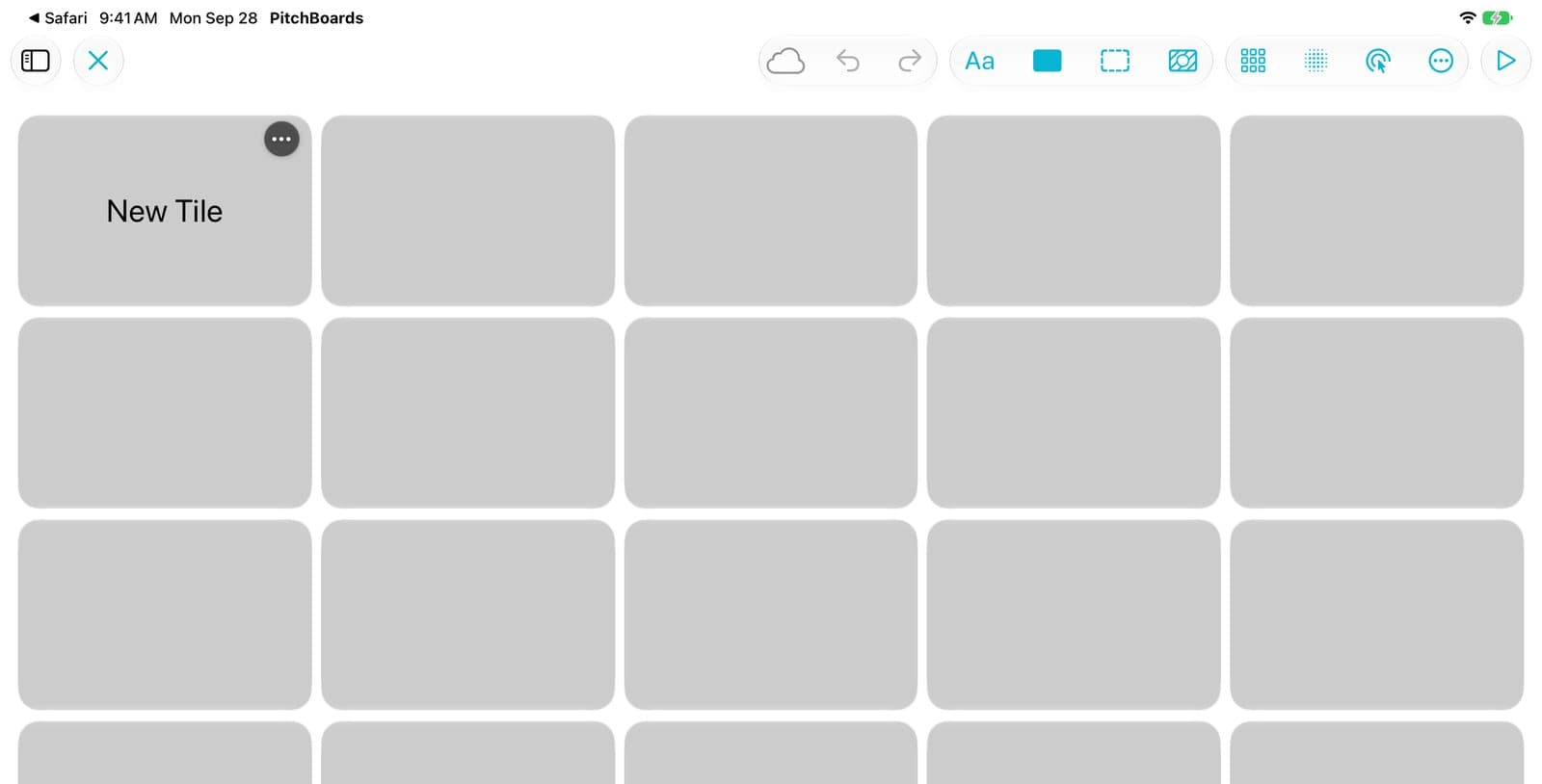
Step 5 of 5
Start filling it
Your new board opens in Edit Mode. Tap an empty square to add a tile.
Good to know
The free plan keeps 3 boards open. One more makes your oldest board lock. You'll see a warning first.
Changed your mind? Convert to Canvas or Convert to Grid is in the board's menu.