Build
Add a video tour to a tile
Put a video tour on a tile. In edit mode, tap ⋯ on the tile, then Add destination and Video. Tap Select Video and pick a video from your iPad, or paste a YouTube link. You can upload MP4 or MOV files up to 5 GB. Tap Done, and the video plays when you tap the tile.
Updated By Isaac Stalzer
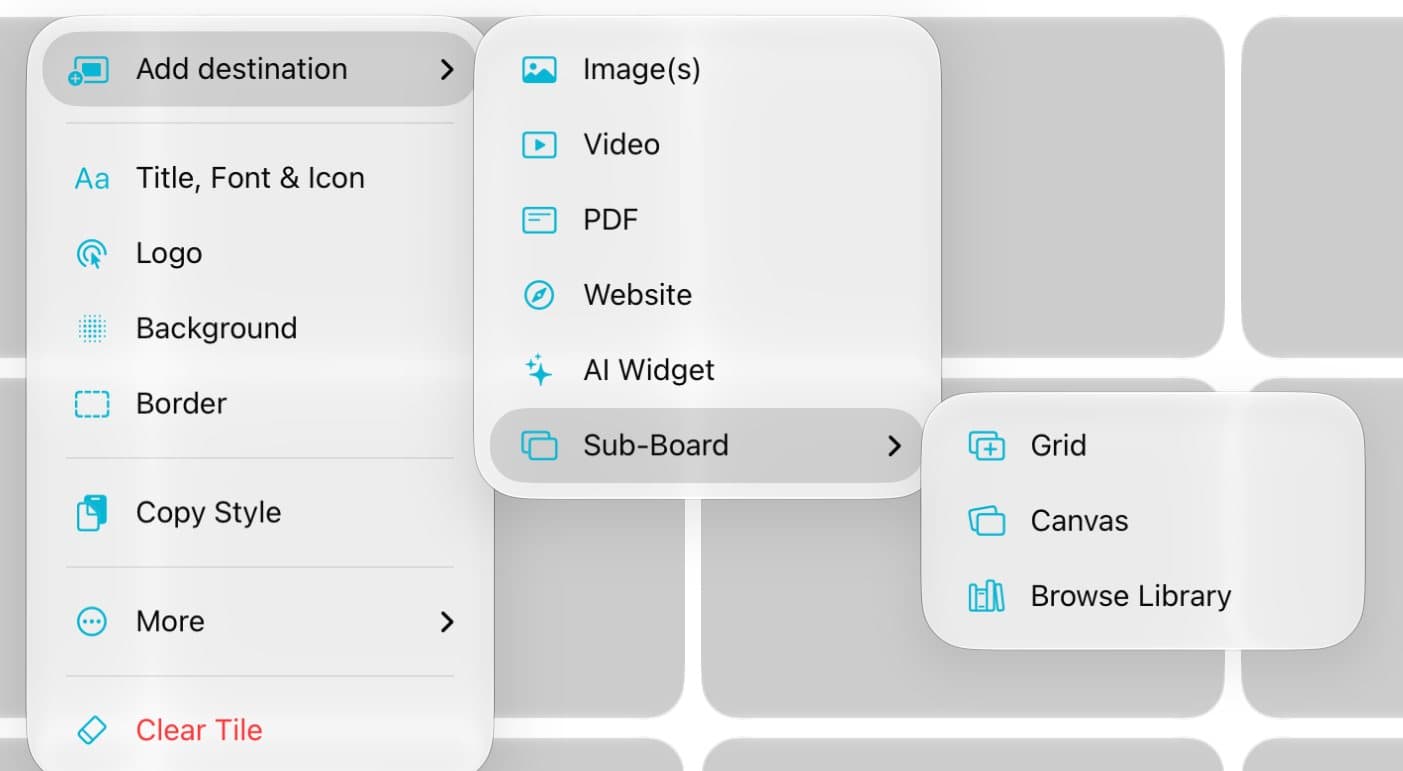
Step 1 of 5
Open the video sheet
In edit mode, tap ⋯ on a tile. Tap Add destination, then Video.
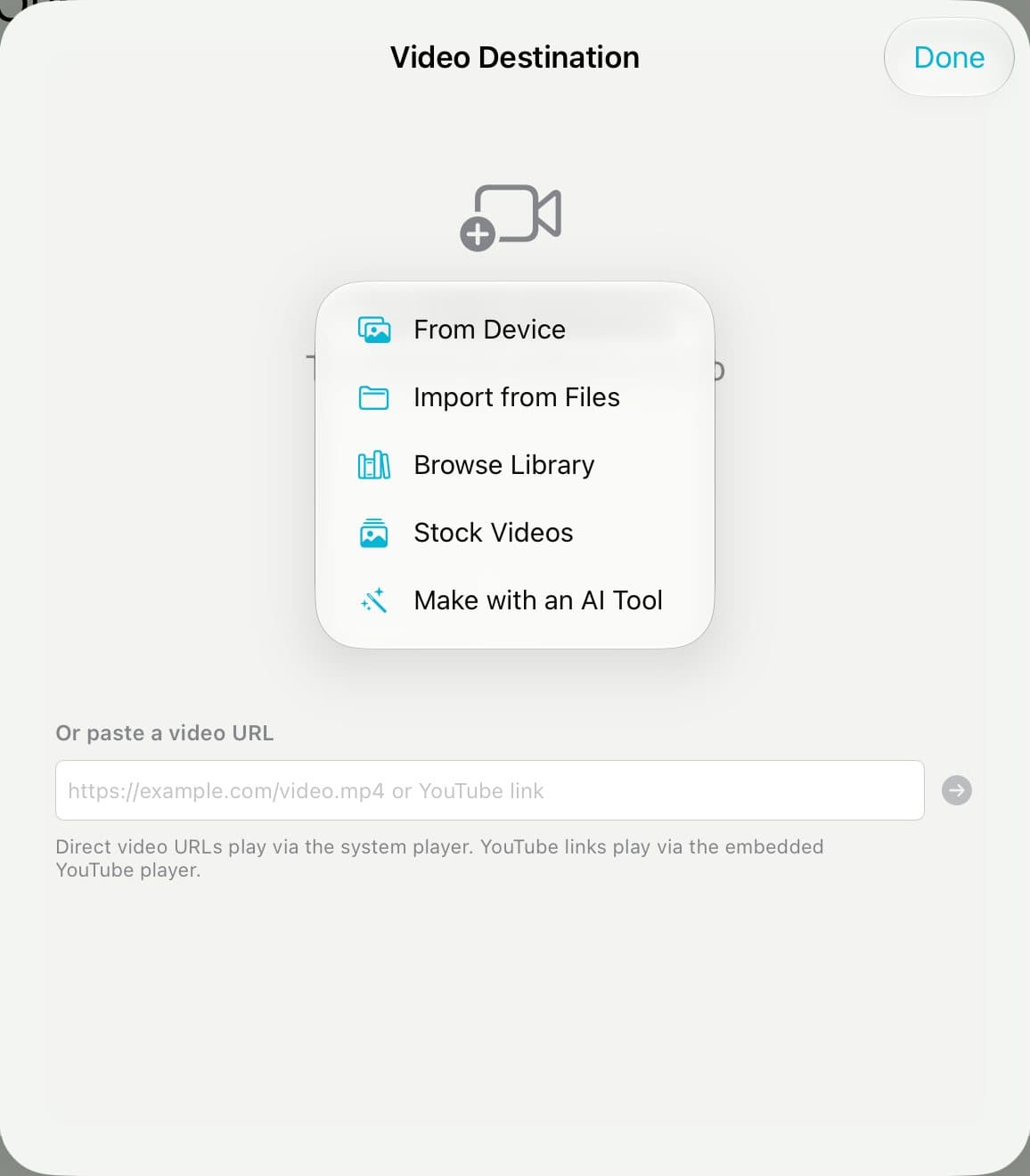
Step 2 of 5
Choose the video
Tap Select Video, then From Device. Or paste a YouTube link in Or paste a video URL.
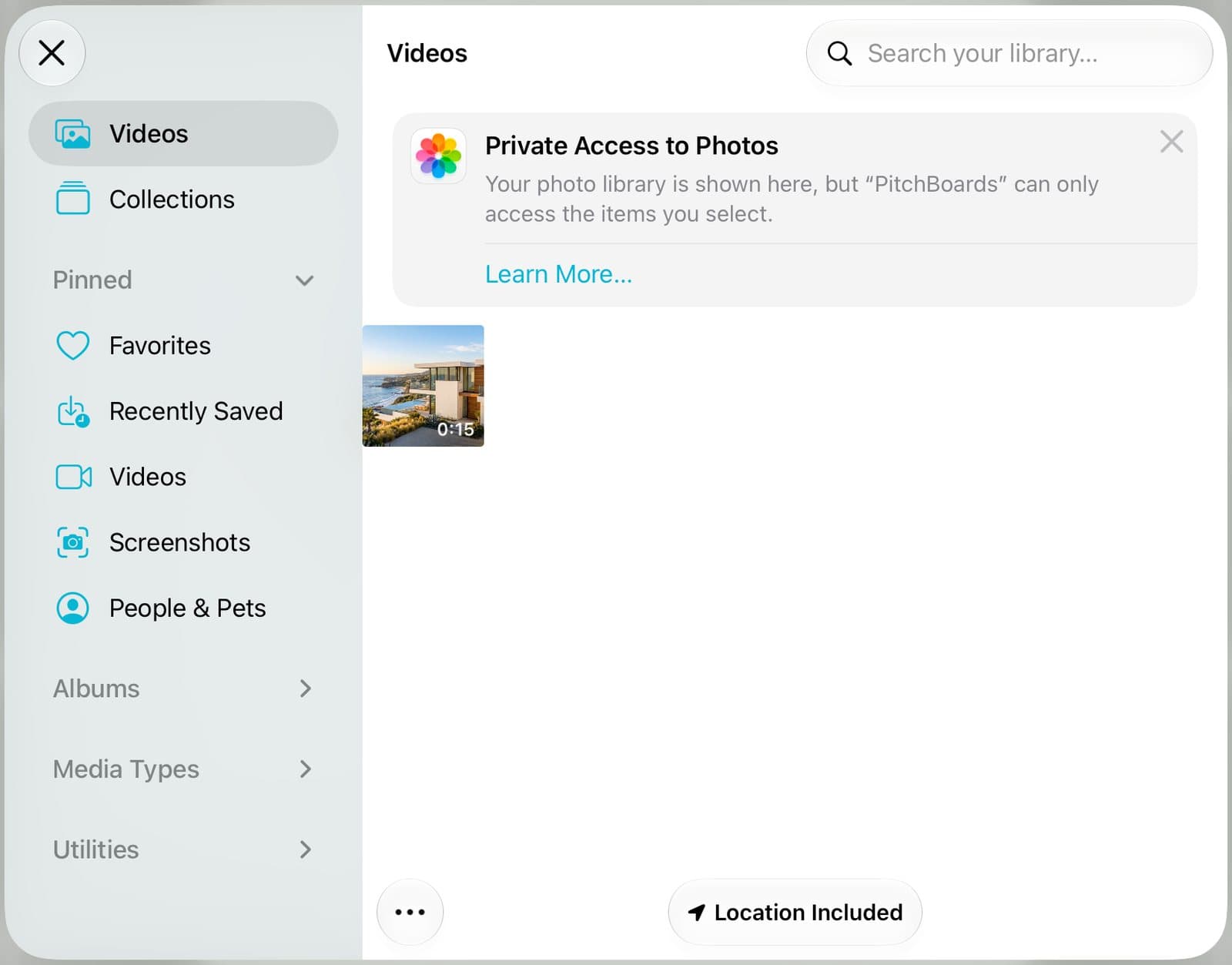
Step 3 of 5
Pick it
Tap the video. It uploads to your tile.
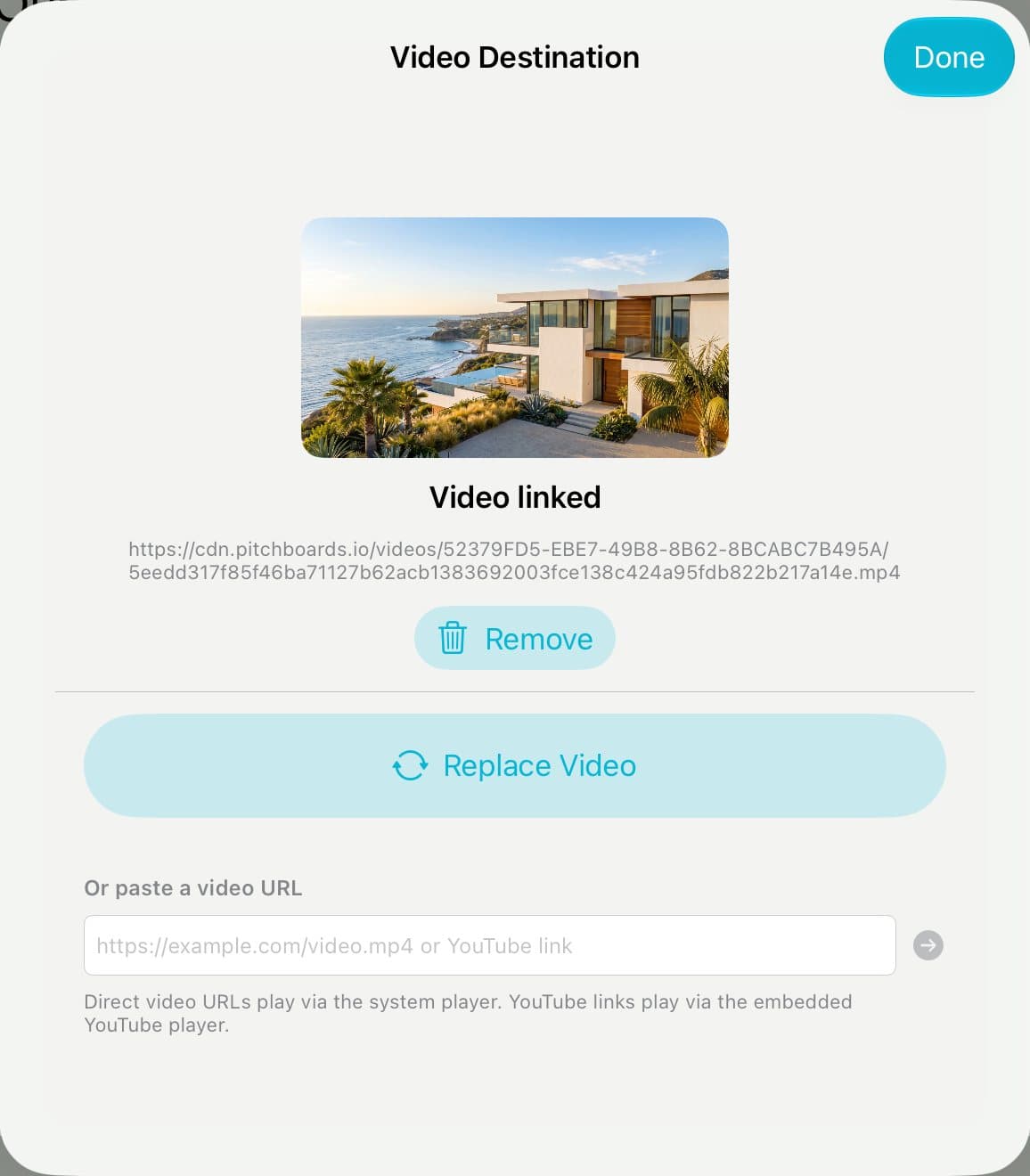
Step 4 of 5
Tap Done
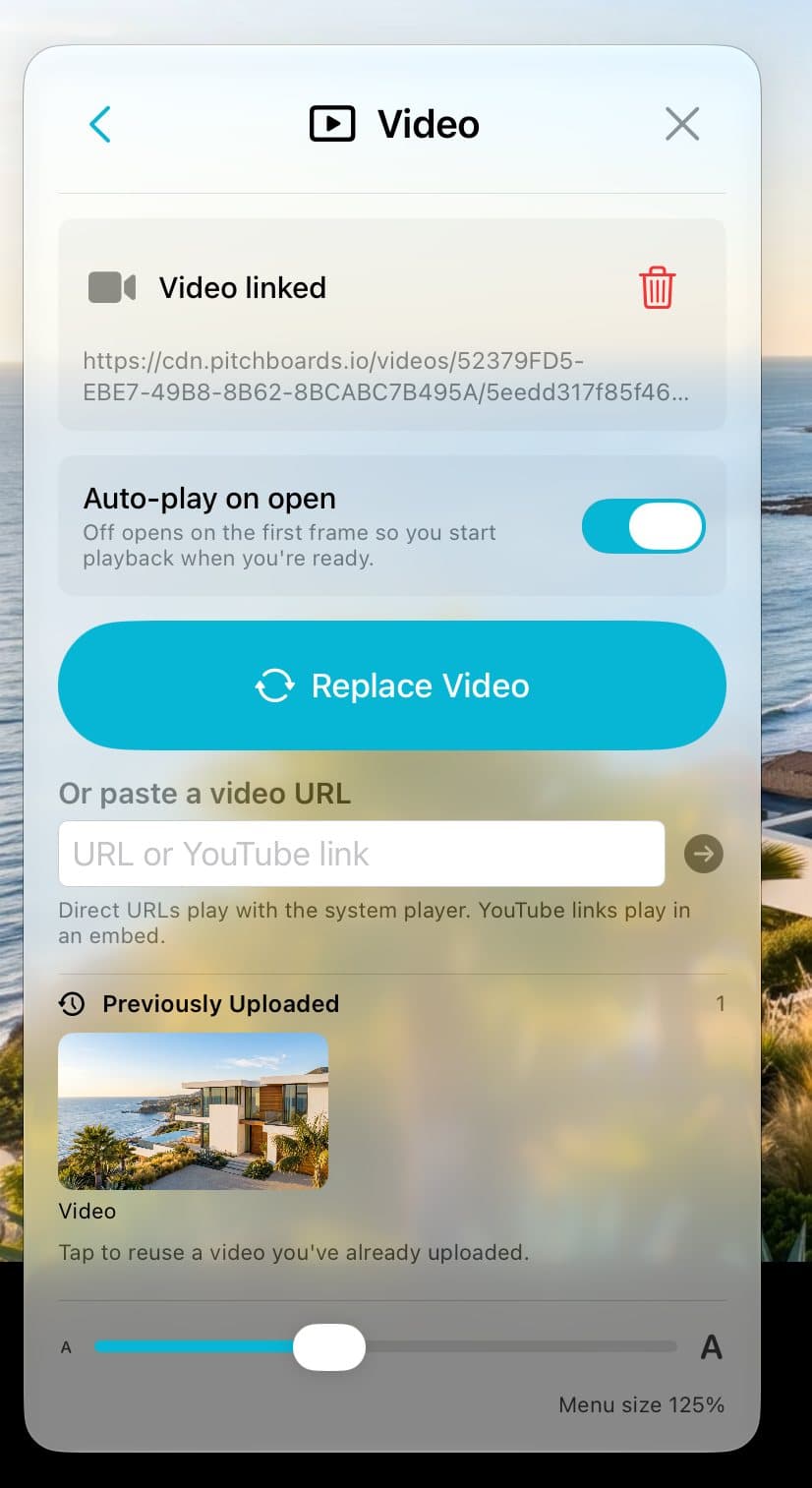
You'll see Video linked. Tap Done.
Step 5 of 5
Want it to start by itself?
Open the tile and tap the slider button at the bottom left. Turn on Auto-play on open.
Good to know
Upload MP4 or MOV files up to 5 GB.
A big video? PitchBoards asks if you want a smaller 1080p copy. It uploads faster.
YouTube links play right in the tile. Other video sites aren't supported yet.
Used this video before? Pick it under Previously Uploaded.