Build
Add a photo gallery to a tile
Yes. One tile can hold a whole set of photos. In edit mode, tap ⋯ on the tile, then Add destination and Image(s). Tap Select Image, pick your photos, and tap Done. When you tap the tile, the photos open as a slideshow you swipe through. You can change the order or hide a photo.
Updated By Isaac Stalzer
Step 1 of 6
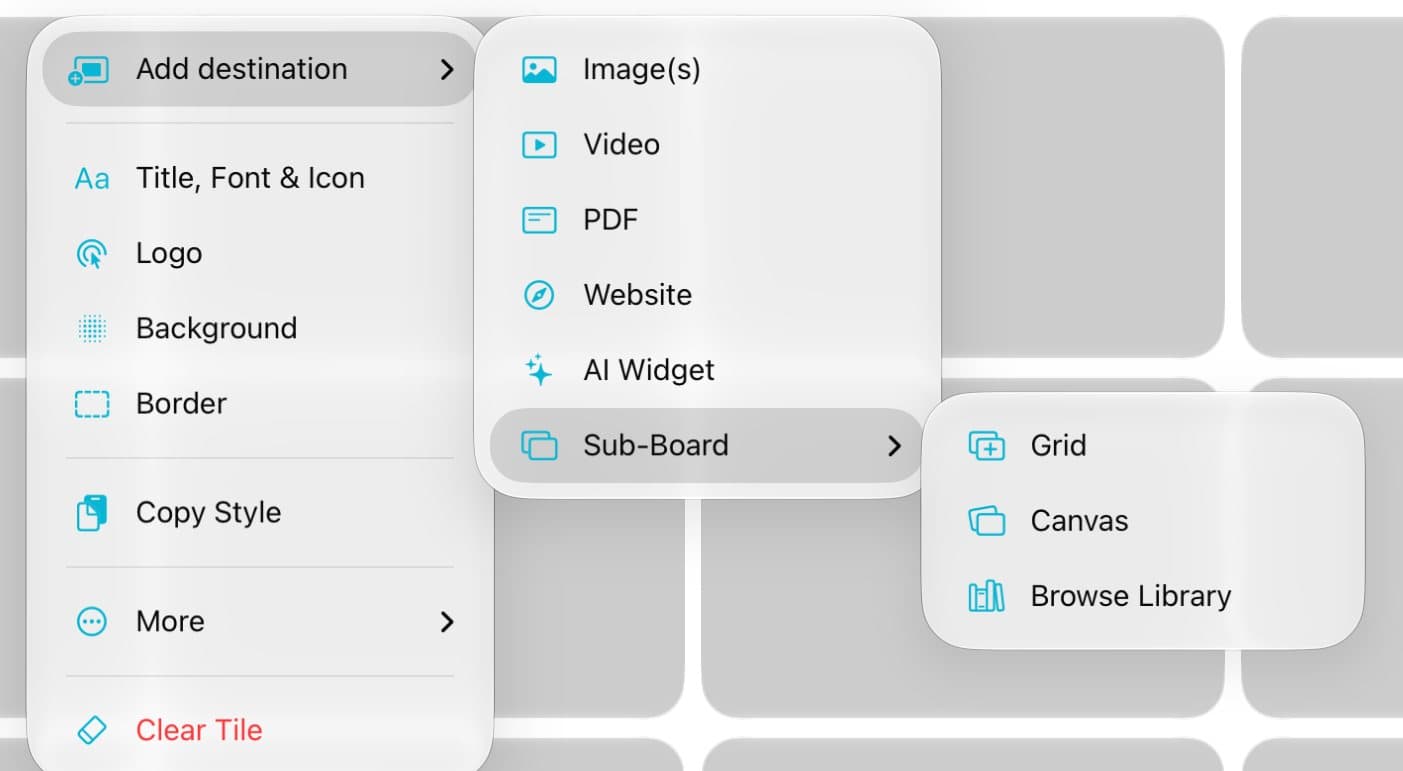
Open the photo sheet
In edit mode, tap ⋯ on a tile. Tap Add destination, then Image(s).

Step 2 of 6
Choose where the photos are
Tap Select Image. Then tap From Device to pick from your Photos app.
Step 3 of 6
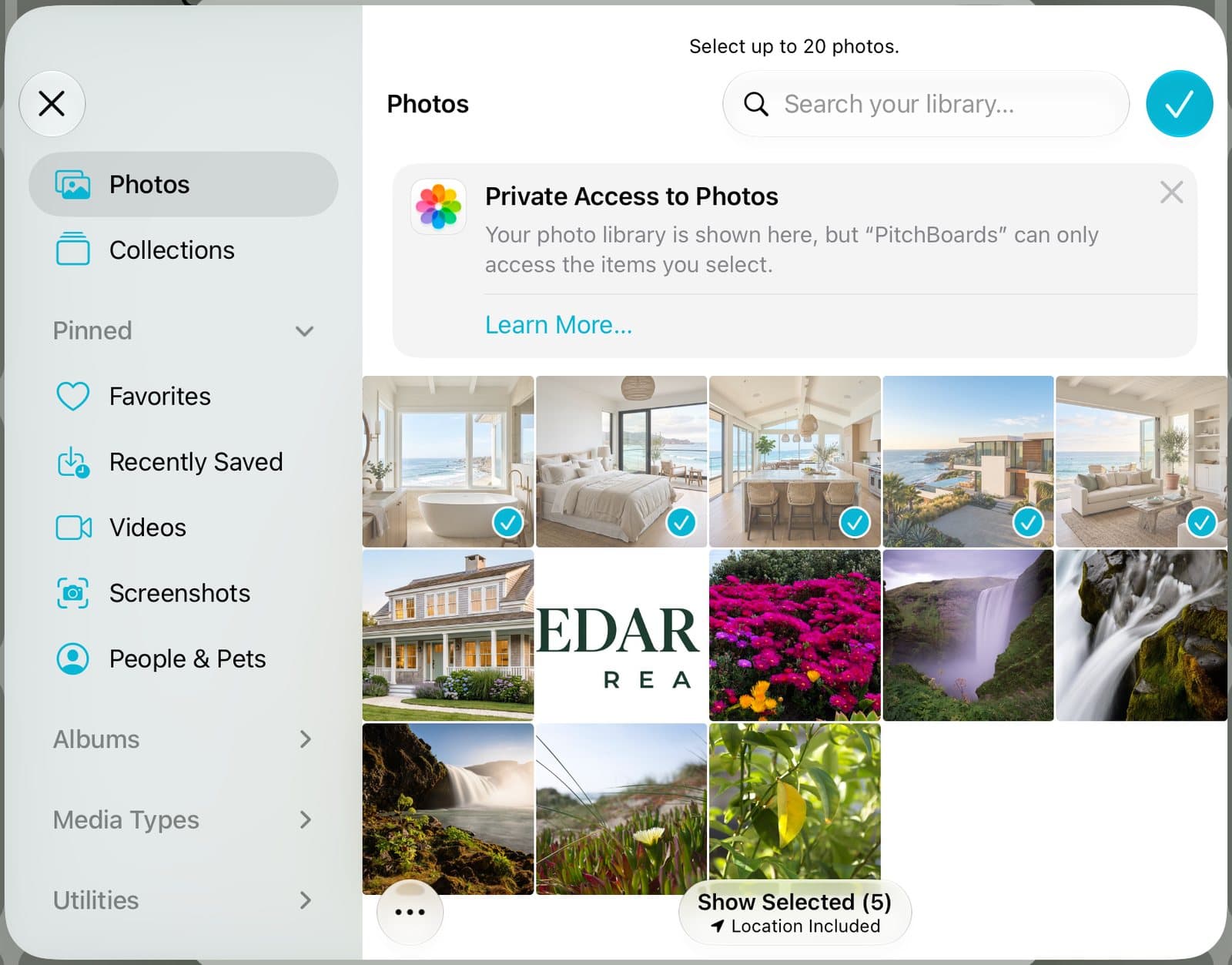
Pick your photos
Tap each photo you want. Then tap the check mark at the top.
Step 4 of 6
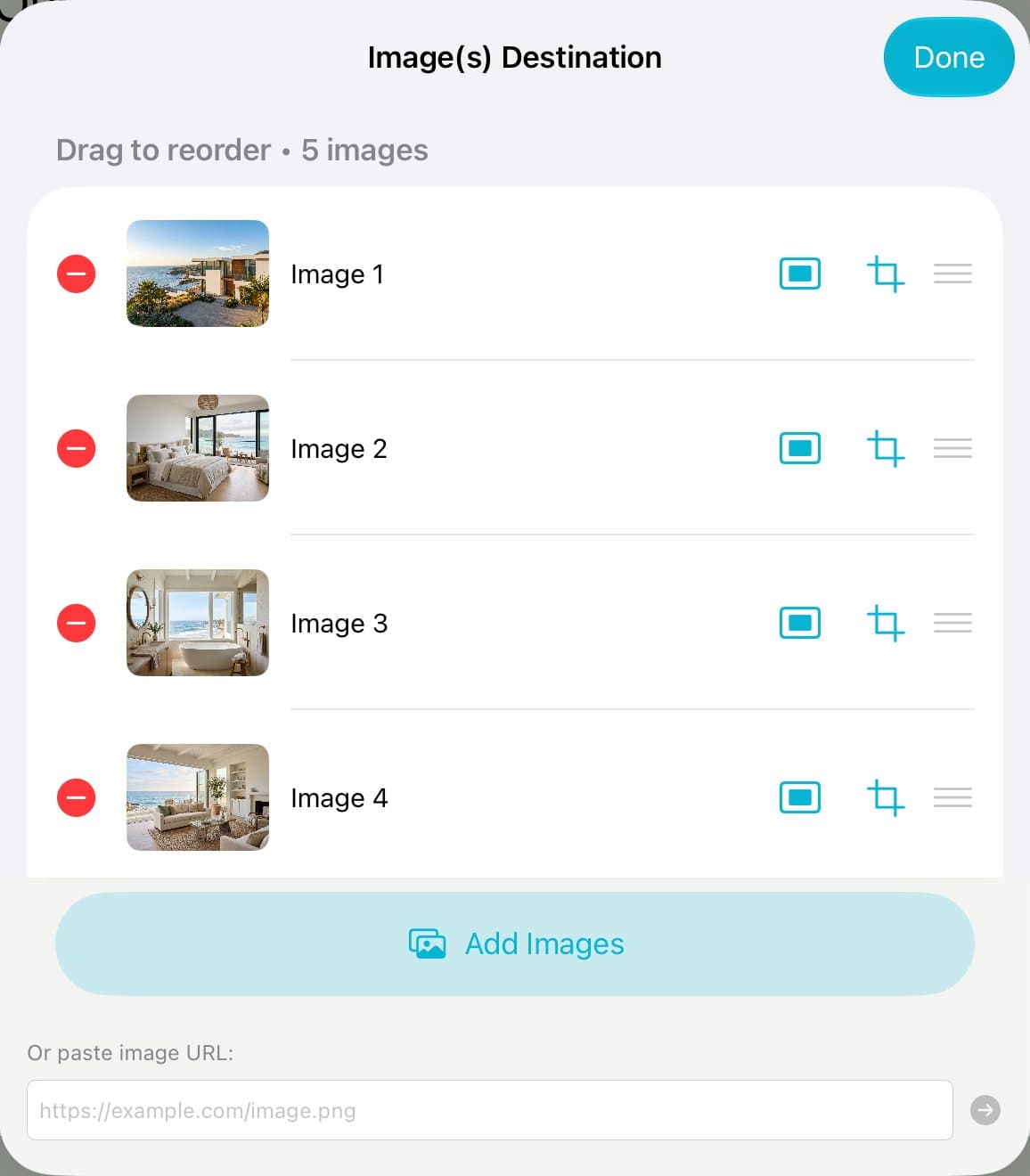
Put them in order
Drag the lines on the right to change the order. Tap the red − to take one out. Tap Done.
Step 5 of 6
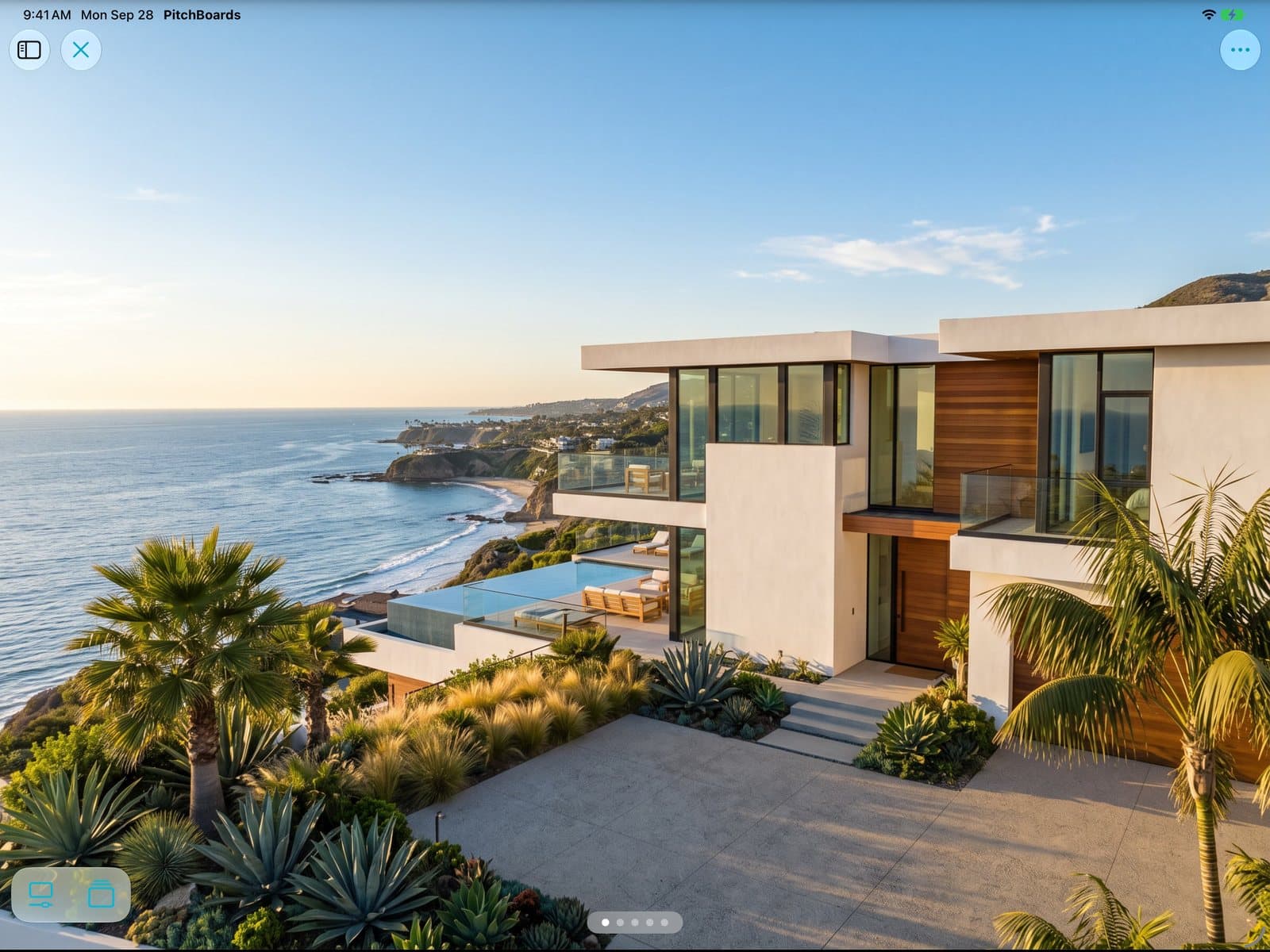
Swipe through them
Tap the tile to open it. Swipe left and right to see each photo.
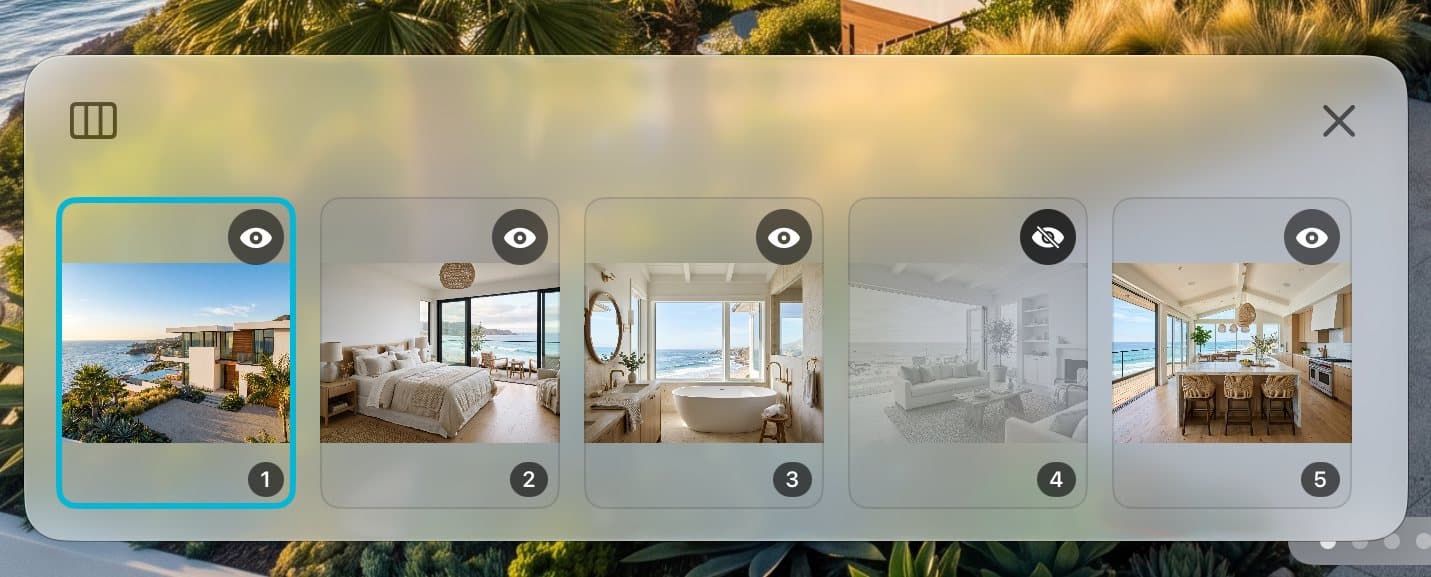
Step 6 of 6
Hide a photo
Tap the stacked-squares button at the bottom left. Tap the eye on a photo to hide it. Tap it again to bring it back.
Good to know
You can pick up to 20 photos at a time.
Have a link to a photo? Paste it in Or paste image URL.
Hidden photos stay on the tile. They just don't show when you present.
Every photo you add is saved in your Library too, so you can use it again.