Build
Add a PDF and hide pages
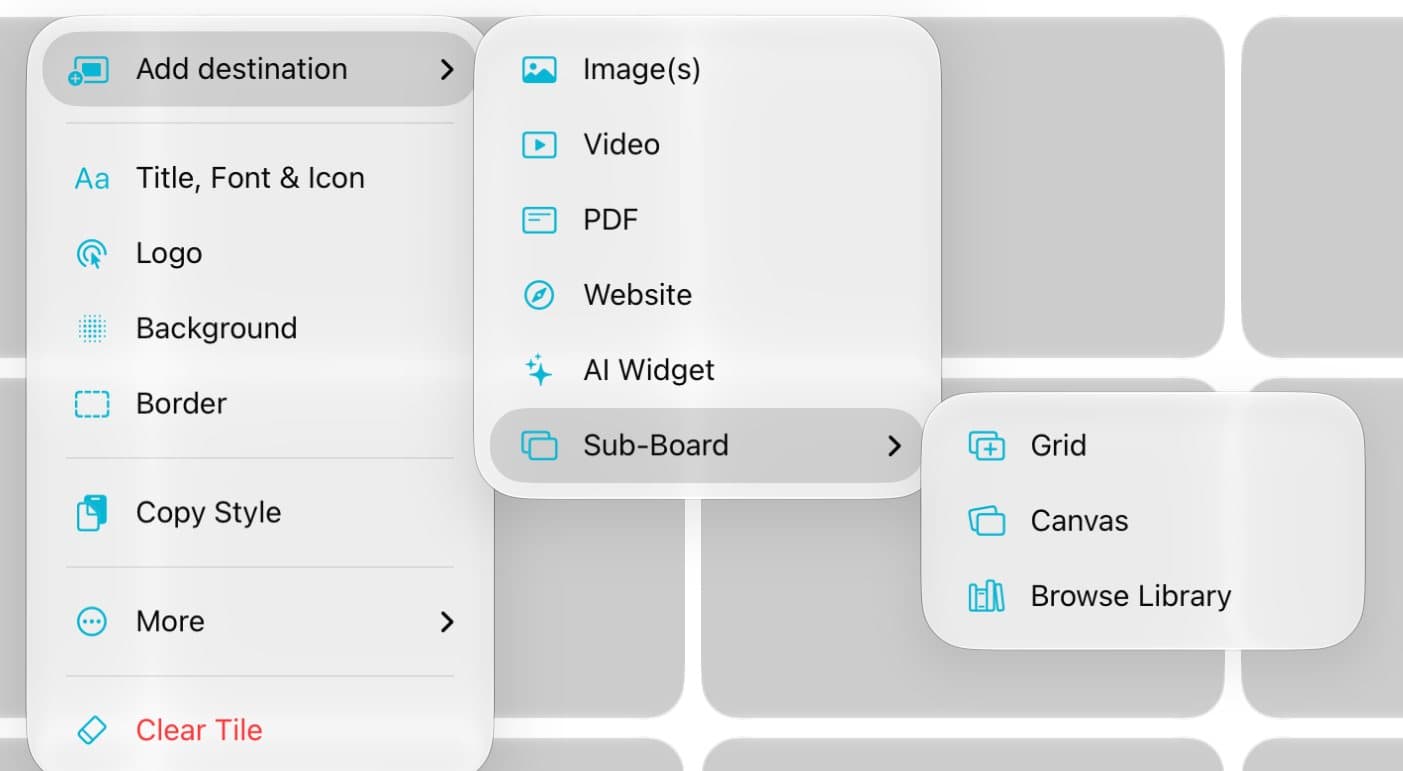
Add a PDF to a tile, then hide the pages you don't want to show. In edit mode, tap ⋯, then Add destination and PDF. Pick your file and tap Done. Open the tile, tap the page button at the bottom, and tap the eye on a page to hide it. Hidden pages are left out of public links too.
Updated By Isaac Stalzer
Step 1 of 6
Open the PDF sheet
In edit mode, tap ⋯ on a tile. Tap Add destination, then PDF.
Step 2 of 6
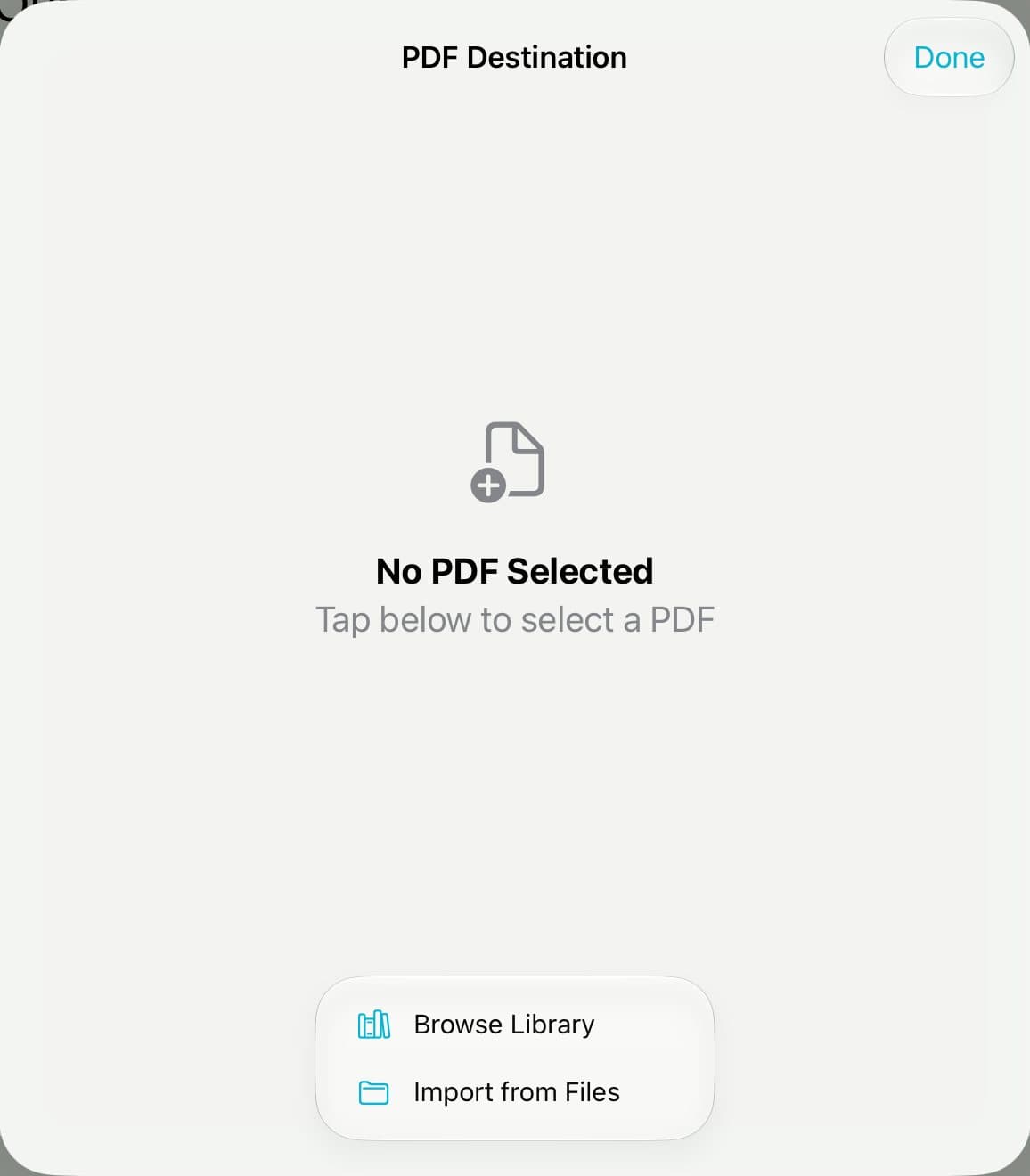
Find the file
Tap Select PDF, then Import from Files.
Step 3 of 6
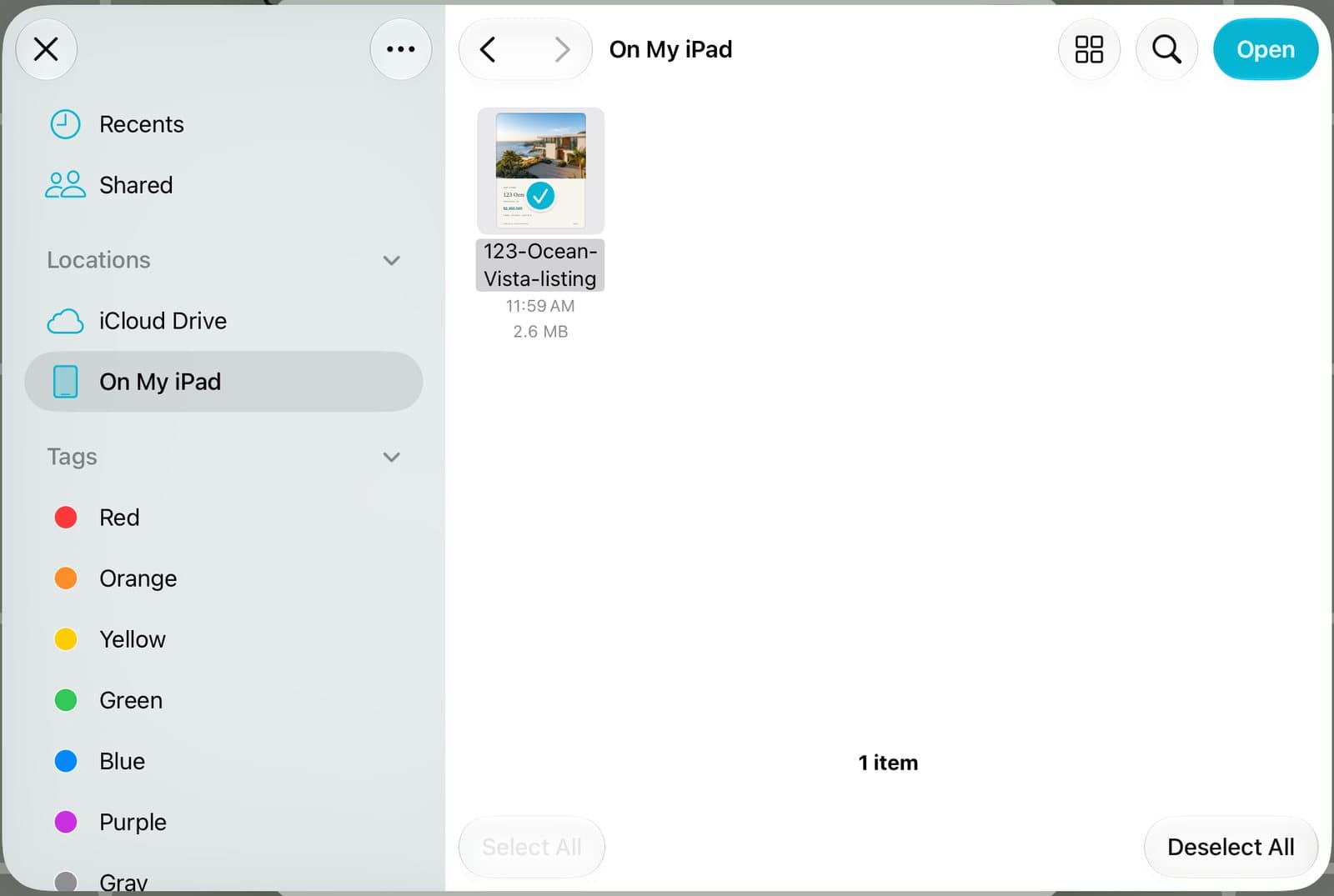
Pick your PDF
Tap the PDF, then tap Open.
Step 4 of 6
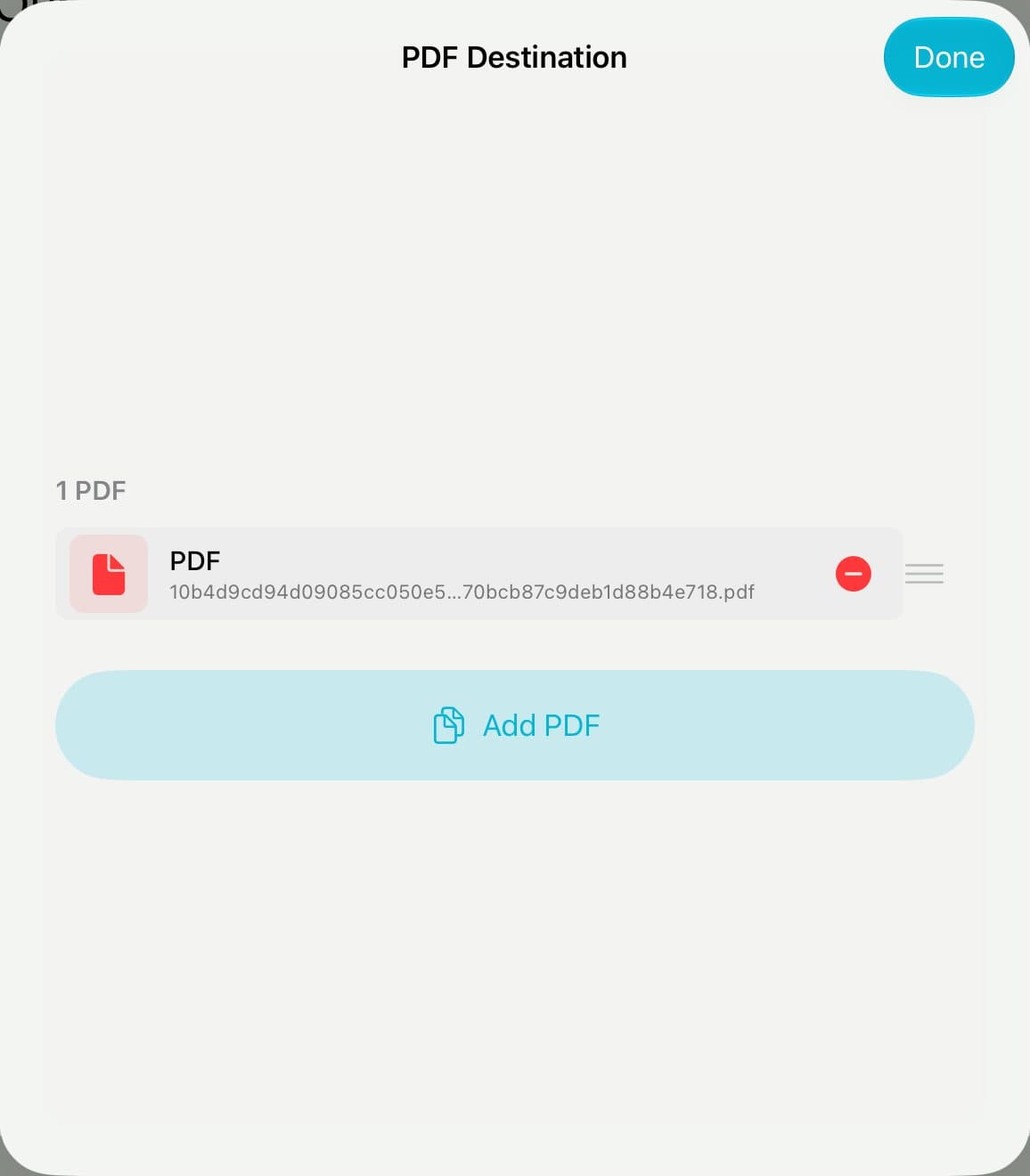
Tap Done
Tap Done. Want more than one? Tap Add PDF. The pages play one after another.
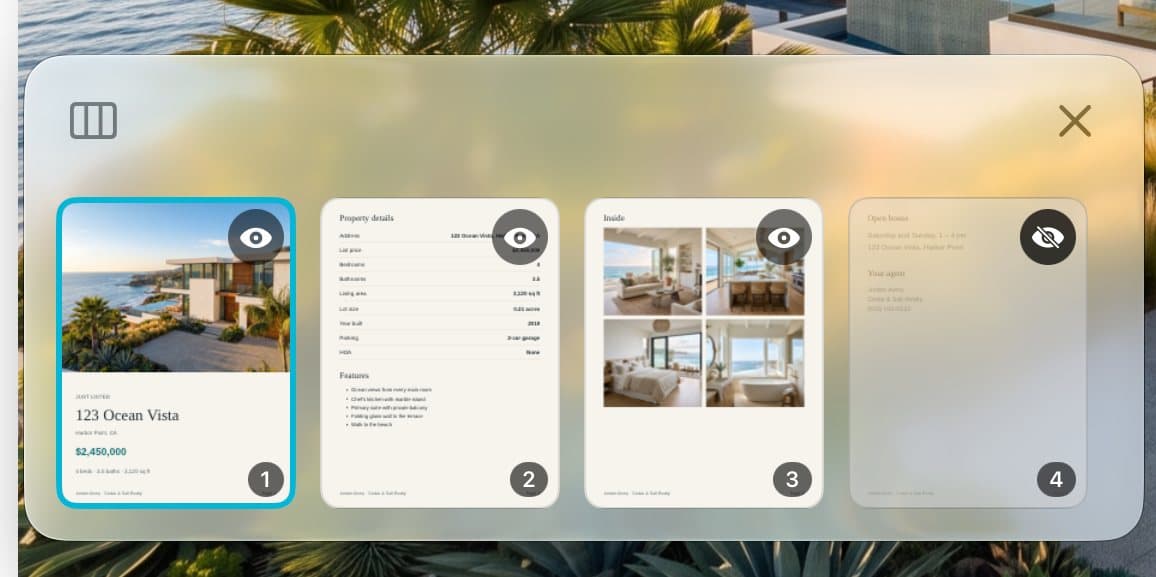
Step 5 of 6
Hide a page
Open the tile. Tap the stacked-squares button at the bottom left. Tap the eye on a page to hide it.
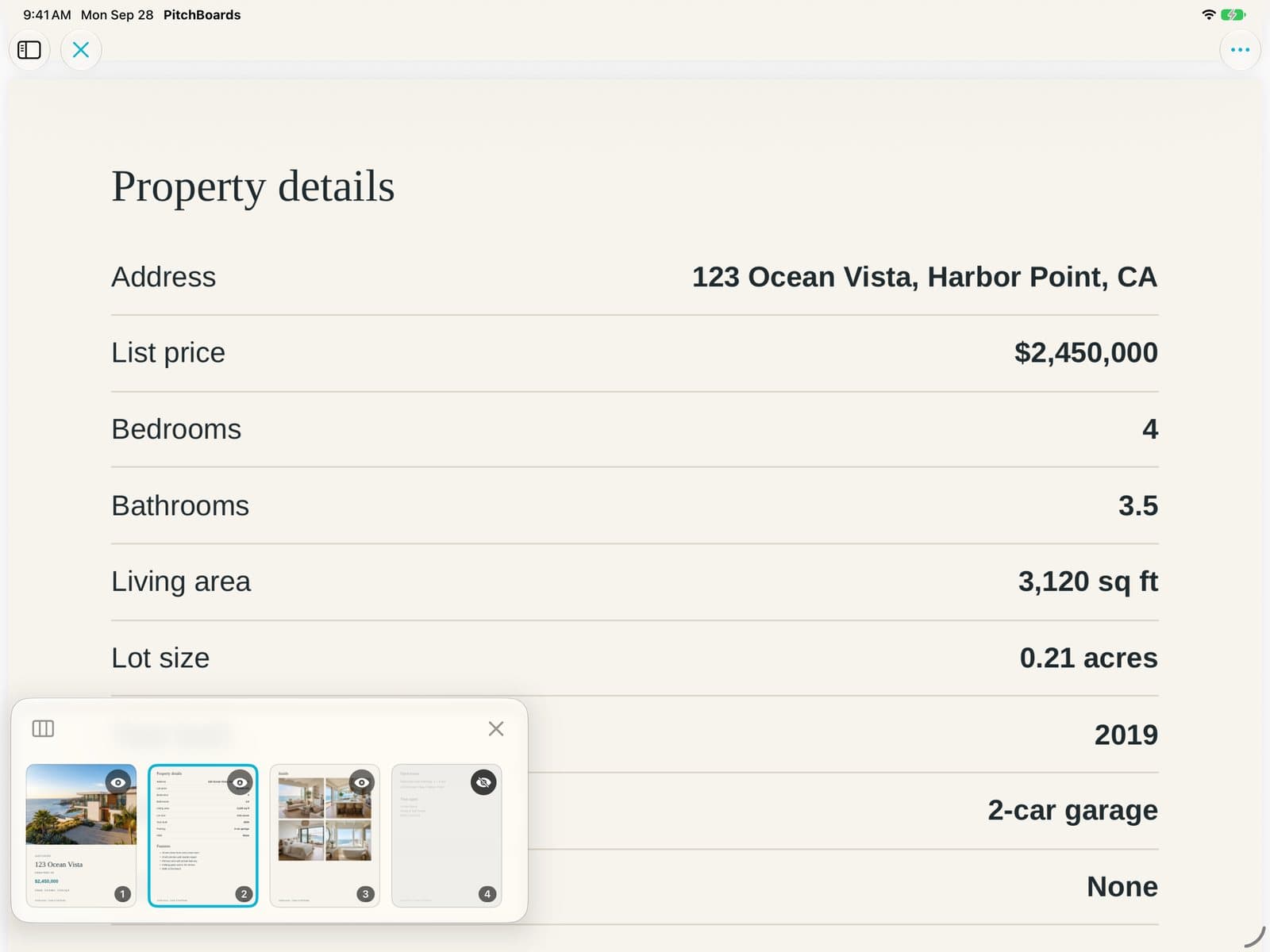
Step 6 of 6
Jump to any page
Tap a page in the strip to go straight to it.
Good to know
PDFs can be up to 50 MB.
Hidden pages are skipped when you present, and left out of a public link.
You can't hide the last page that's still showing.
Hiding pages only changes this tile. The PDF itself stays whole.