Build
Add a ready-made widget from Templates
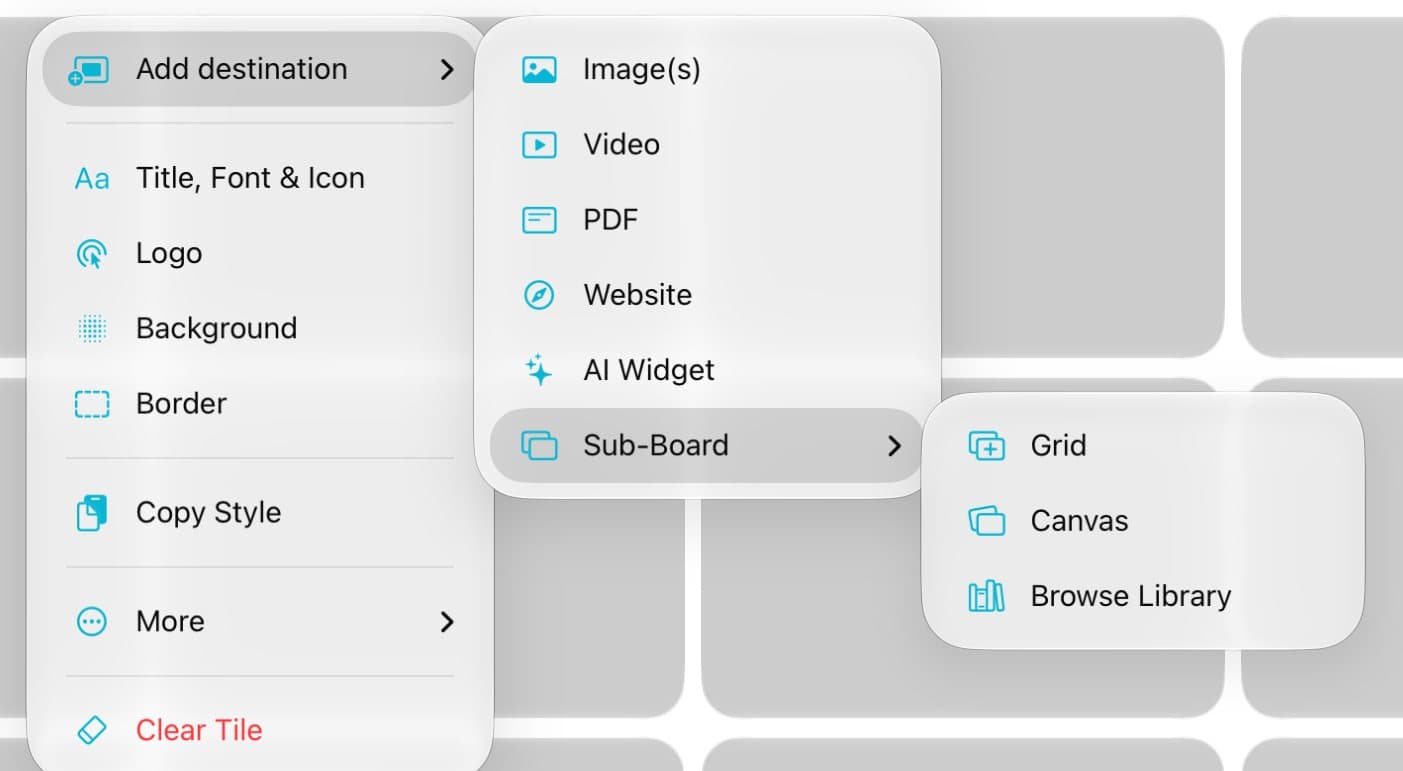
PitchBoards has ready-made widgets you can drop on a tile. In edit mode, tap ⋯ on a tile, then Add destination and AI Widget. Tap Templates and pick one, like a mortgage calculator or a before-and-after slider. Some ask for photos first. Tap Add to Board, and it's on your tile.
Updated By Isaac Stalzer
Step 1 of 6
Open AI Widget
In edit mode, tap ⋯ on a tile. Tap Add destination, then AI Widget.
Step 2 of 6
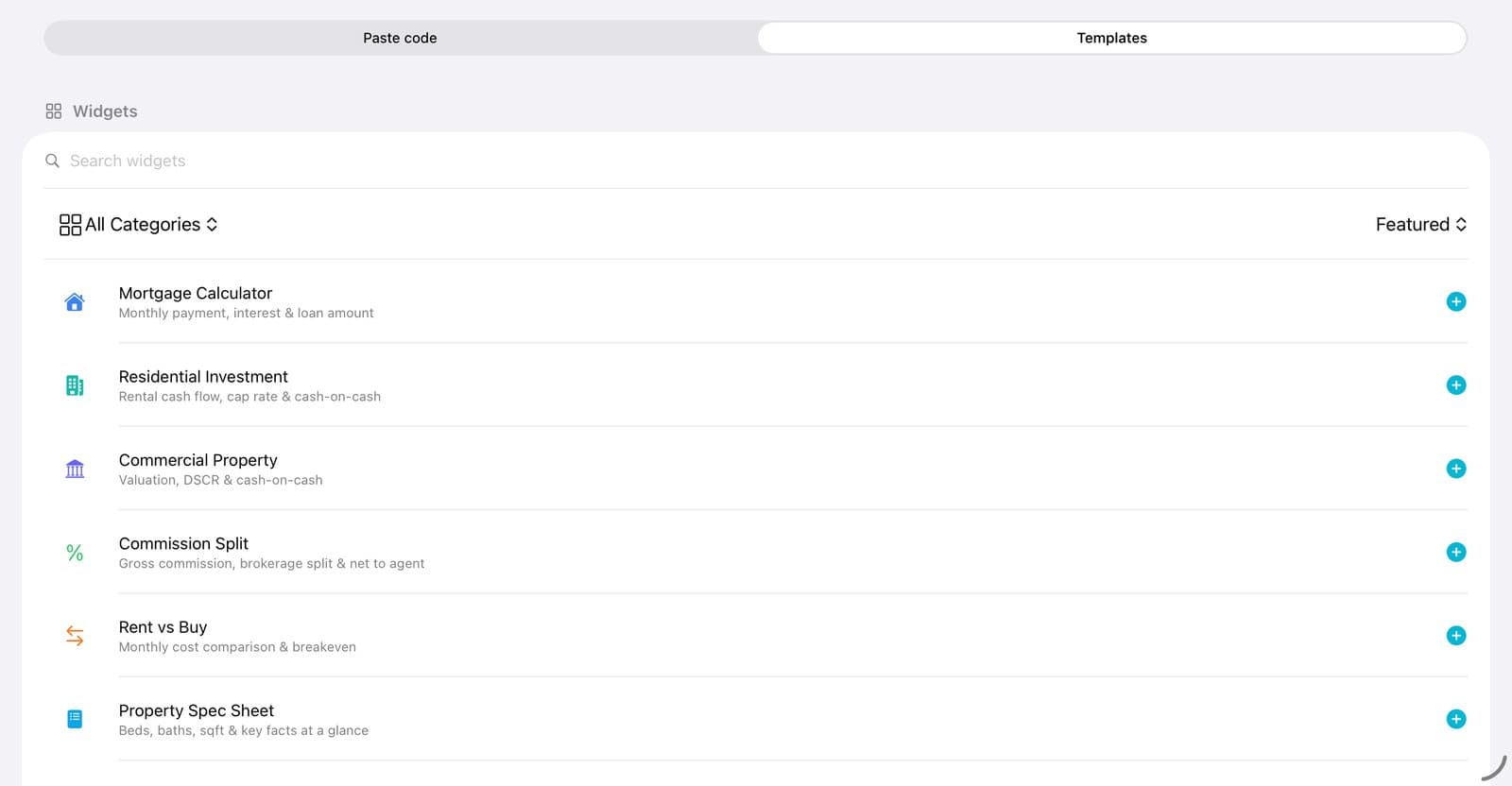
Tap Templates
Tap Templates. You'll see the list of ready-made widgets.
Step 3 of 6
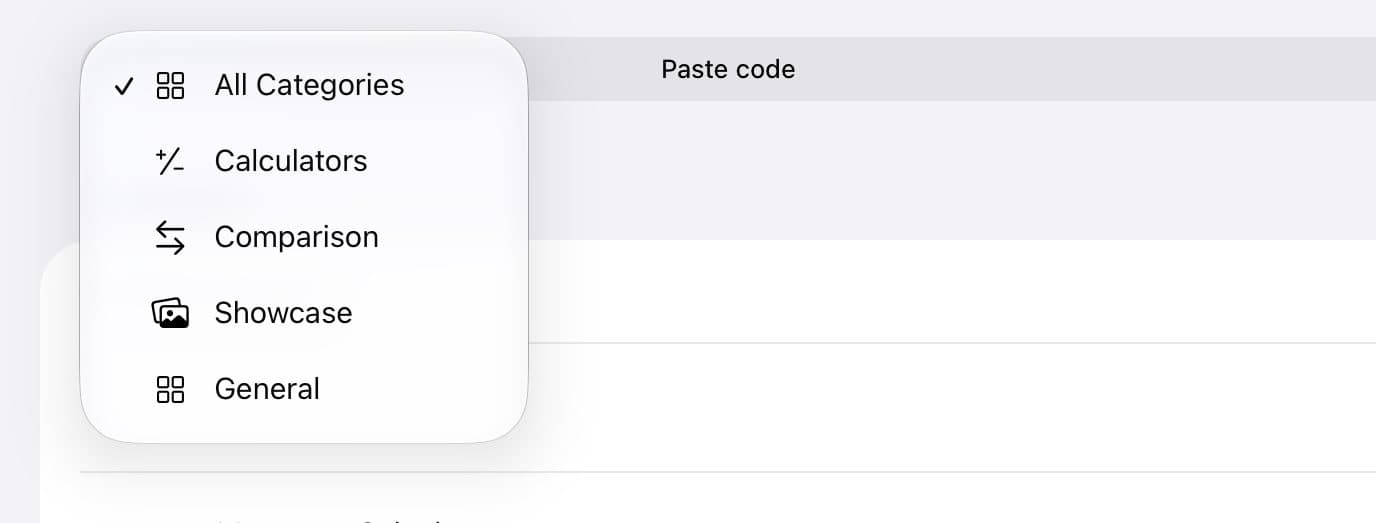
Narrow it down
Tap All Categories to pick a kind: Calculators, Comparison, Showcase, or General.
Step 4 of 6
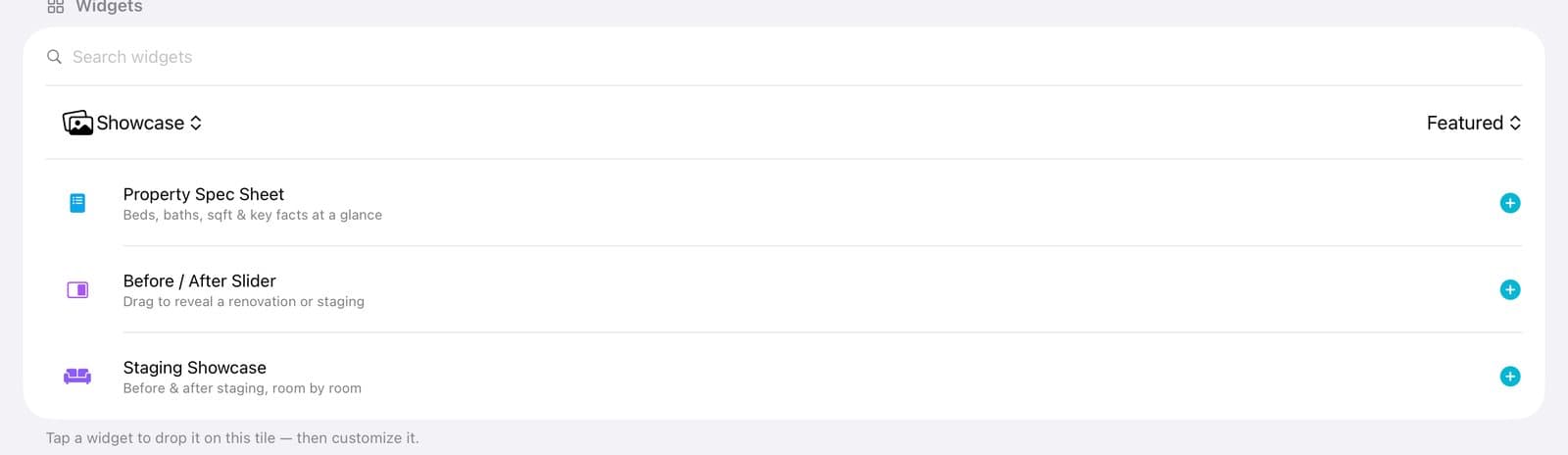
Pick one
Tap a widget, like Before / After Slider.
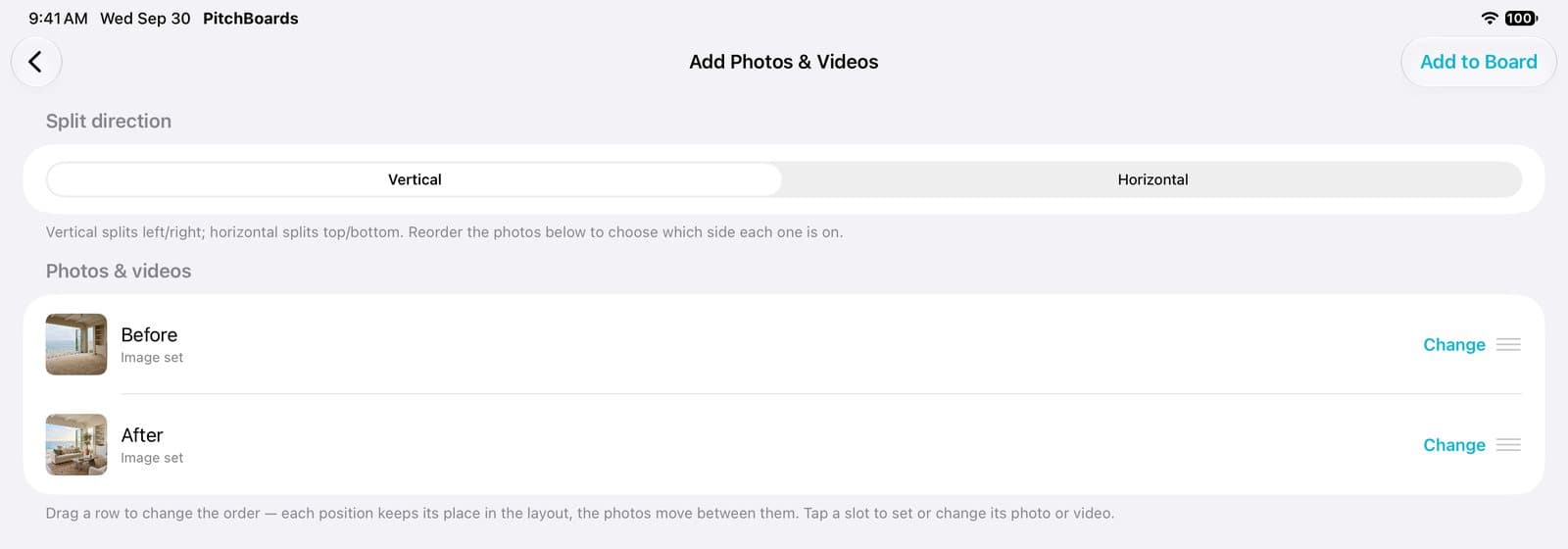
Step 5 of 6
Add its photos
Some widgets ask for photos first. Tap Add for each one. Then tap Add to Board.
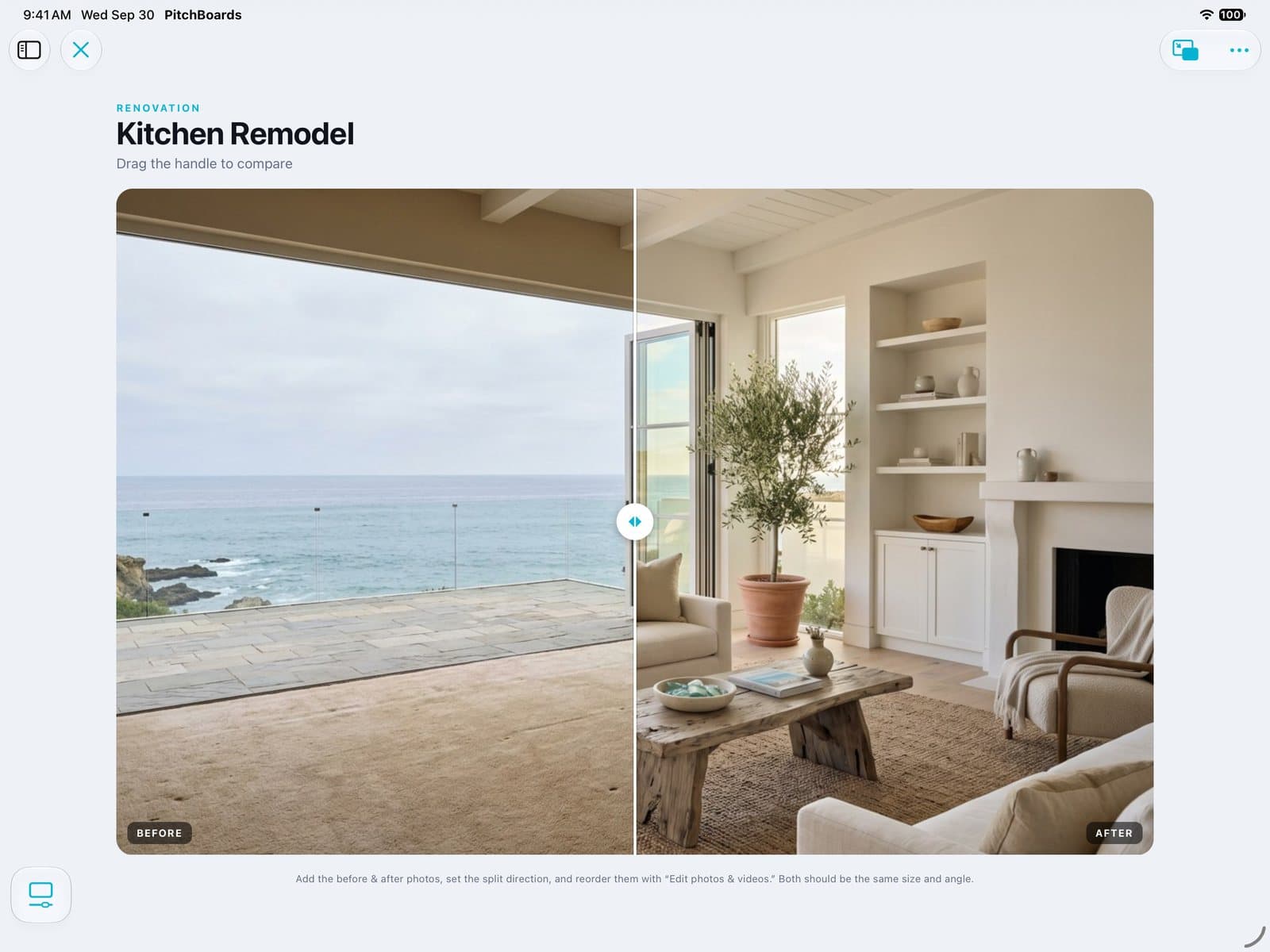
Step 6 of 6
It's on your tile
The widget opens, ready to use. Next, change its words and photos.
Good to know
Tapping a template adds it right away. You can change everything after.
Want it floating over your board? Open the widget and tap the Picture in Picture button at the top.
Every widget you add is saved in your Library.