Build
Change a widget's words, photos, and colors
Swap Content lists everything you can change on a widget. Open the widget, tap ⋯, then Swap Content. Change the words under Text, swap pictures under Photos, point buttons somewhere under Buttons & Links, and recolor under Colors. Tap Done to save. Nothing changes until you tap Done.
Updated By Isaac Stalzer
Step 1 of 5
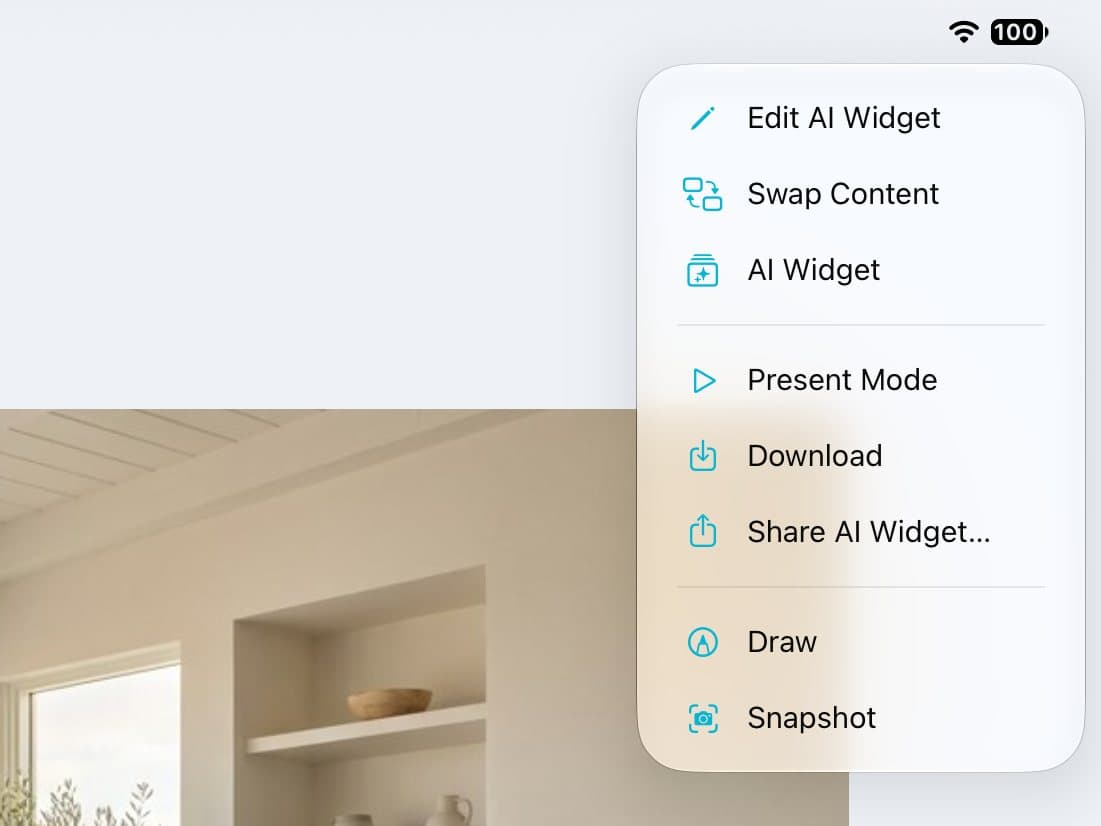
Open Swap Content
Open the widget. Tap ⋯ at the top right, then Swap Content.
Step 2 of 5
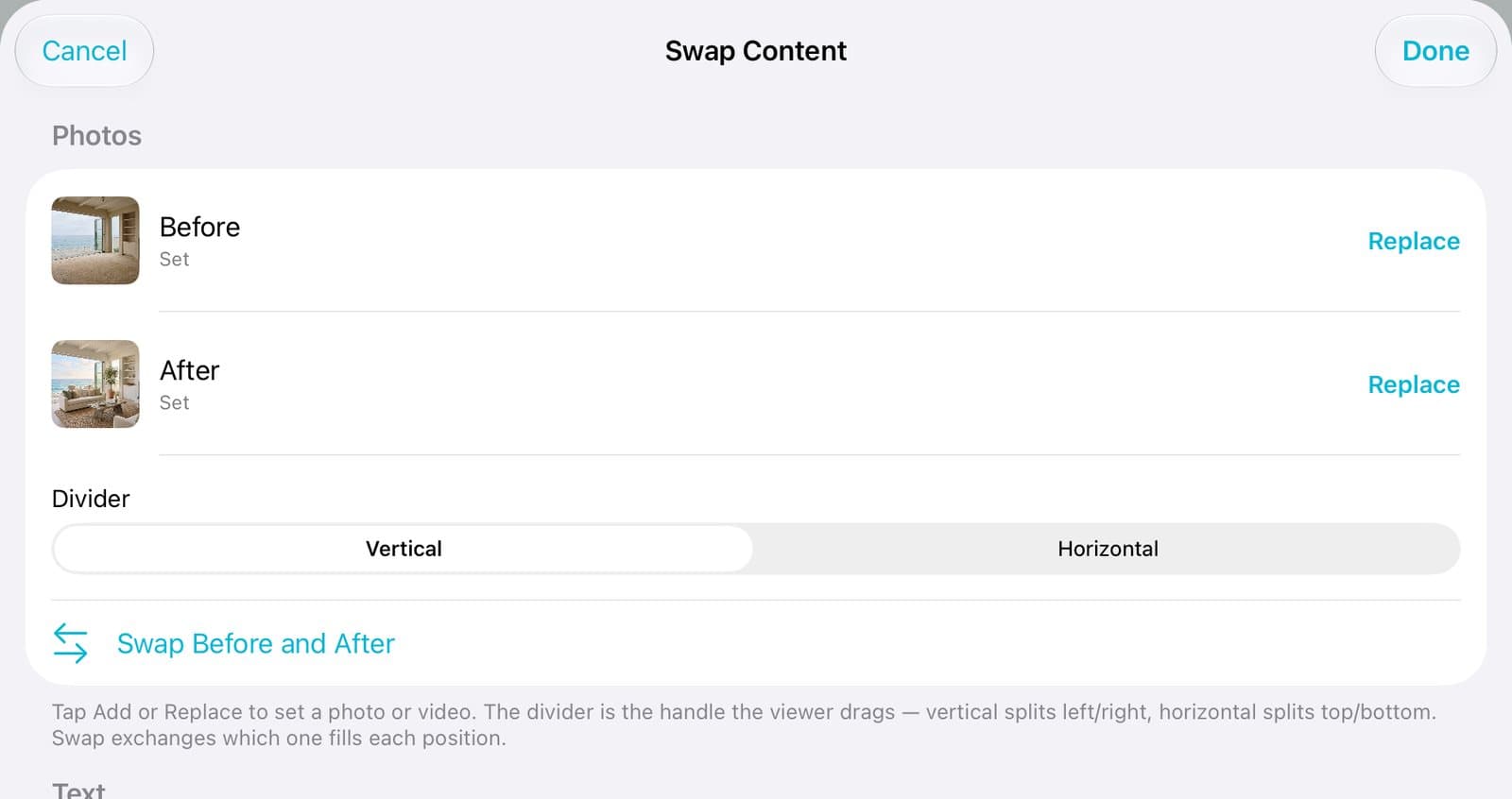
Swap the photos
Under Photos, tap Replace to pick a new picture.
Step 3 of 5
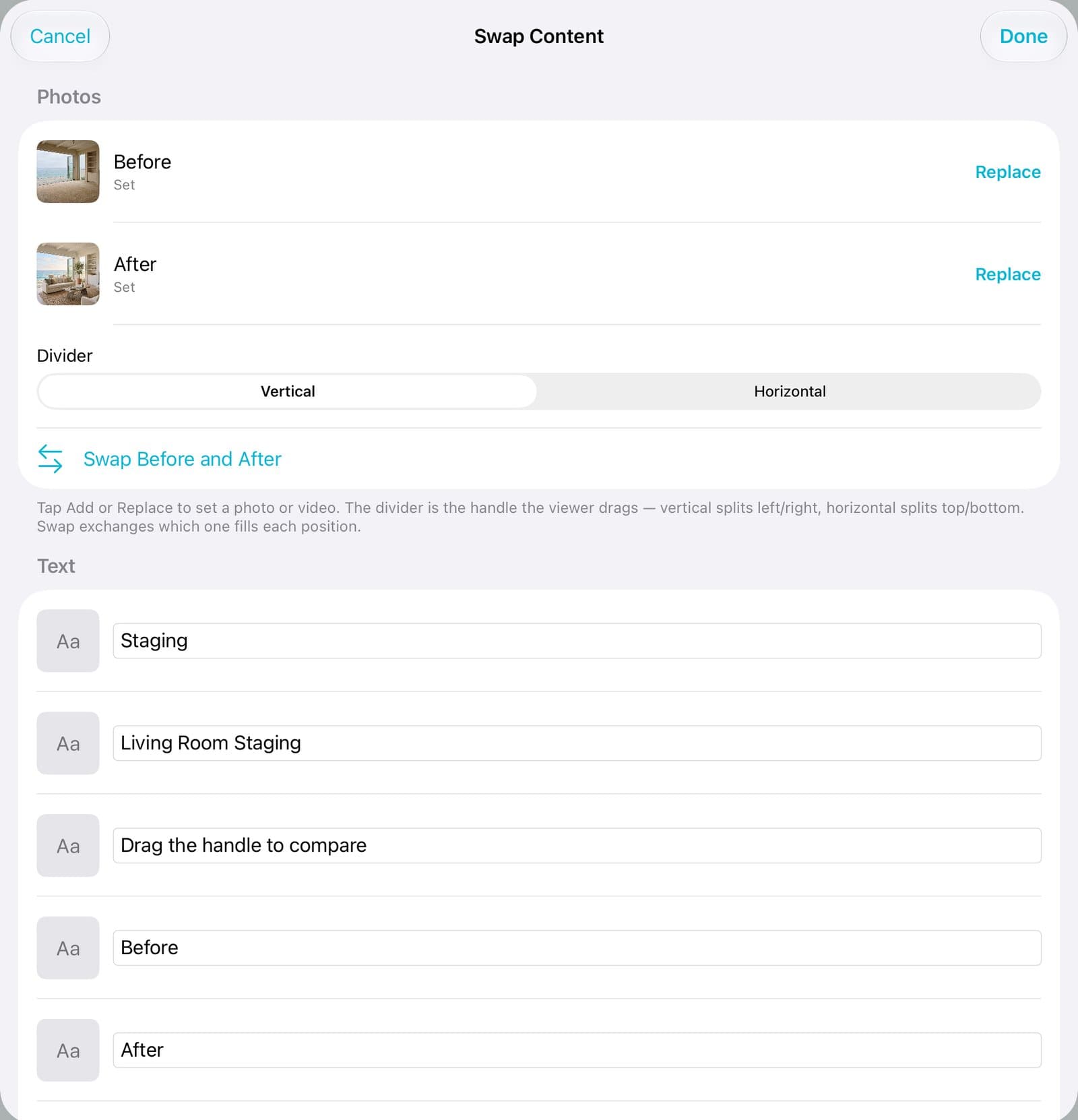
Change the words
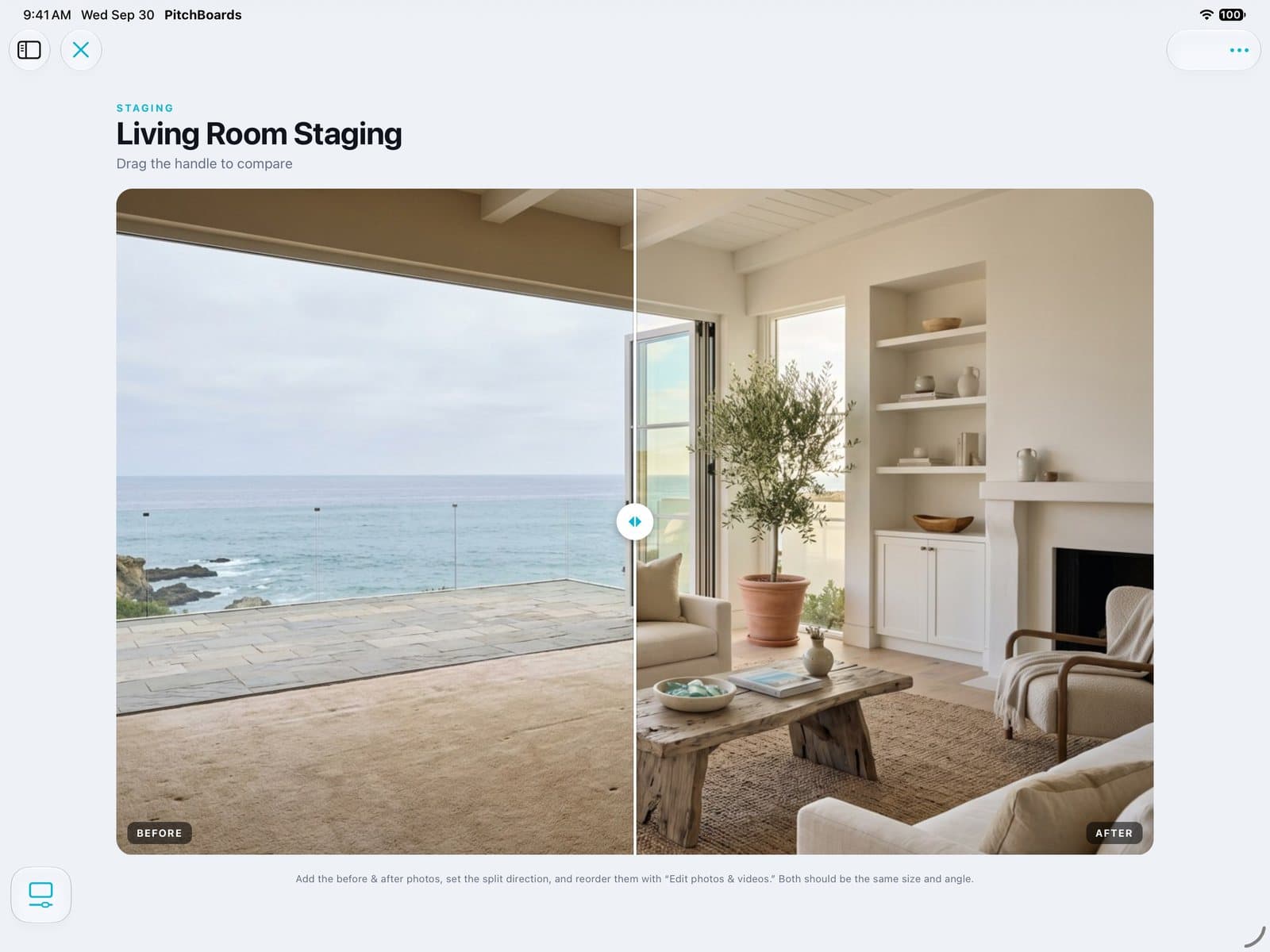
Under Text, tap a line and type. Here the title now says Living Room Staging.
Step 4 of 5
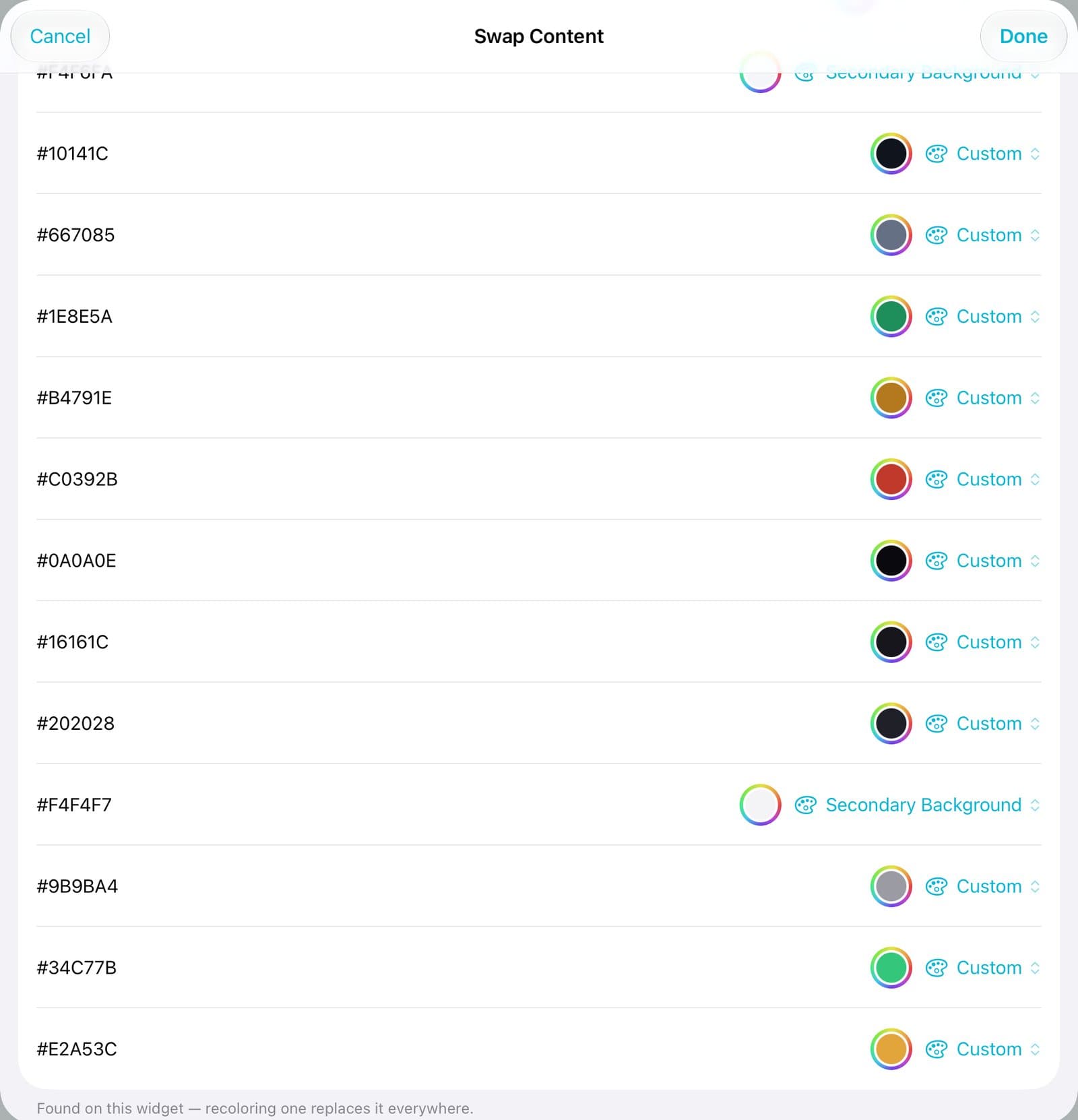
Change the colors
Under Colors, tap a color to change it. It changes everywhere that color is used.
Step 5 of 5
Tap Done
Tap Done. The widget updates right away.
Good to know
Swiping the sheet down closes it without saving. Use Done.
Buttons can open a web page, an email, or a phone number. Set them under Buttons & Links.
Want to change one thing by tapping it? See Edit a widget by tapping it.