Build
Add text, photos, shapes, and QR codes to a canvas
In Edit Mode, tap + at the top. Pick what to add: a title, text, an image, a video, a shape, an icon, a tile, or a QR code. It lands on the canvas. Drag it where you want it. Drag a corner dot to make it bigger or smaller.
Updated By Isaac Stalzer

Step 1 of 6
Tap +
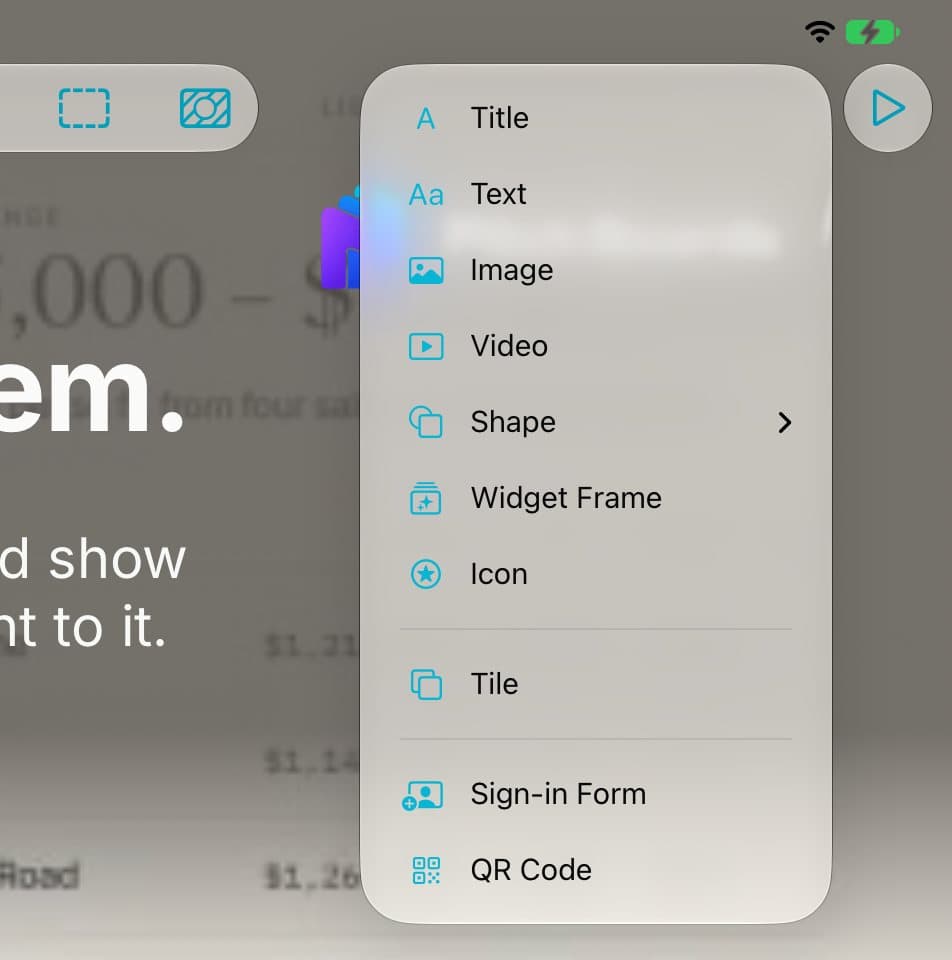
In Edit Mode, tap + at the top.
Step 2 of 6
Pick what to add
Tap Title, Text, Image, Video, Shape, Icon, Tile, or QR Code.
Step 3 of 6
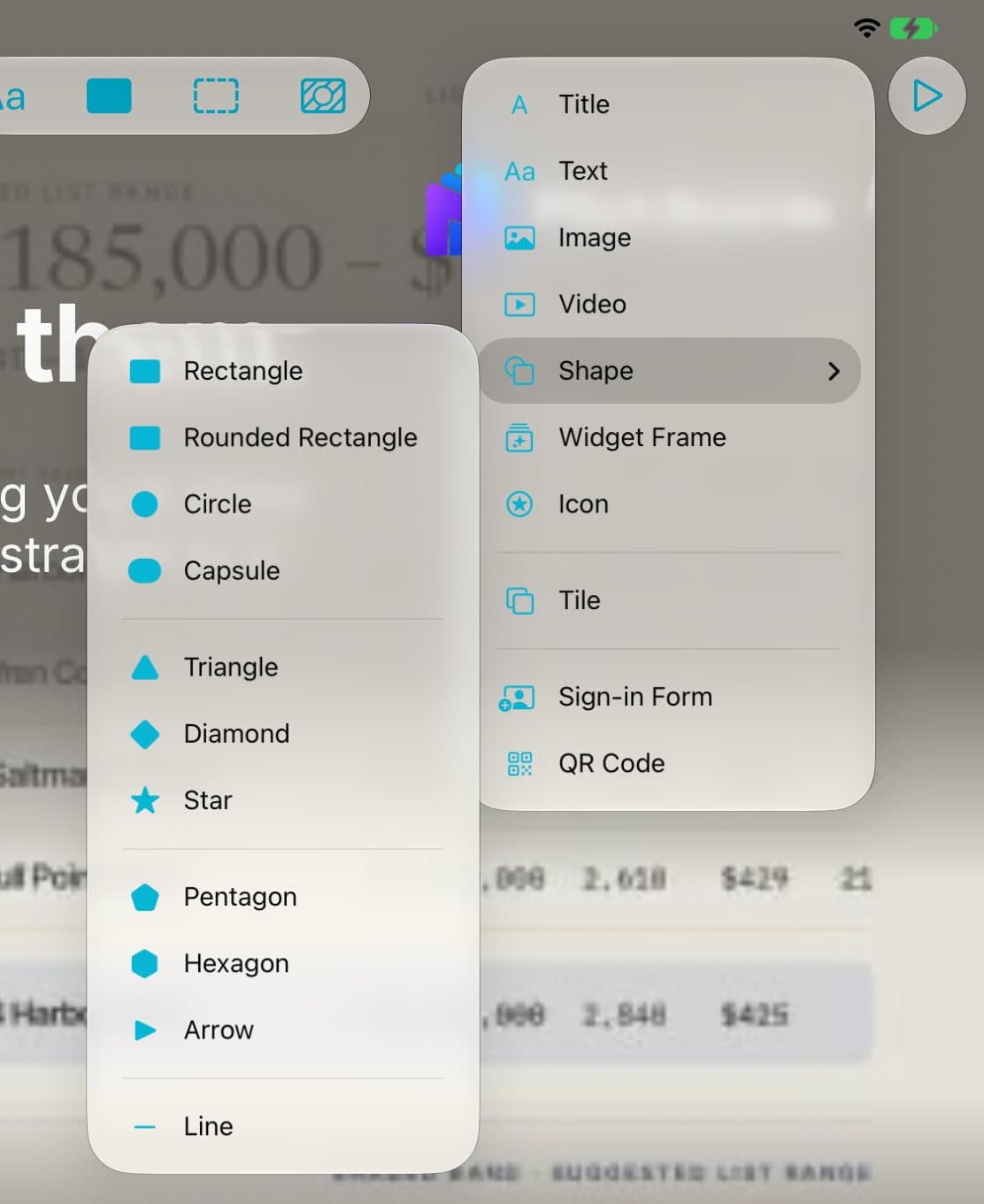
Shapes have their own list
Tap Shape, then pick one: a box, a circle, a star, an arrow, a line, and more.
Step 4 of 6
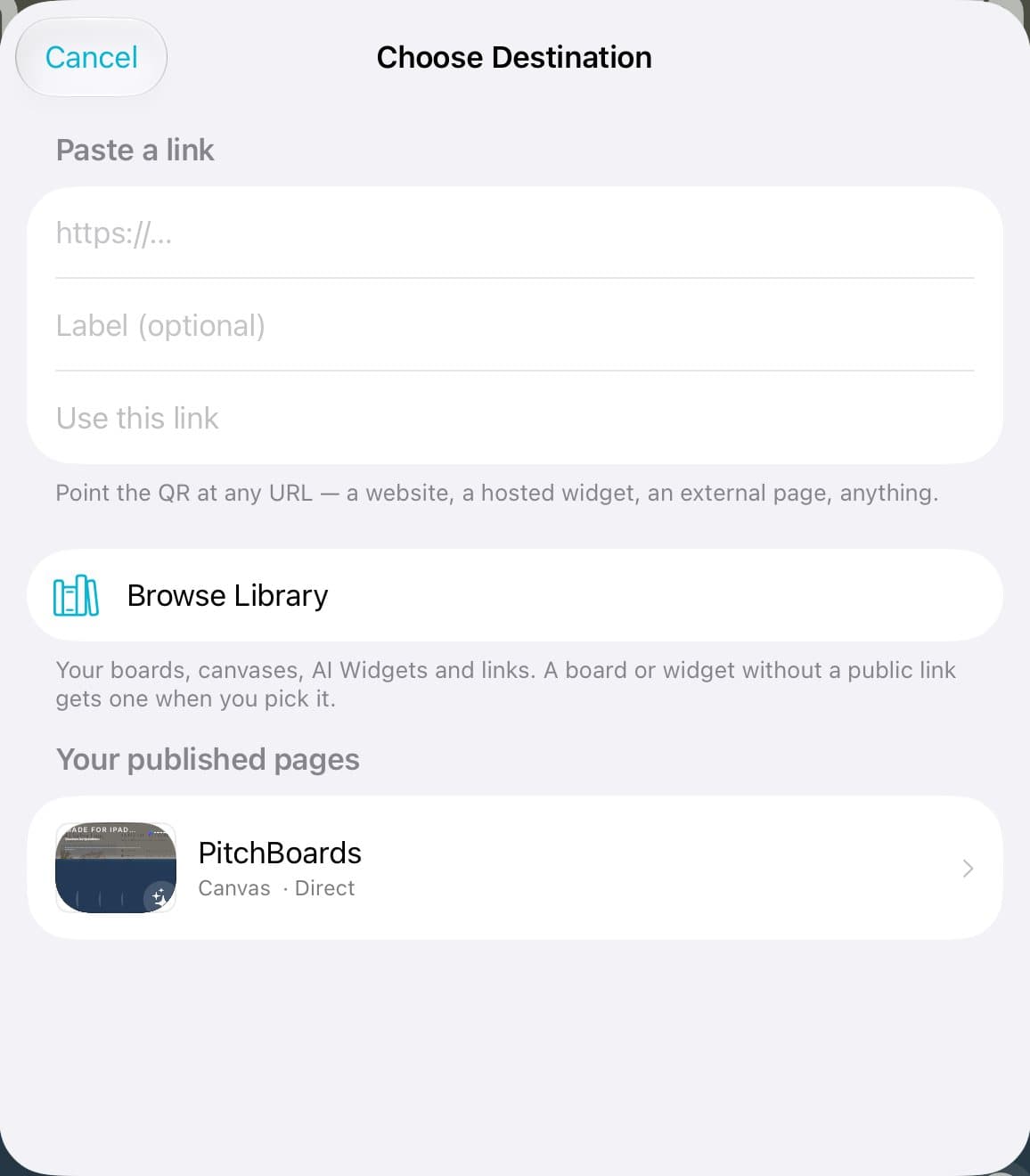
For a QR code, pick where it goes
Paste a link, or tap one of Your published pages.
Step 5 of 6
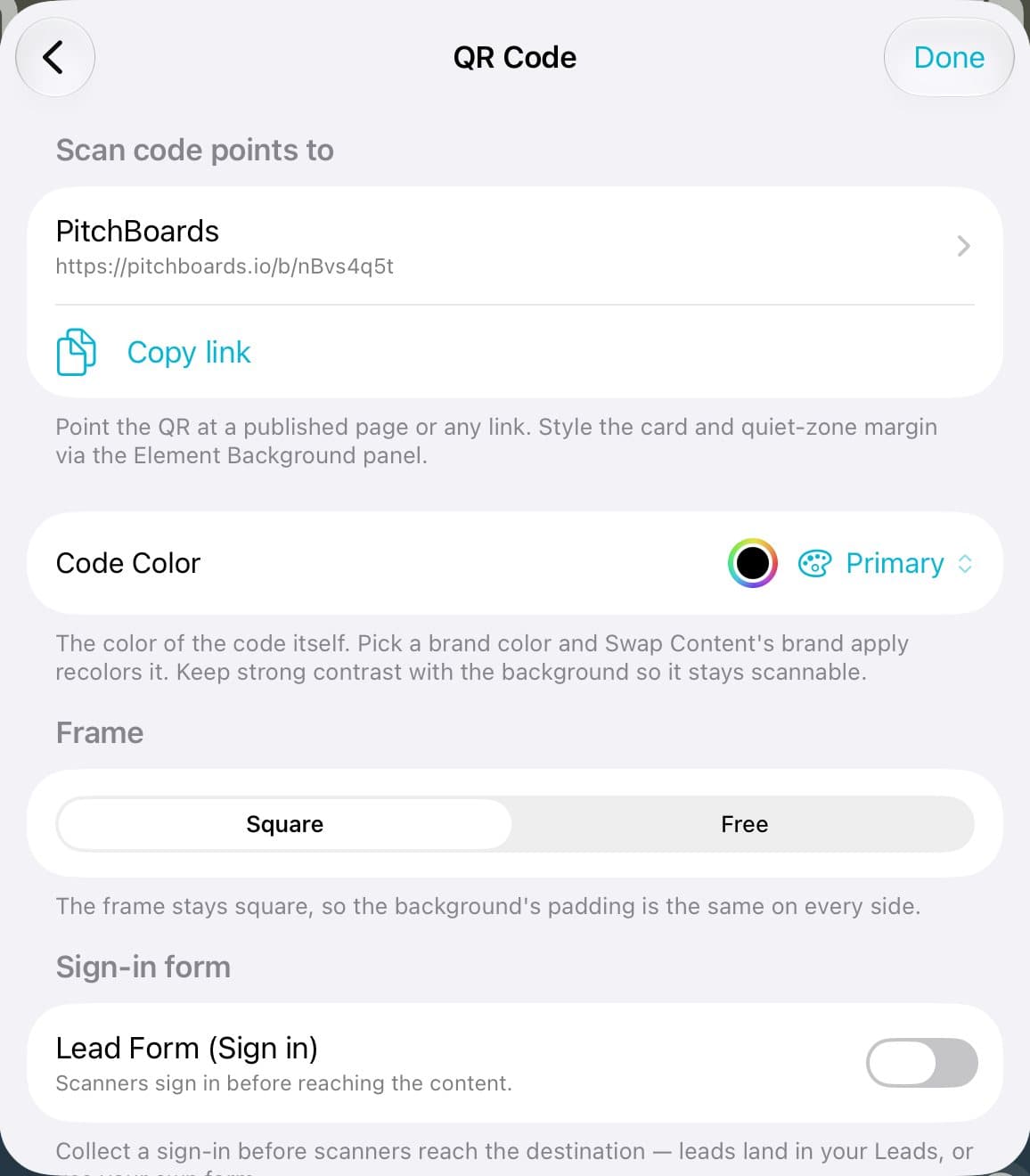
Tap Done
You can change its color first. Tap Done.

Step 6 of 6
Drag it into place
Drag it where you want it. Drag a corner dot to change its size.
Good to know
Sign-in Form is iPad only. Guests type their name at your open house door.
A QR code can ask people to sign in first. Turn on Lead Form (Sign in).
Mistake? Tap the Undo arrow.