Build
What the canvas buttons do
When you edit a canvas, the tools sit at the top right in small groups. Undo and Redo fix mistakes. The next group styles your tiles. Then come Add, Select, Layers, Background, and More. The play button on the far right starts presenting.
Updated By Isaac Stalzer

Step 1 of 7
Find the tools
Open a canvas and tap ⋯ → Edit Mode. The tools show at the top right.

Step 2 of 7
Undo and Redo
The arrows undo and redo your last change.
Step 3 of 7
Style your tiles
Aa sets fonts and icons. Then tile backgrounds, borders, and hidden tiles. They change every tile on the canvas.
Step 4 of 7
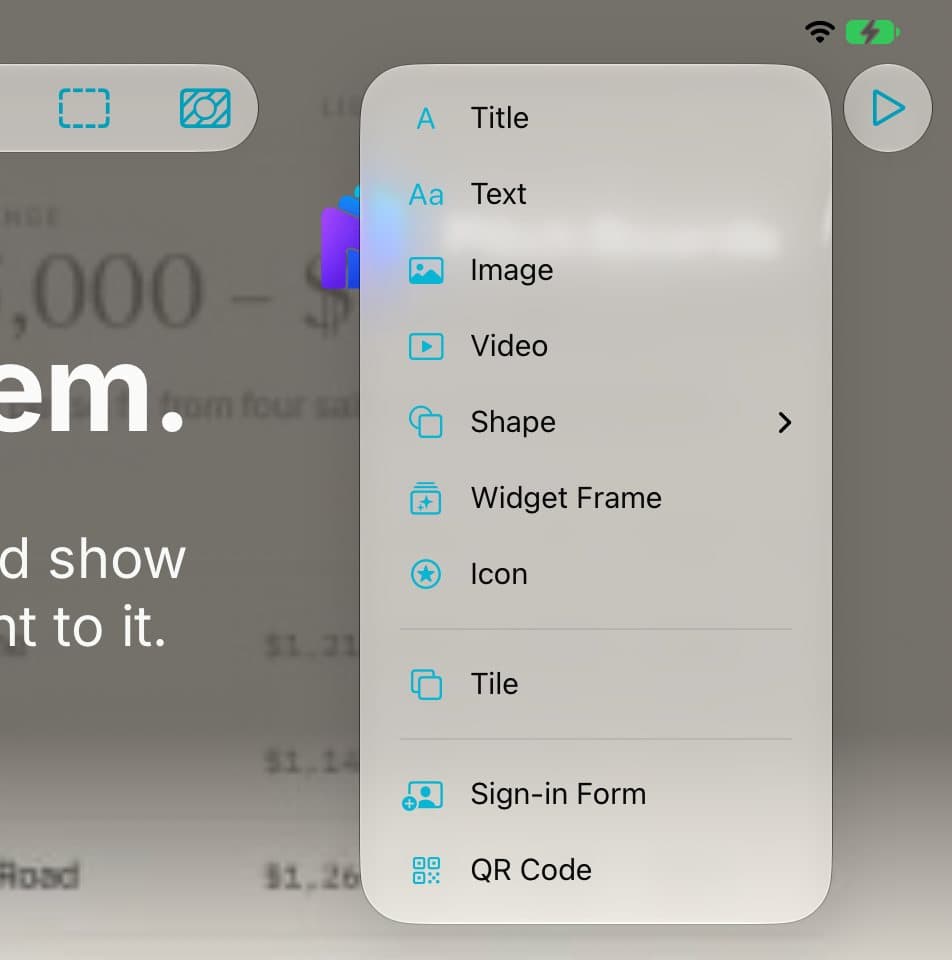
+ adds things
Tap + to add a title, text, an image, a video, a shape, a tile, or a QR code.
Step 5 of 7
Select, Layers, and Background
✓ picks many things at once. Layers shows what's in front. The dots set the background.
Step 6 of 7
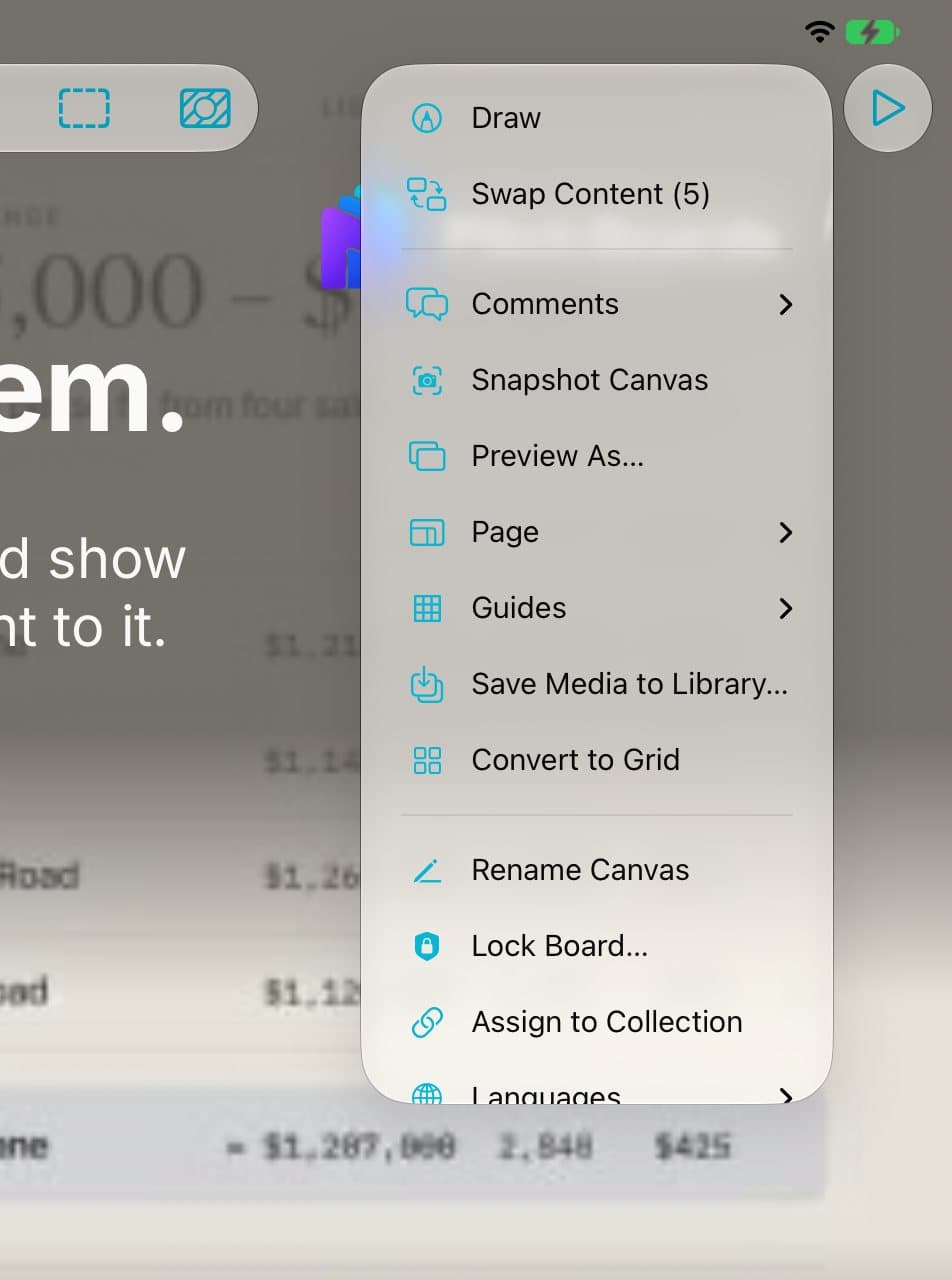
⋯ has the rest
⋯ holds Swap Content, Share, page size, guides, and more.
Step 7 of 7
▶ presents
The play button hides the tools and presents.
Good to know
Tap something on the canvas and the buttons change to arrange it.
On iPhone, the style buttons sit together under Style.