Build
Line things up on a canvas
Tap something on the canvas to select it. New buttons show at the top: Center, Align, Z-Order, and the Element menu. Use them to line things up, put things in front or behind, set an exact size, or lock something so it can't move.
Updated By Isaac Stalzer

Step 1 of 6
Tap it to select it
Dots show at the corners. New buttons show at the top.
Step 2 of 6
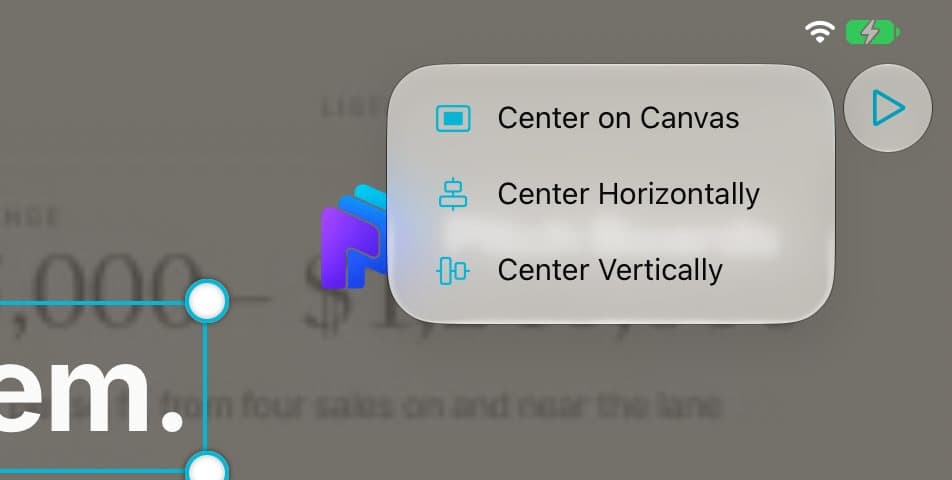
Center it
Tap the Center button. Pick Center on Canvas, Center Horizontally, or Center Vertically.
Step 3 of 6
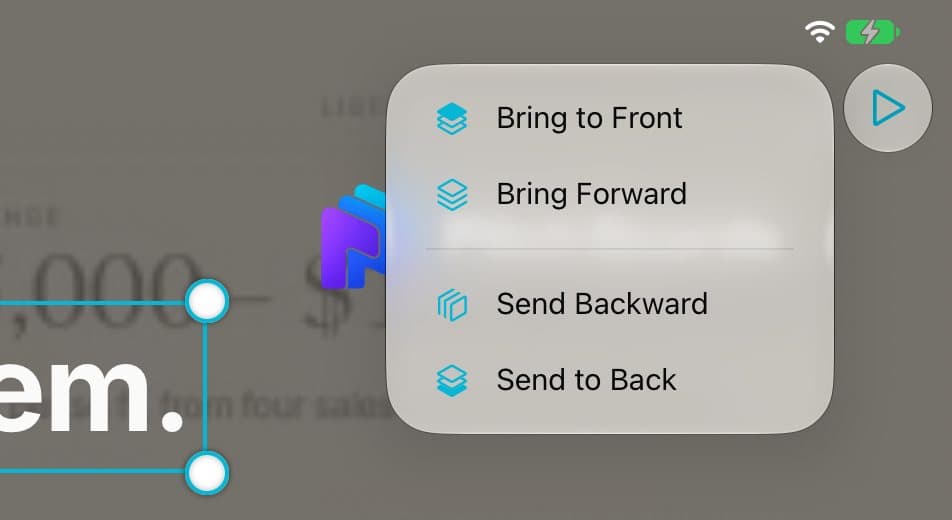
Put it in front or behind
Tap Z-Order. Pick Bring to Front or Send to Back.
Step 4 of 6
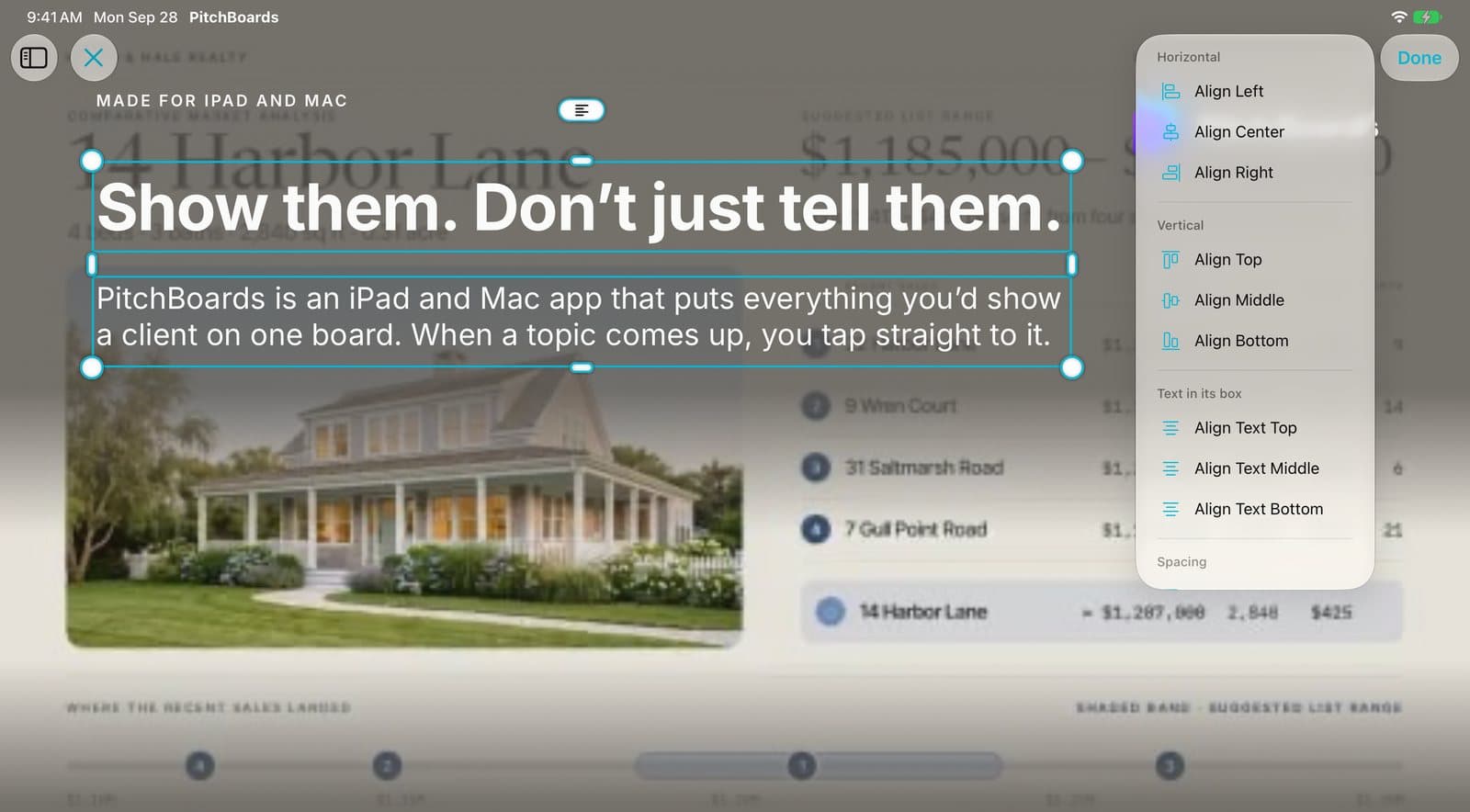
Line up two or more
Tap ⋯ → Select More… and tap more things. Tap Align. Pick a side.
Step 5 of 6
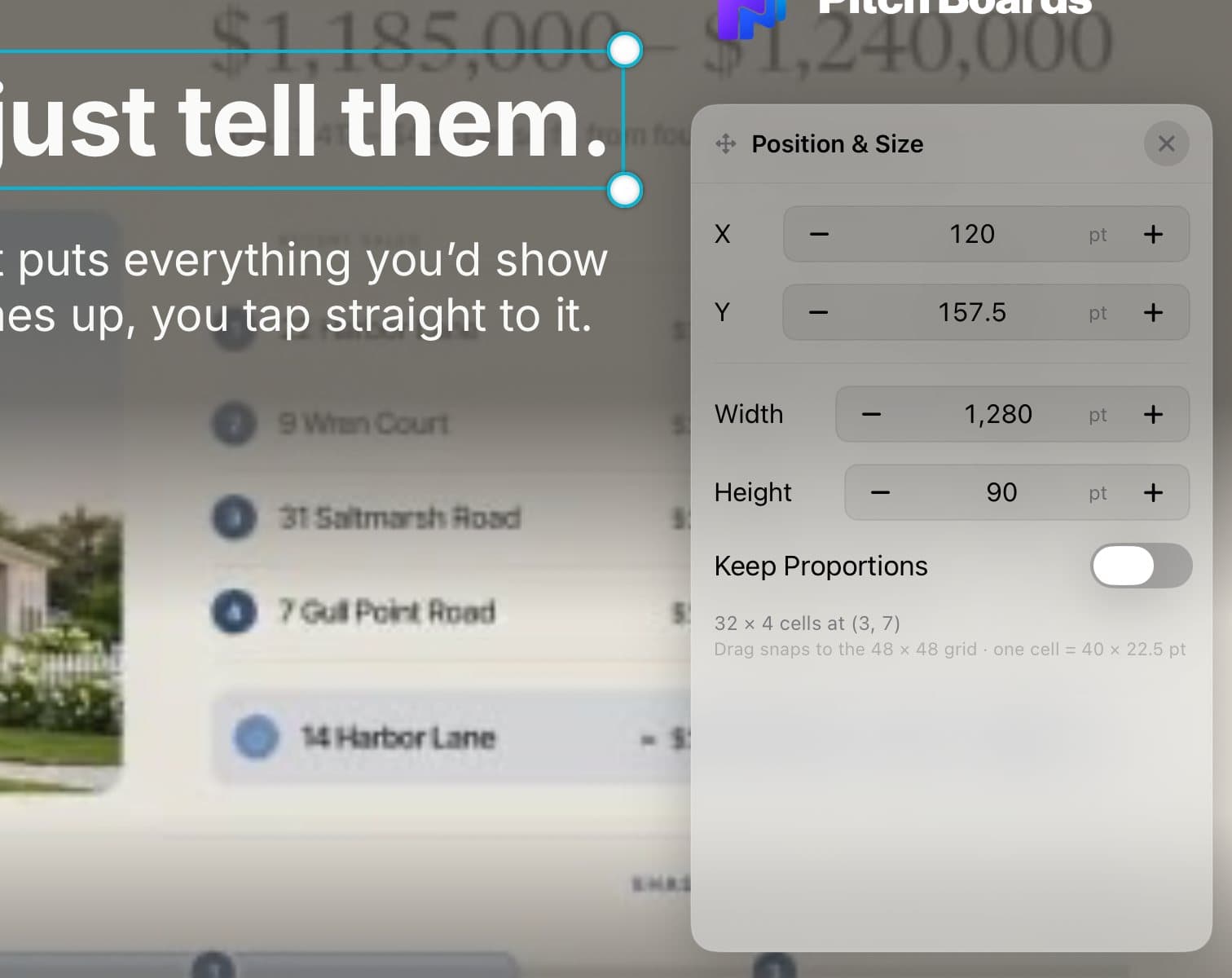
Set an exact spot and size
Tap ⋯ → Arrange → Position & Size. Type the numbers.
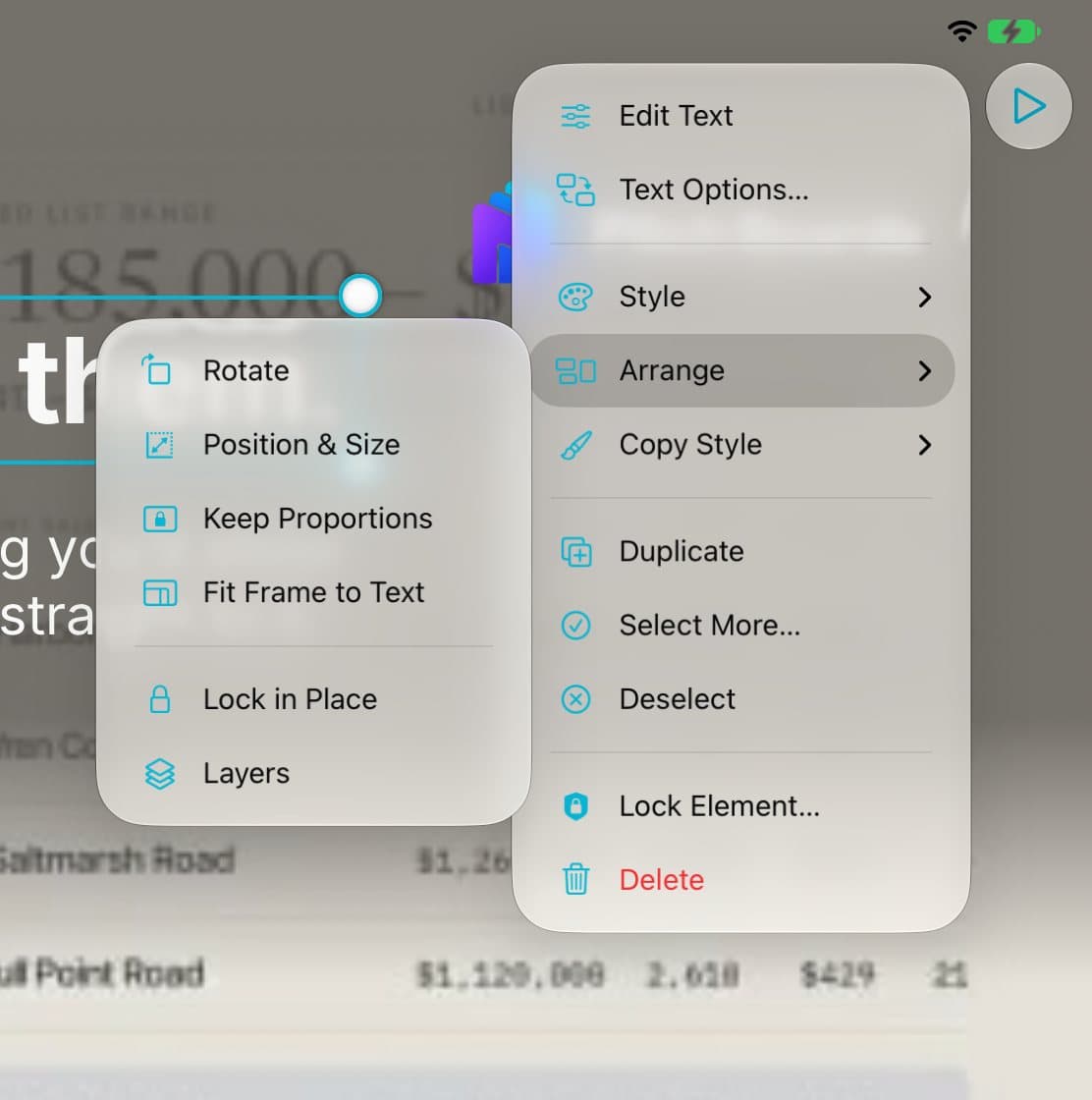
Step 6 of 6
Lock it in place
Tap ⋯ → Arrange → Lock in Place. Now it can't move by accident.
Good to know
Things snap to a grid when you drag them.
Locked something? Find it in Layers to unlock it.
Oops? Tap the Undo arrow.