Build
Edit a widget by tapping it
You can change a widget by tapping the part you want. Open the widget, tap ⋯, then Edit AI Widget. Everything you can change gets a dotted outline. Tap one to change its words, color, link, or photo. Tap Done to save, or Cancel to throw the changes away.
Updated By Isaac Stalzer
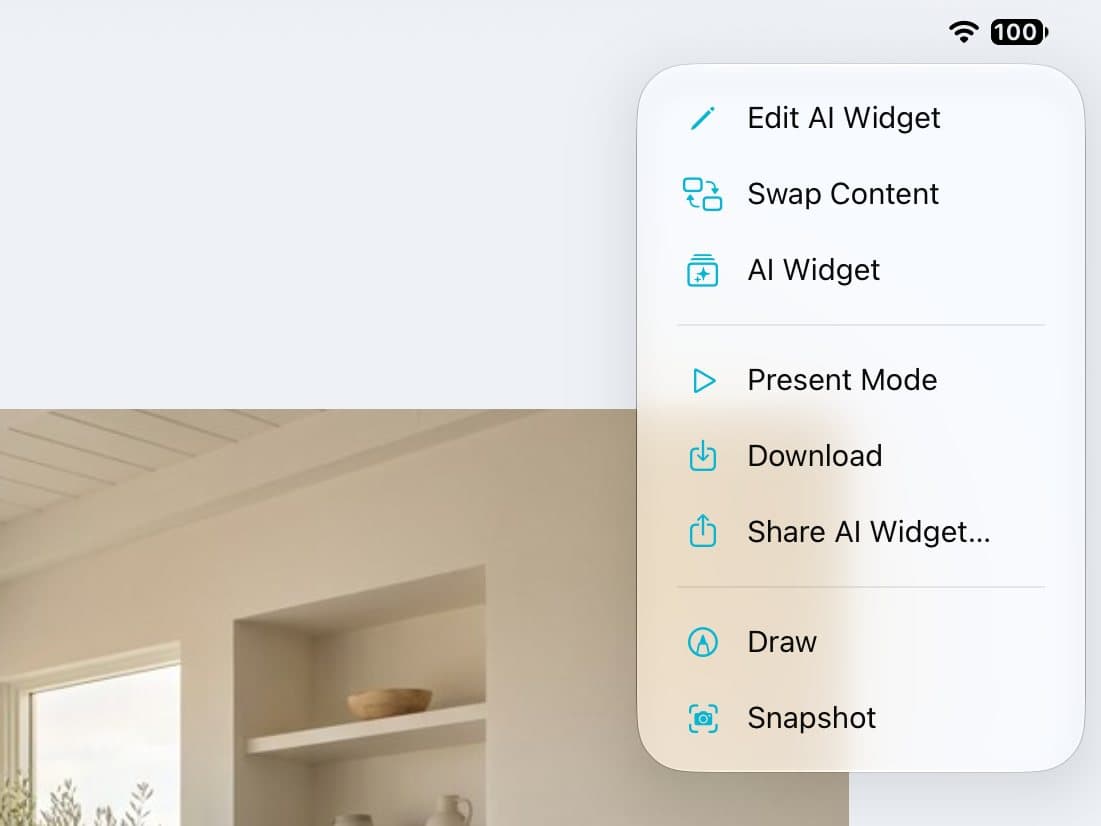
Step 1 of 4
Open the editor
Open the widget. Tap ⋯, then Edit AI Widget.
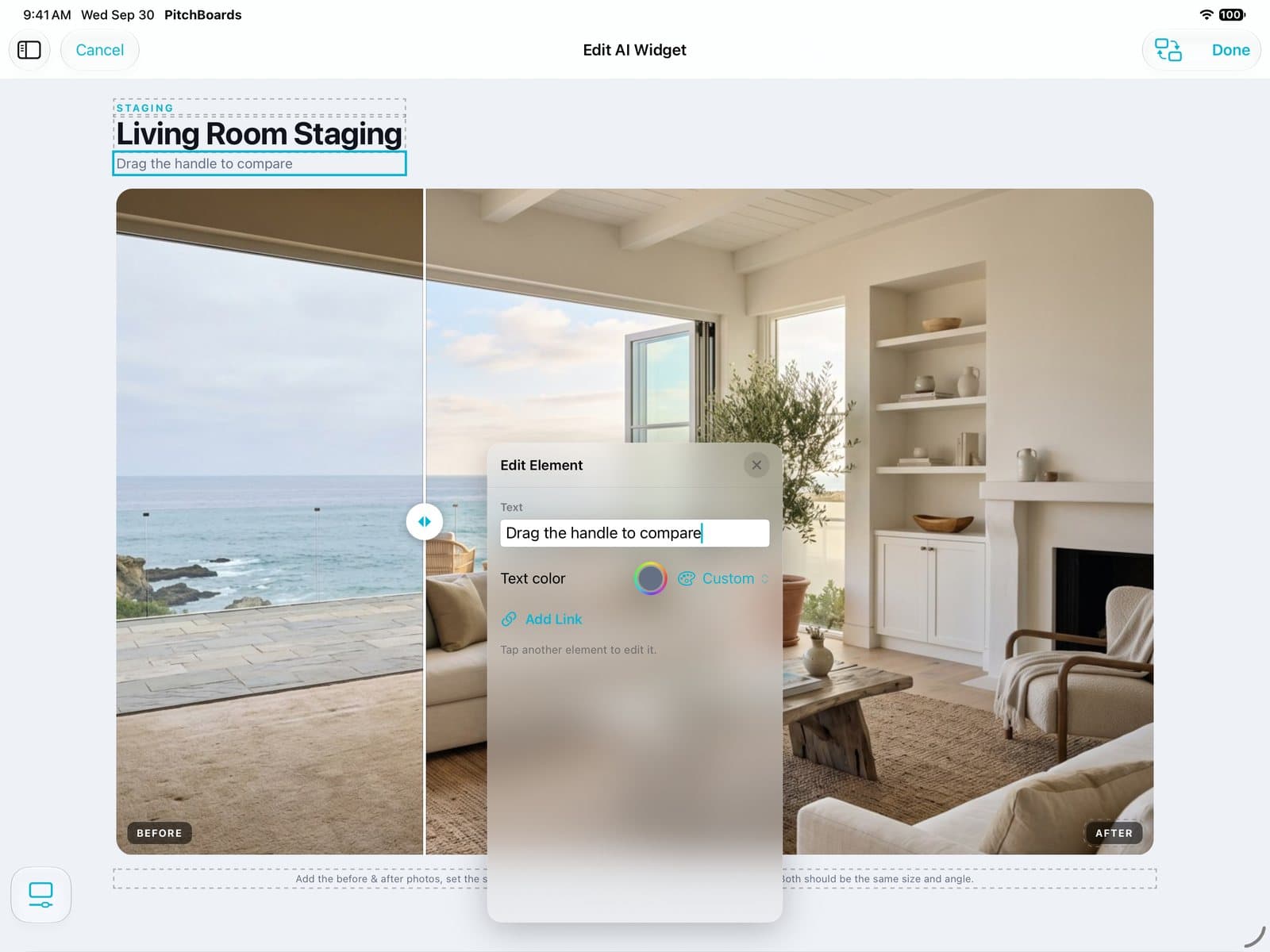
Step 2 of 4
Tap the part to change
Everything you can change has a dotted outline. Tap one.
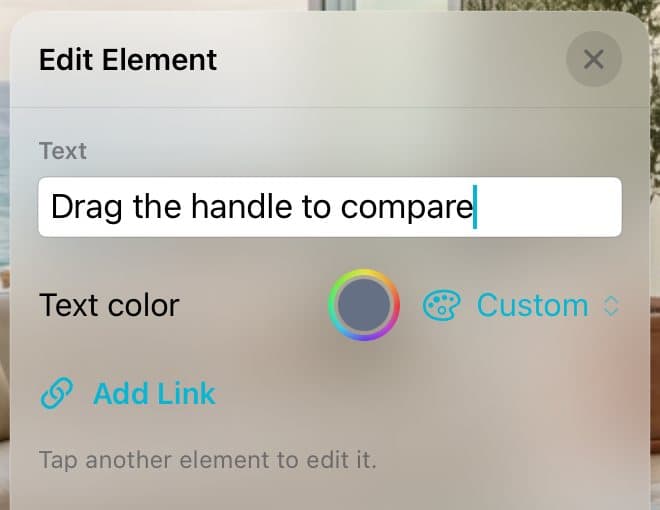
Step 3 of 4
Change it
Type new words, pick a Text color, or tap Add Link. Tap another part to keep going.

Step 4 of 4
Tap Done
Tap Done to save. Cancel throws your changes away.
Good to know
Games and widgets drawn in code have nothing to tap. Use Edit with AI Tool for those.
Photos get Fill or Fit and a size slider.