Build
Change a widget with ChatGPT or Claude
You can ask your own AI tool to change a widget. Open the AI Widget sheet for the tile and tap Edit with AI Tool. Pick ChatGPT or Claude. Your widget's code is already in the chat box. Say what to change and send it. Copy the new code, tap Use in Widget, then Replace widget.
Updated By Isaac Stalzer
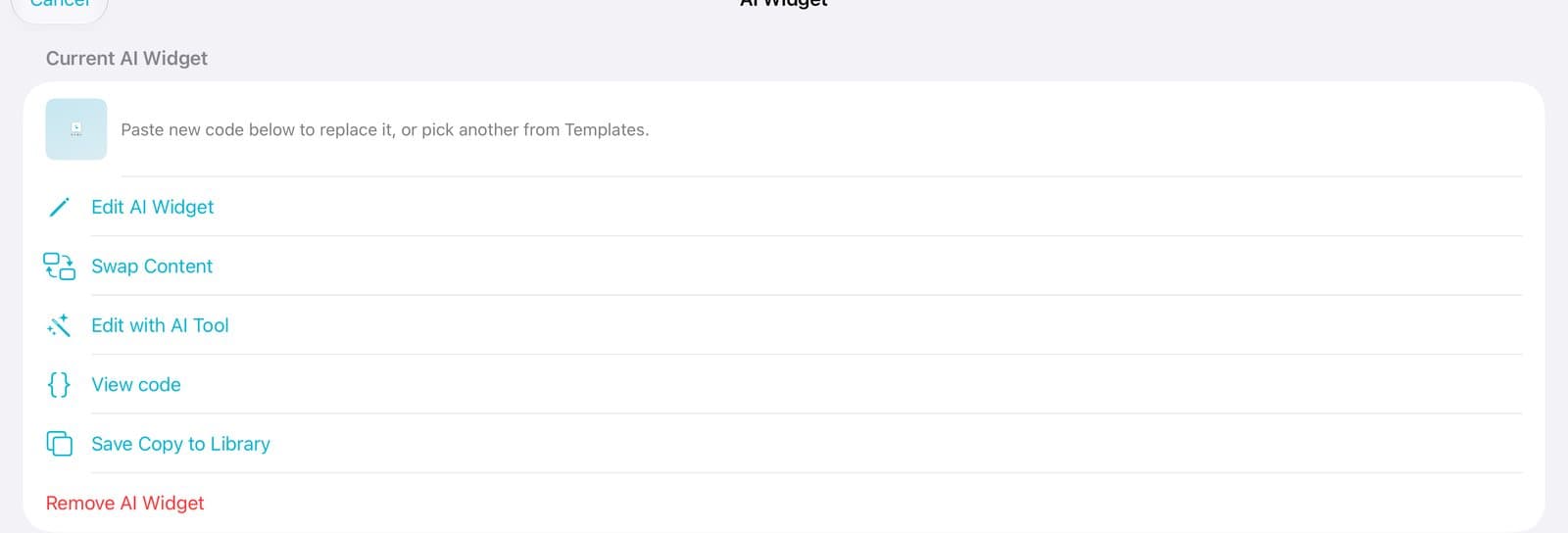
Step 1 of 6
Tap Edit with AI Tool
Open the widget, tap ⋯, then AI Widget. Under Current AI Widget, tap Edit with AI Tool.
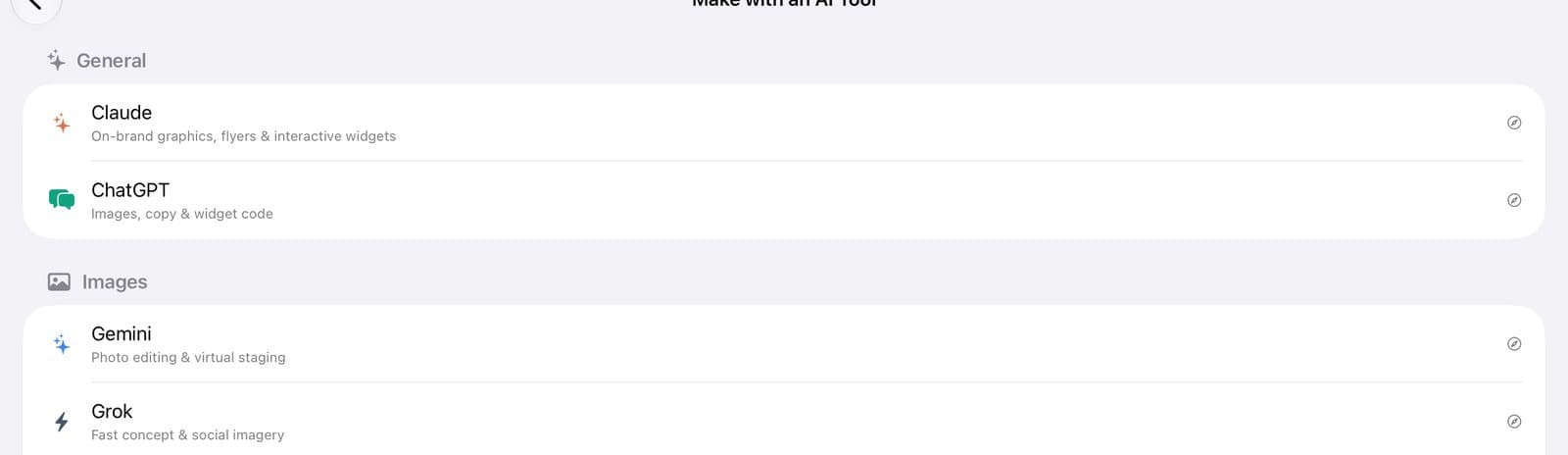
Step 2 of 6
Pick ChatGPT or Claude
Pick ChatGPT or Claude.
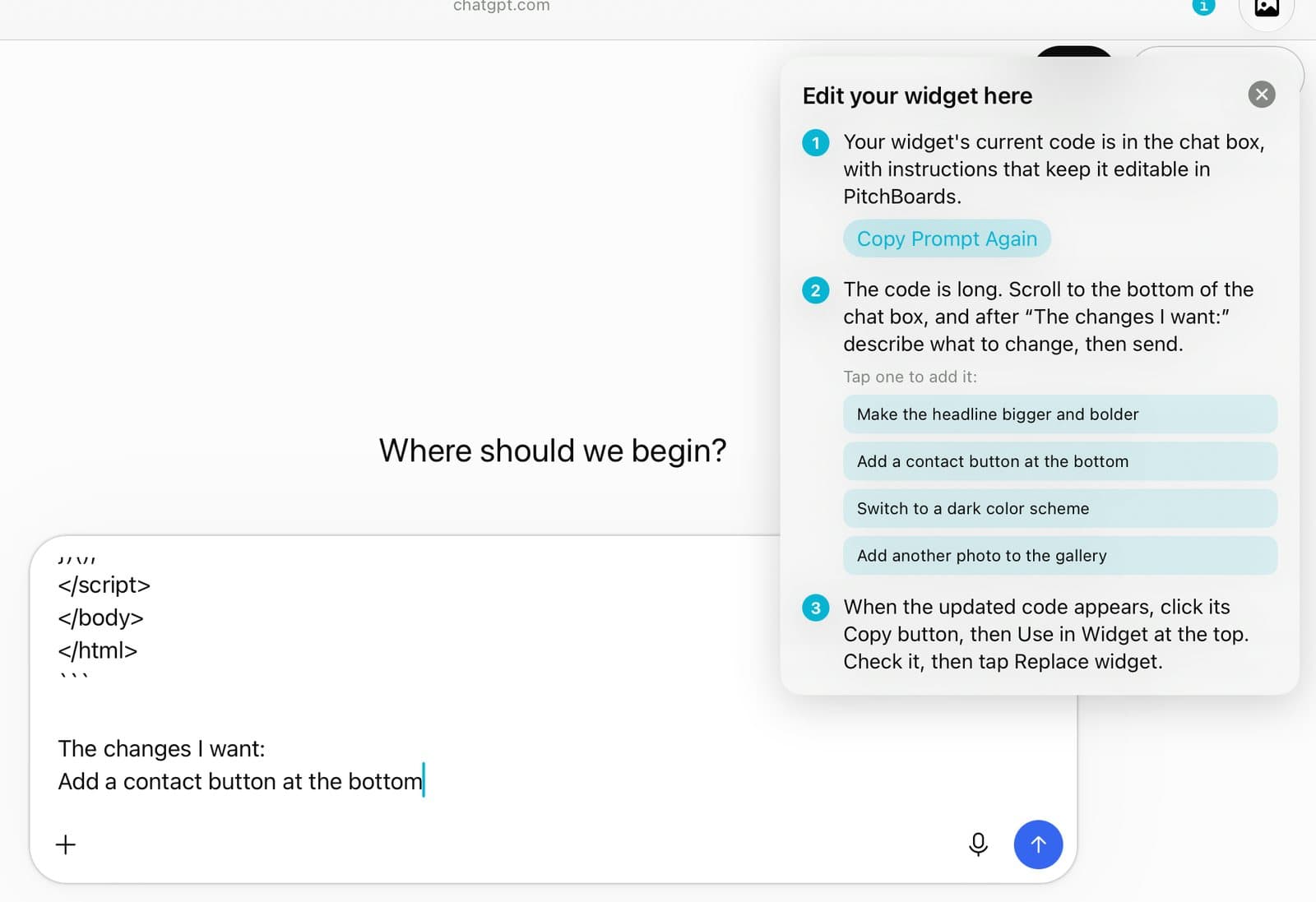
Step 3 of 6
Say what to change
Your widget's code is already in the chat box. After The changes I want:, type the change or tap an idea. Then send it.

Step 4 of 6
Bring it back
Tap the copy button under the new code. Then tap Use in Widget.

Step 5 of 6
Tap Replace widget
Check it, then tap Replace widget.
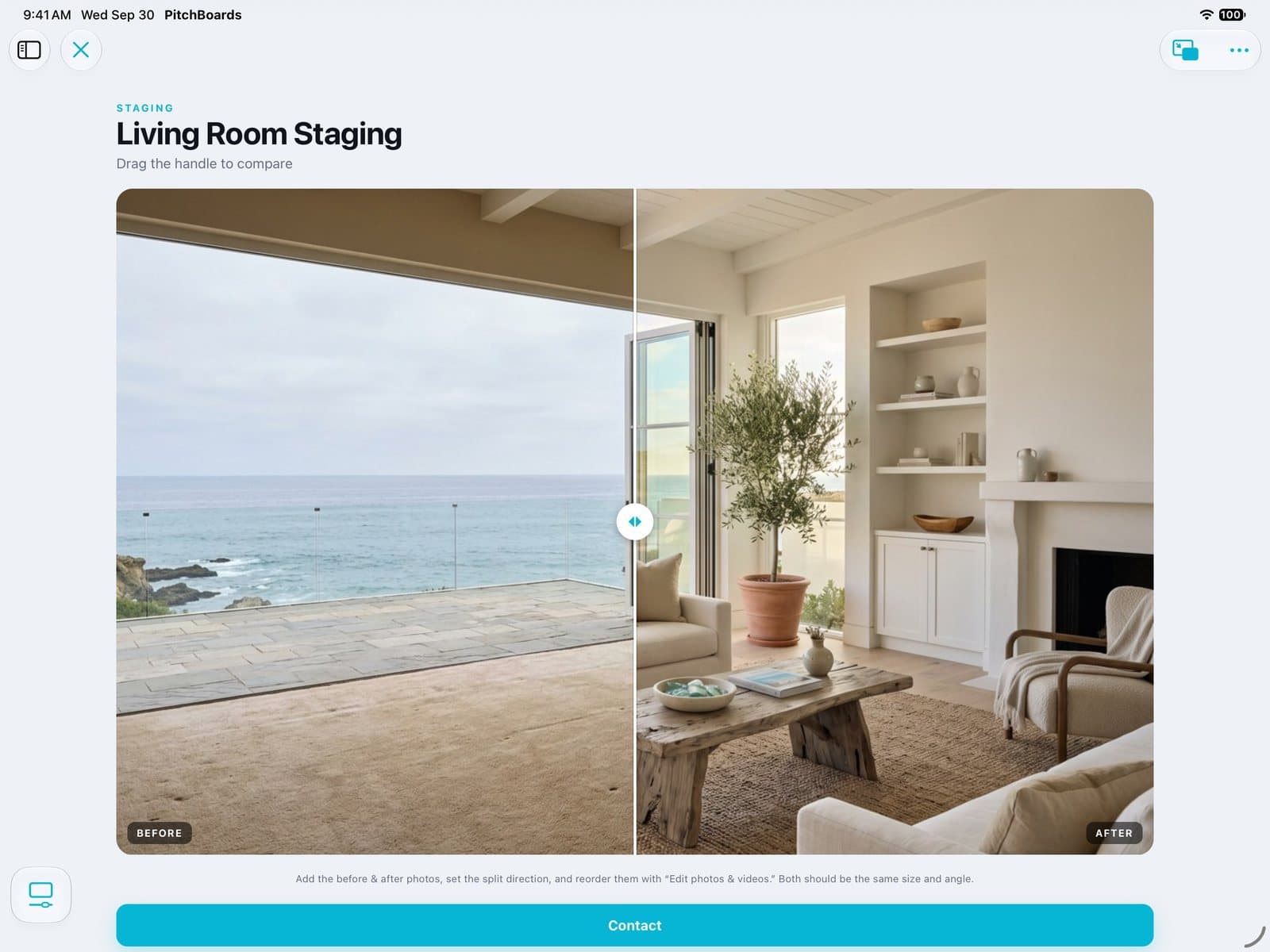
Step 6 of 6
See the change
The widget now has your change. Here, a Contact button.
Good to know
View code shows the code if you'd rather copy it yourself.
Use in Widget fills in the code. It doesn't save until you tap Replace widget.