Team
Change a member's role or remove them
Admins manage people from the member list. Open your organization and scroll to the list. Tap the role icon next to a person to change their name, member type, or role. Scroll down in that sheet to resend or revoke an invite, or to remove the member and free up their seat.
Organization plansUpdated By Isaac Stalzer
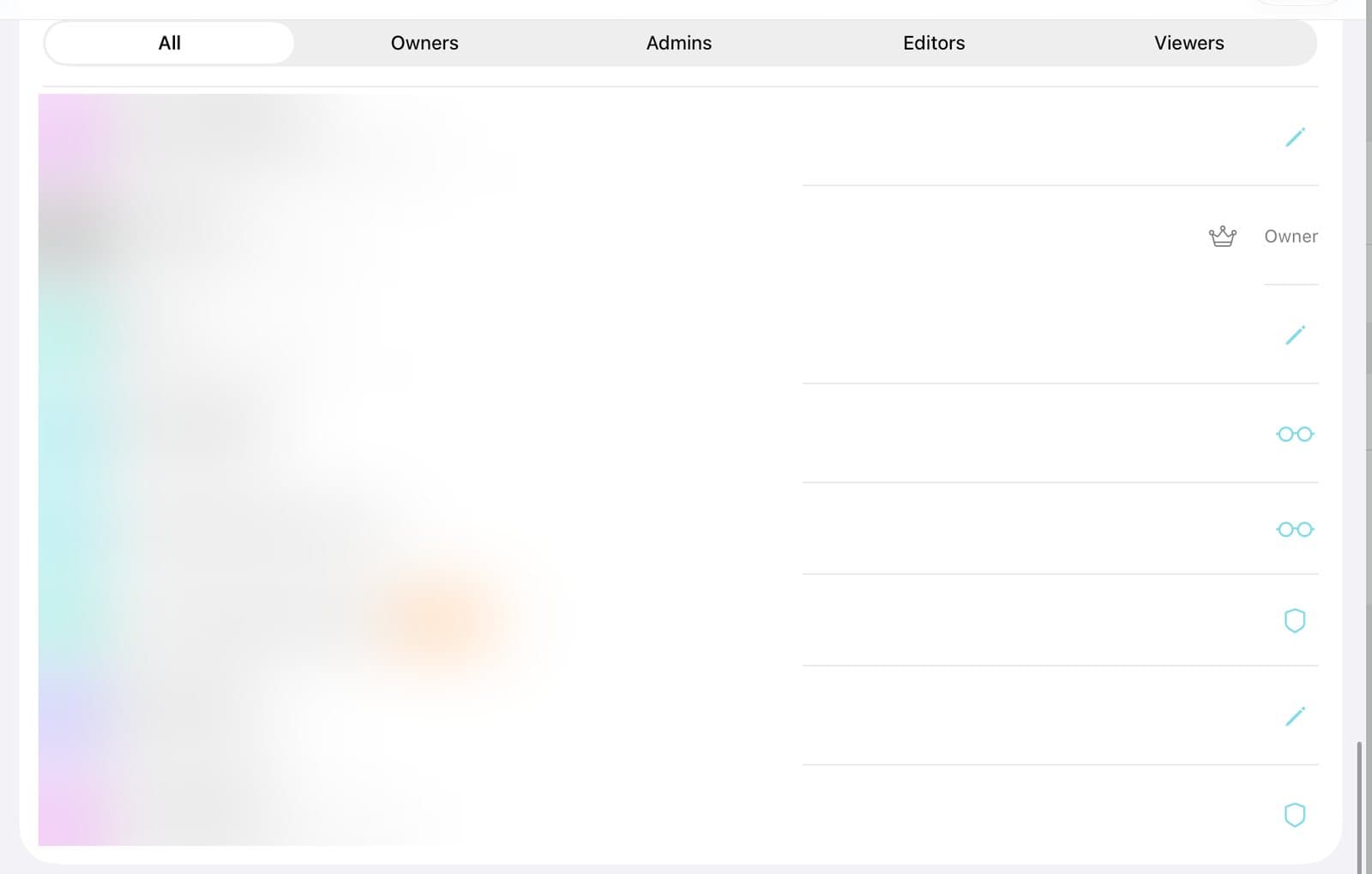
Step 1 of 3
Find the person
Open your organization and scroll to the member list. Use Owners, Admins, Editors, or Viewers at the top to narrow it.
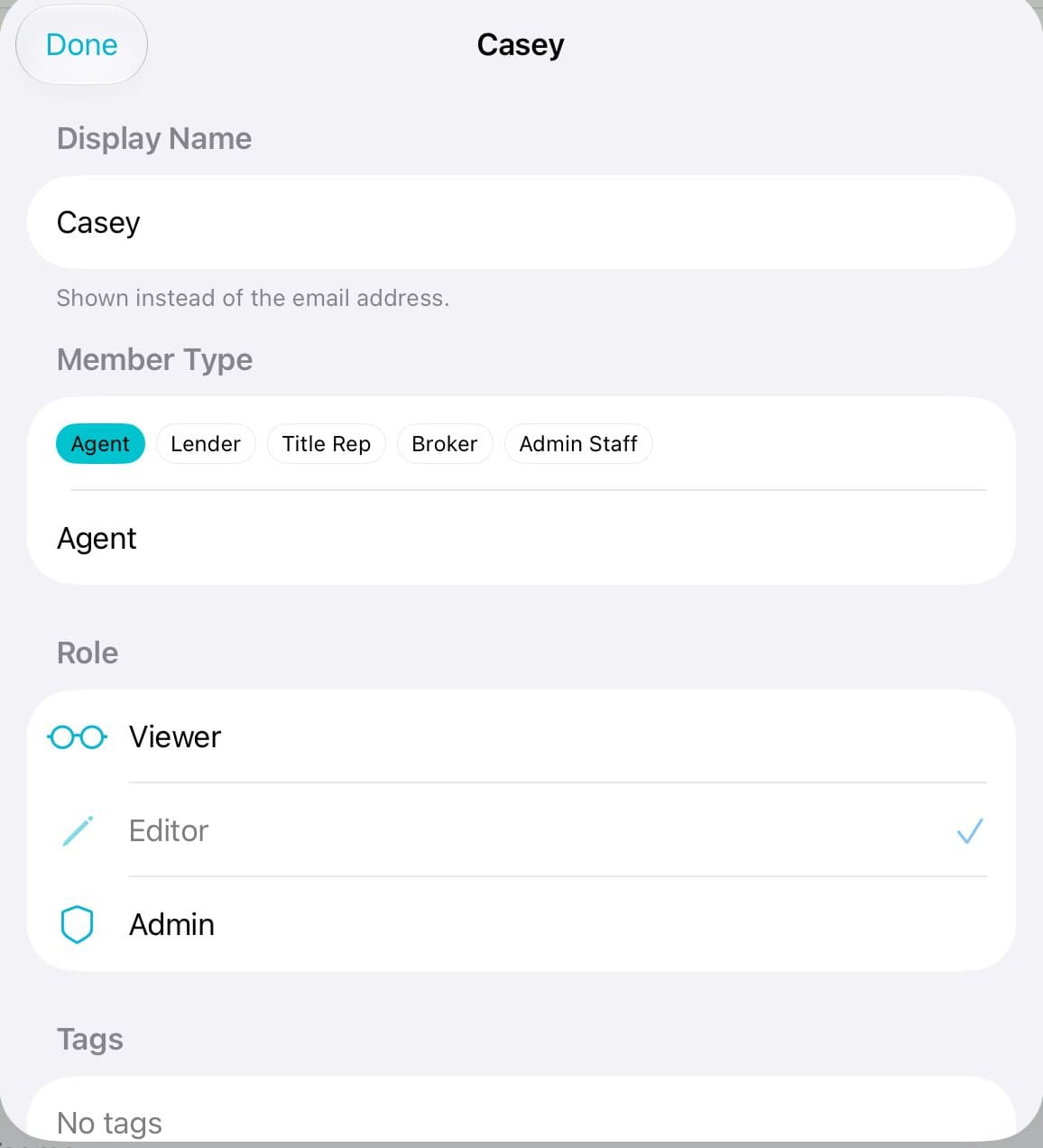
Step 2 of 3
Change their role
Tap the role icon on the right of their row. Pick Viewer, Editor, or Admin. Tap Done.
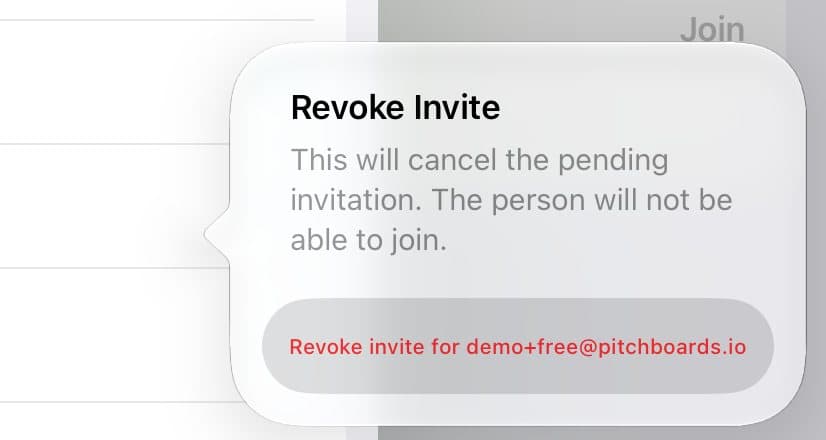
Step 3 of 3
Remove them
Scroll down in that sheet. Tap Revoke Invite for someone who hasn't joined, or Remove Member for someone who has. Then confirm.
Good to know
Removing someone frees their seat.
Their own boards stay with them. They lose the office's shared boards.
People who joined with your code also show under Recent Members, where you can approve or remove them.