Getting started
Sort your boards into folders
Tap + and New Folder to make a folder. Then press and hold any board, tap Move to Folder, and pick the folder. To move many boards at once, tap Select, tap each board, then tap Move To. Search at the top finds any board by its name.
Updated By Isaac Stalzer

Step 1 of 5
Tap + then New Folder
Tap + at the top right. Tap New Folder.
Step 2 of 5
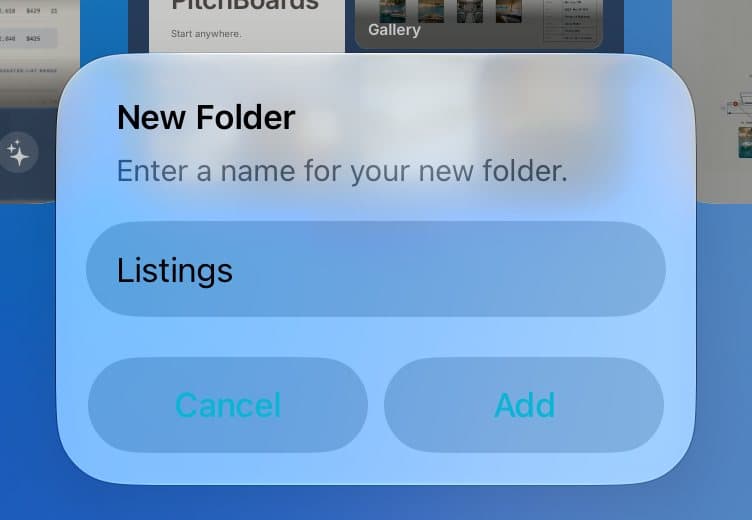
Name it and tap Add
Type a name, like Listings. Tap Add.
Step 3 of 5
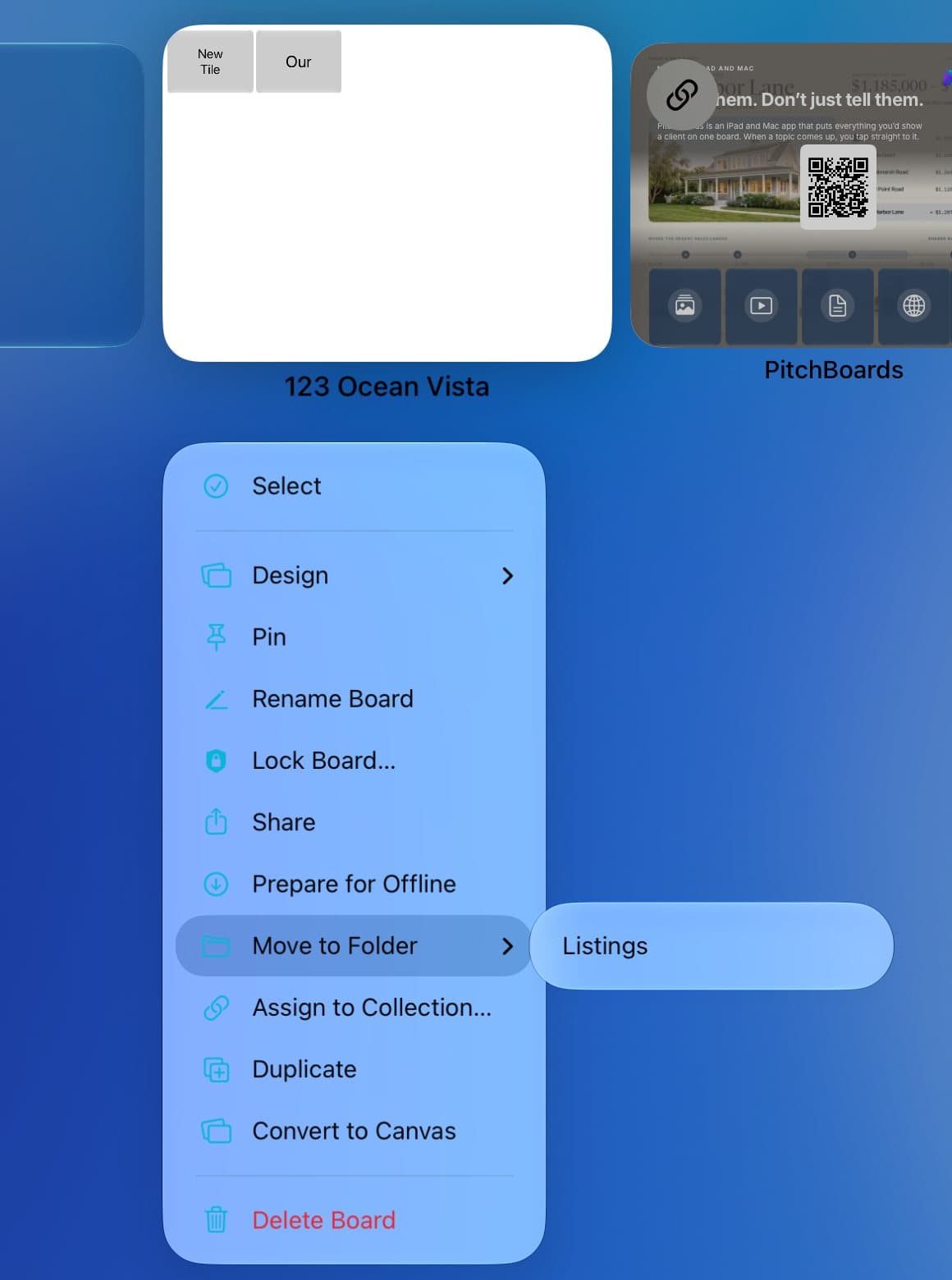
Move a board in
Press and hold a board. Tap Move to Folder. Pick the folder.
Step 4 of 5
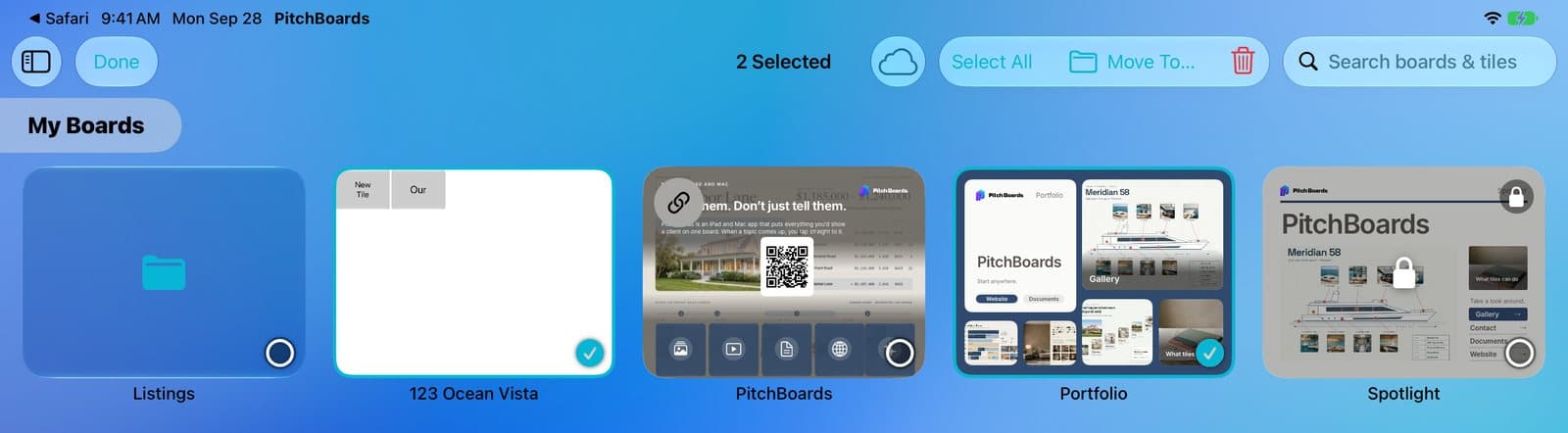
Move many at once
Tap the ✓ button at the top. Tap each board you want. Tap the folder button to move them.

Step 5 of 5
Search by name
Type in Search boards & tiles to find a board fast.
Good to know
Keep a board first: press and hold it, then tap Pin.
Sort by name or by date in Account → Preferences → Sort By.
Deleting a folder moves what's inside to Trash.