Getting started
Present on a TV or projector
Show your boards on a TV, projector, or big screen. With an Apple TV, join the same Wi-Fi, open Control Center, tap Screen Mirroring, and pick the TV. With a cable, plug a USB-C to HDMI adapter into your iPad and pick that input on the TV. Then open your board.
Updated By Isaac Stalzer
Step 1 of 4
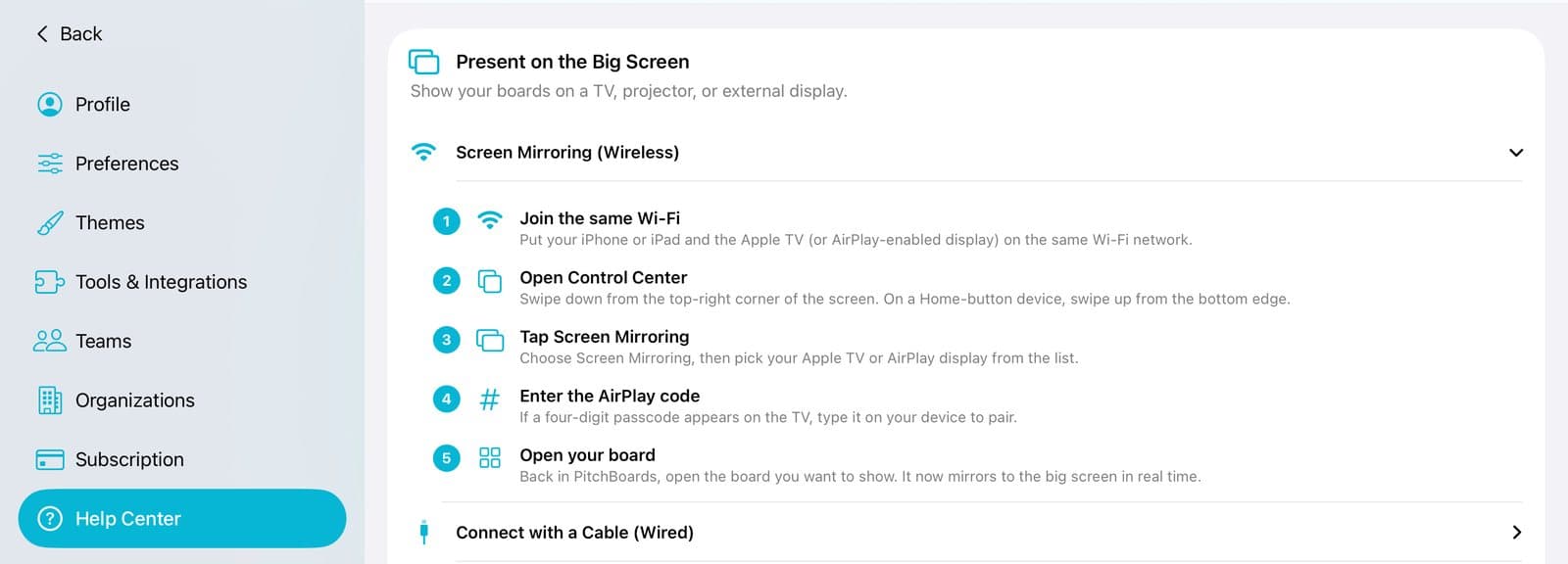
Find the steps in the app
Tap Account, then Help Center. Scroll to Present on the Big Screen.
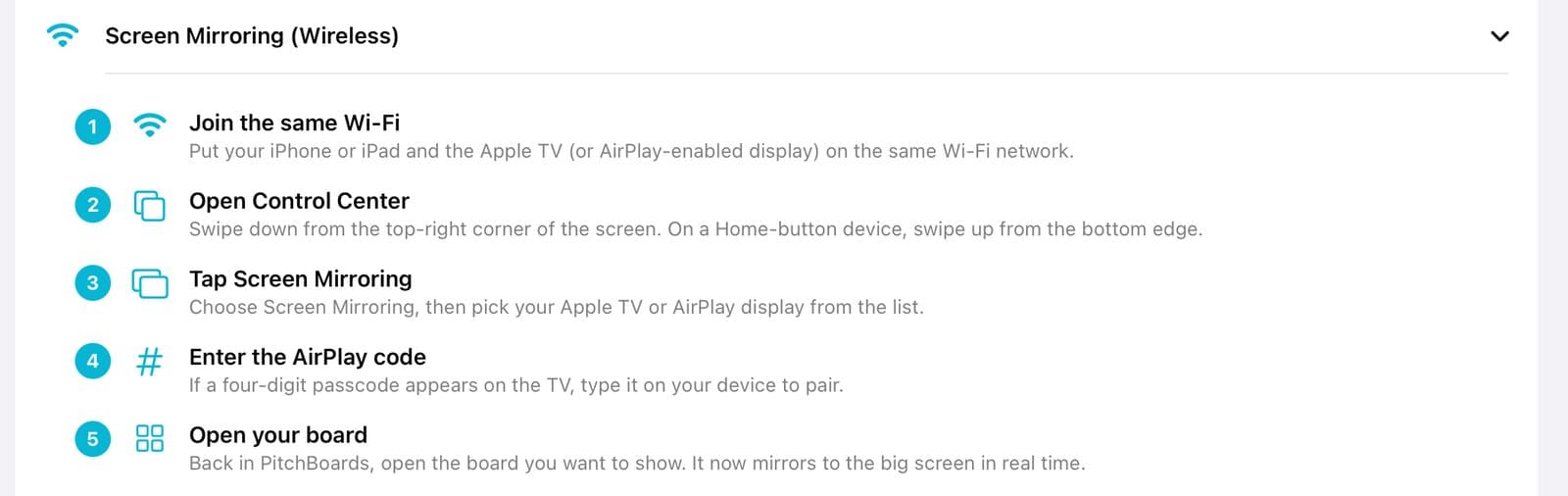
Step 2 of 4
No cable? Use Screen Mirroring
Put your iPad and Apple TV on the same Wi-Fi. Swipe down from the top right. Tap Screen Mirroring and pick the TV.
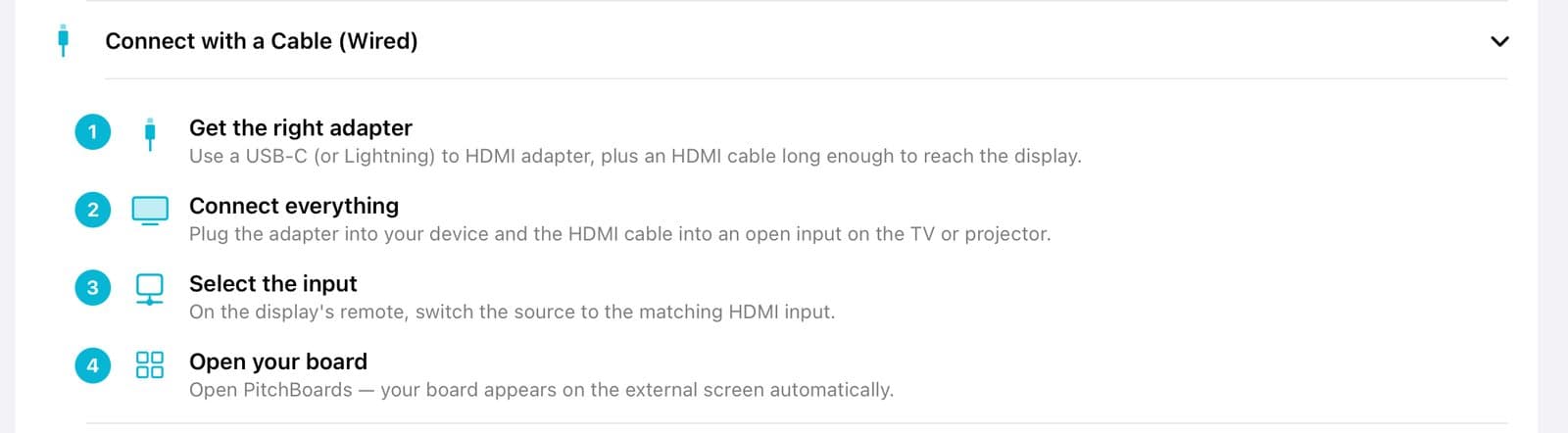
Step 3 of 4
Or use a cable
Plug a USB-C to HDMI adapter into your iPad. Connect the HDMI cable. Pick that input on the TV.
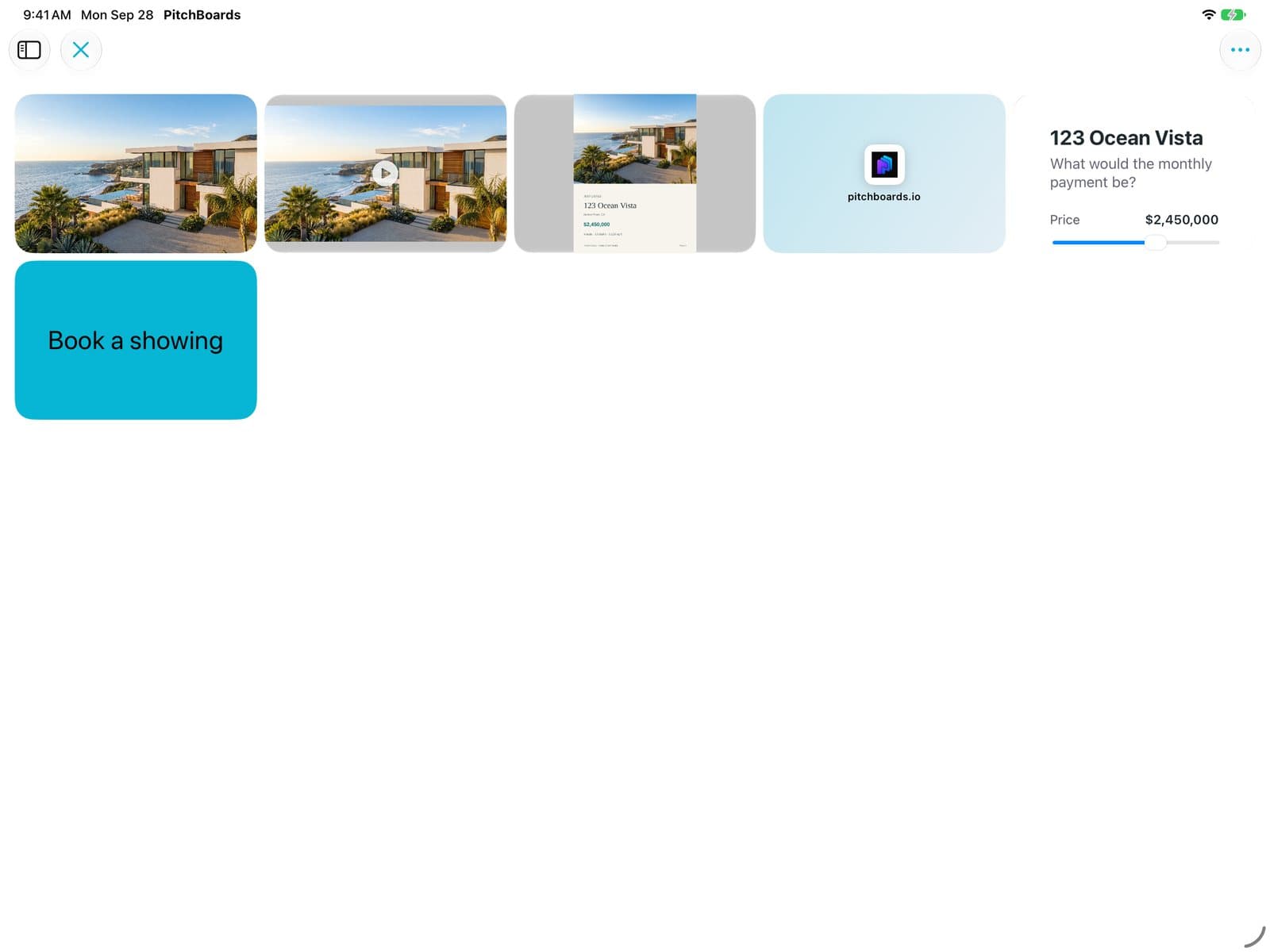
Step 4 of 4
Open your board
Open your board. The TV shows what's on your iPad. Tap a tile to open it big.
Good to know
Turn on Do Not Disturb so messages don't pop up on the TV.
Turn your iPad sideways for the biggest picture.
Bad Wi-Fi where you're going? Get the board ready for offline first.