Getting started
Get a board ready for offline
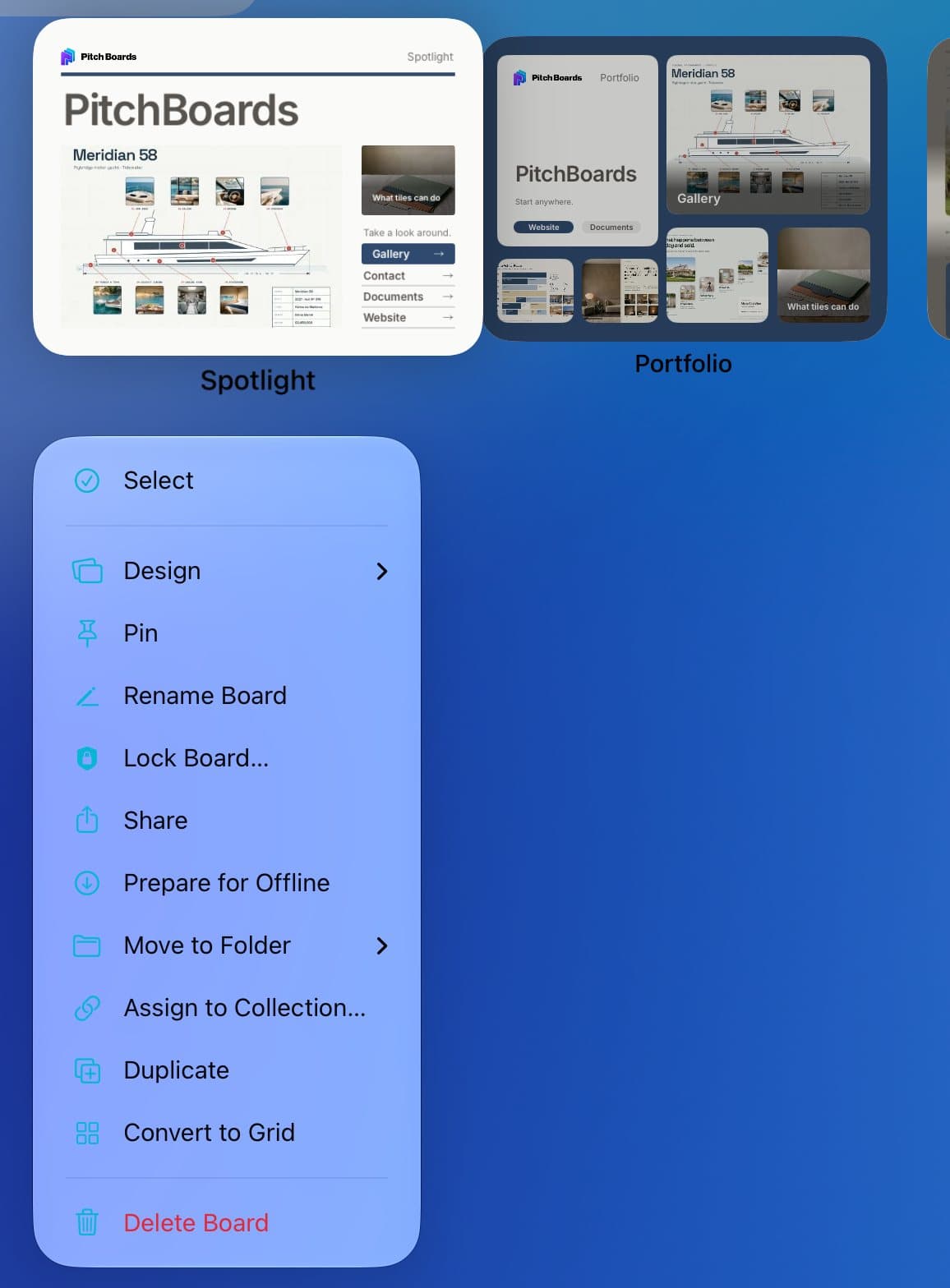
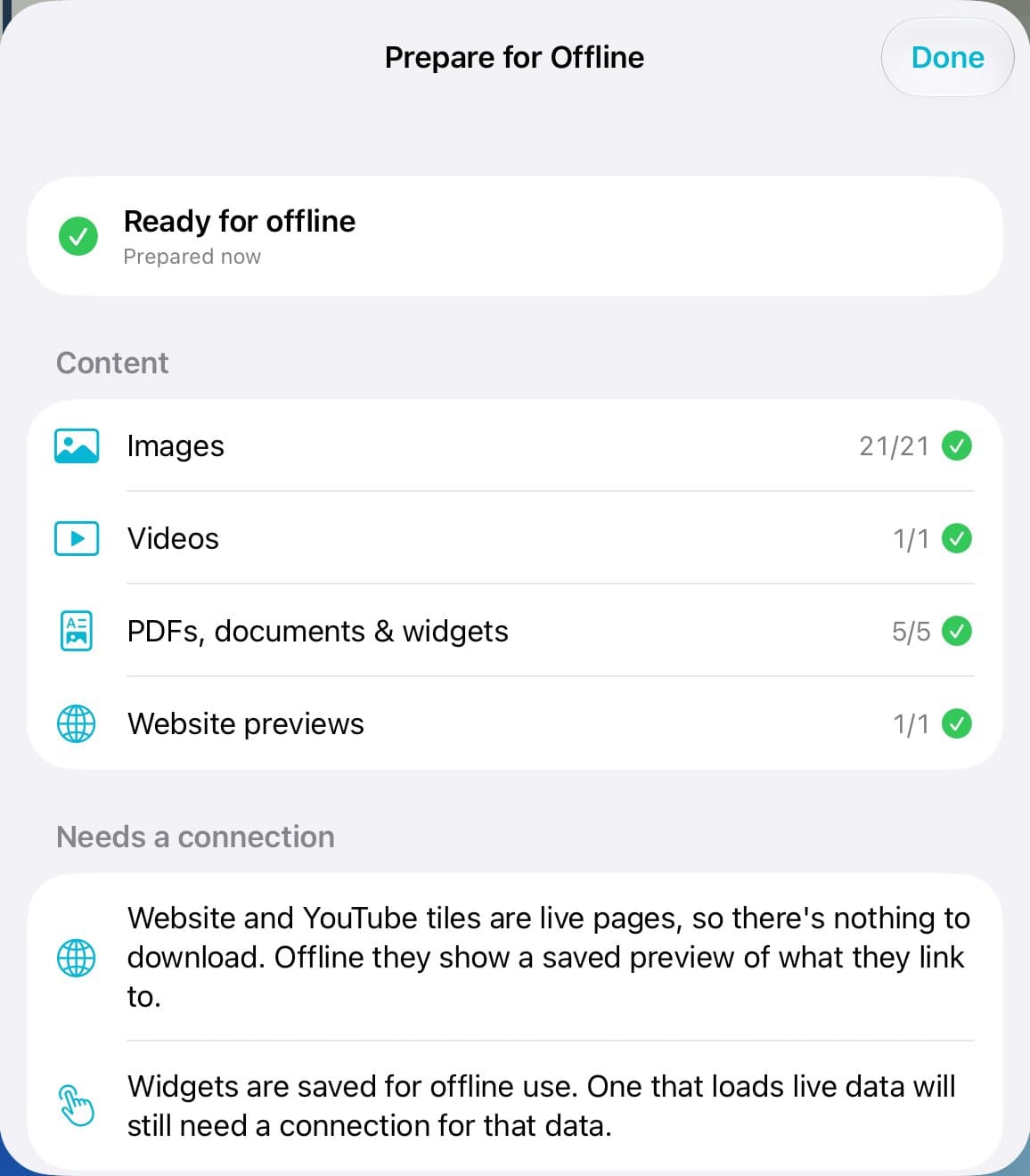
Before you present somewhere with bad Wi-Fi, get the board ready for offline. On My Boards, press and hold the board and tap Prepare for Offline. PitchBoards downloads its photos, videos, PDFs, and widgets. When it says Ready for offline, you can present with no connection.
Updated By Isaac Stalzer
Step 1 of 4
Prepare the board
On My Boards, press and hold the board. Tap Prepare for Offline.
Step 2 of 4
Wait for Ready
It downloads the photos, videos, PDFs, and widgets. When you see Ready for offline, tap Done.
Step 3 of 4
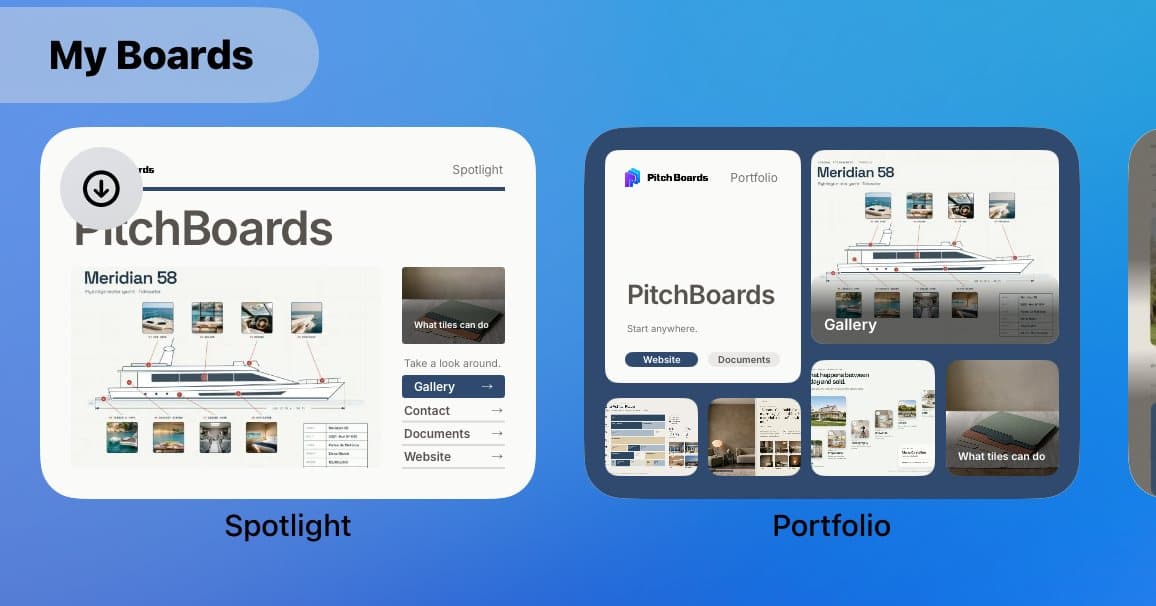
Look for the badge
A download badge on the board means it's ready.
Step 4 of 4
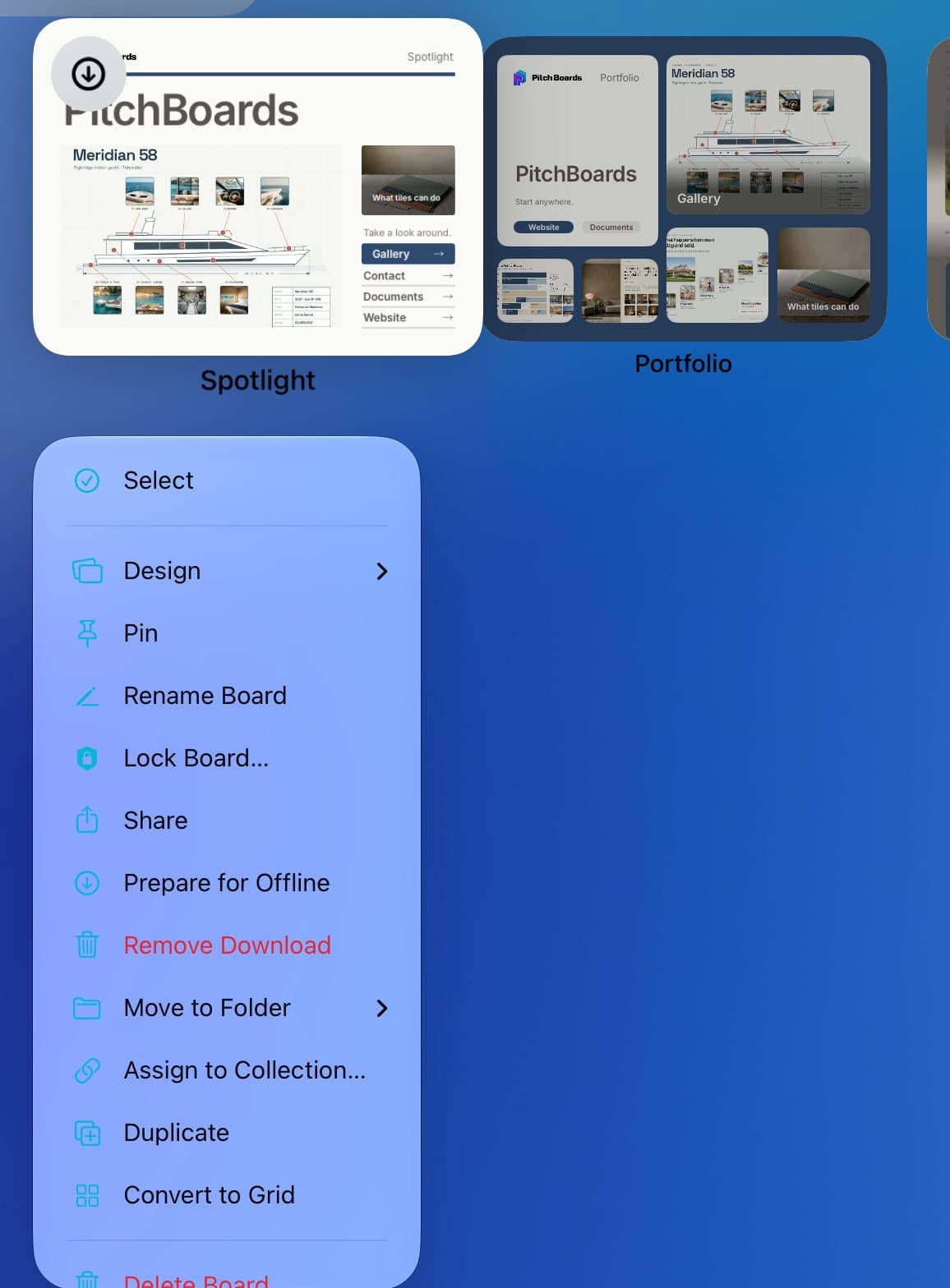
Update it or remove it
Changed the board? Tap Prepare for Offline again. Need space? Tap Remove Download.
Good to know
Use Wi-Fi. Big files are skipped on cellular.
Website and YouTube tiles still need the internet. Offline, they show a saved preview.
Your iPad can clear downloads when it's low on space. The badge turns orange, so prepare again.