Reuse
Put your brand on every board
Put your logo, colors, and fonts on all your boards at once. Tap Account, then Themes. Press and hold your theme and tap Apply to My Boards. Check the list and tap Apply. Anything you changed by hand stays the same.
Updated By Isaac Stalzer
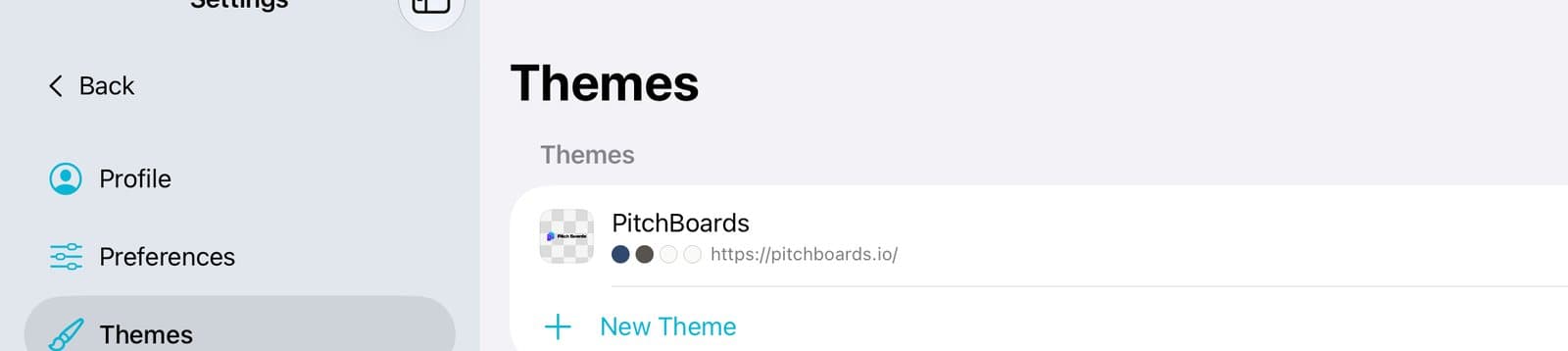
Step 1 of 4
Open Themes
Tap Account at the bottom of the sidebar. Tap Themes.
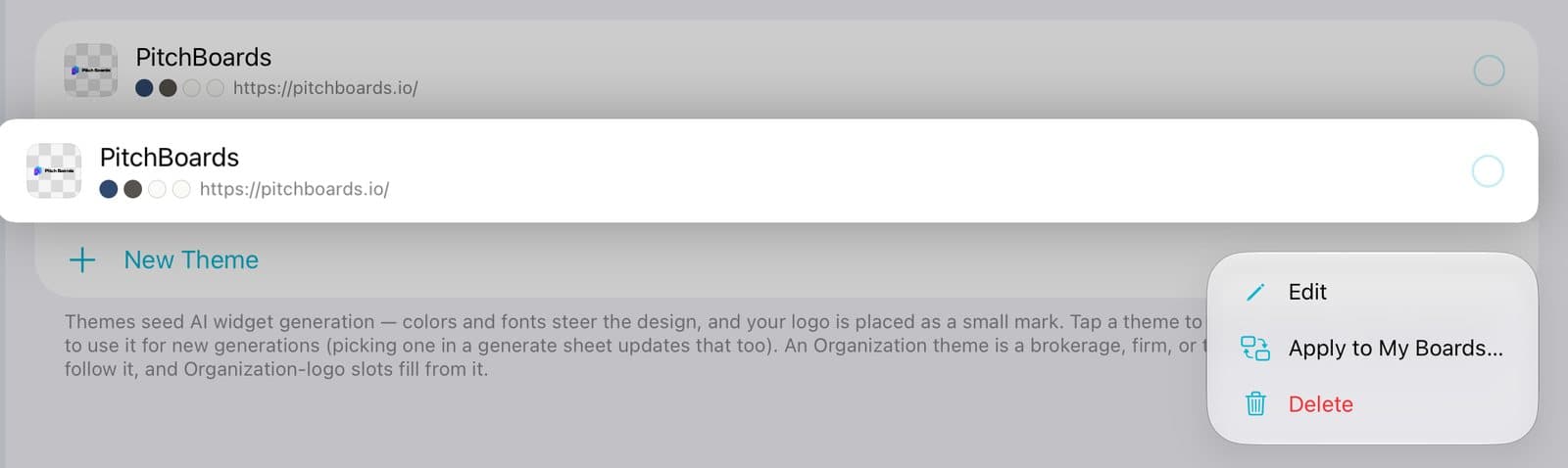
Step 2 of 4
Press and hold your theme
Press and hold your theme. Tap Apply to My Boards….
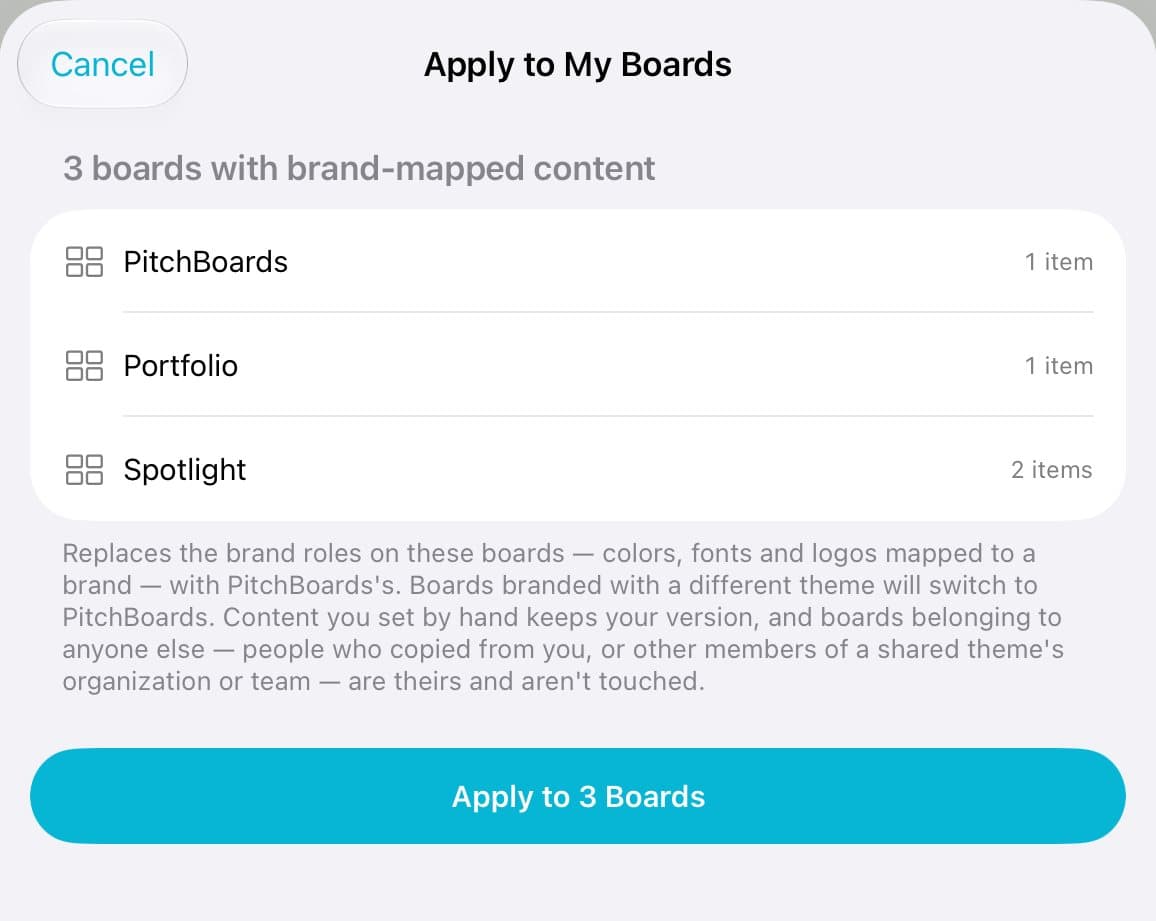
Step 3 of 4
Check and apply
You'll see which boards change. Tap Apply to 3 Boards. (The number is how many boards change.)

Step 4 of 4
That's it
Your logo, colors, and fonts are on those boards now.
Good to know
No theme yet? See the guide Build a brand theme from your website.
Anything you set by hand keeps your version.
Changed your theme? Do it again, and the button says Update.
Only one board? Open it, tap ⋯, then Swap Content, and use the Brand tab.