Reuse
Swap content for the next listing
You don't rebuild a board for each listing. Duplicate the board, open the copy, and tap ⋯, then Swap Content. Apply your brand on the Brand tab. On the Content tab, tap Replace on each row to drop in the new photos, video, or PDF, or keep it as it is.
Updated By Isaac Stalzer
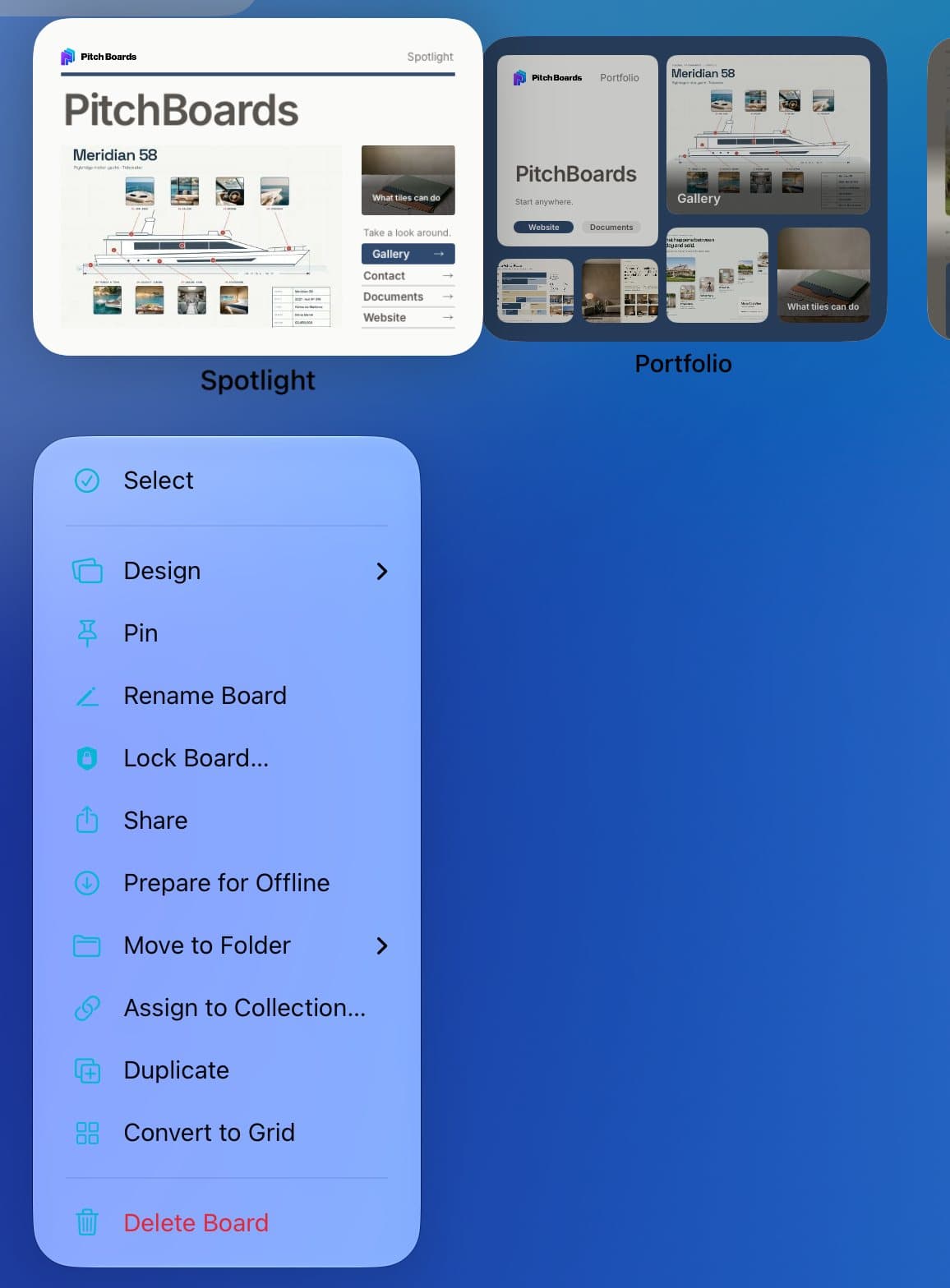
Step 1 of 6
Make a copy
On My Boards, press and hold the board. Tap Duplicate. Then open the copy.
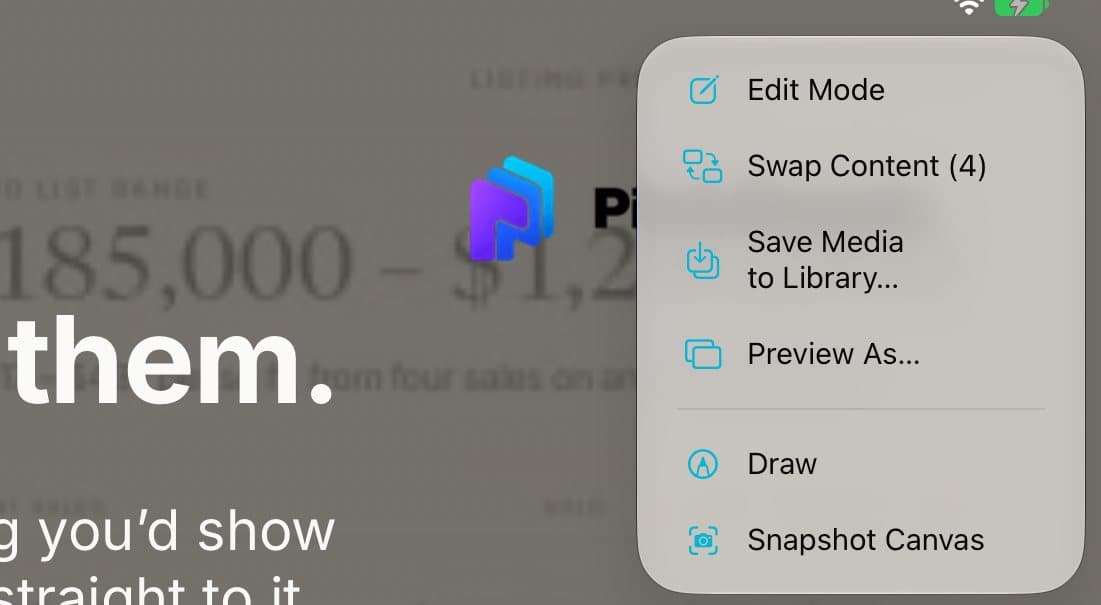
Step 2 of 6
Open Swap Content
Tap ⋯ at the top right. Tap Swap Content.
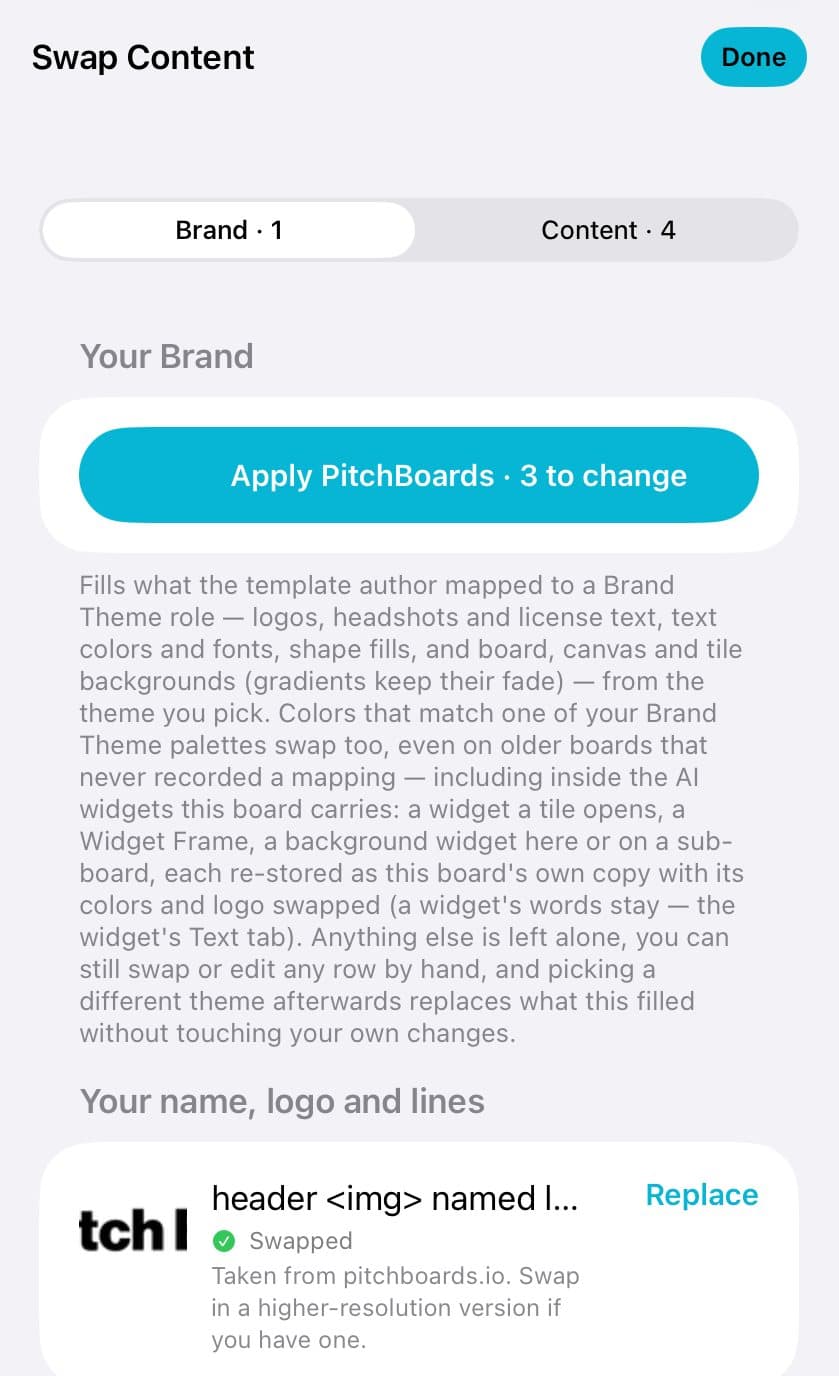
Step 3 of 6
Put your brand on it
On the Brand tab, tap Apply with your theme's name. Your logo, colors, and fonts fill in.
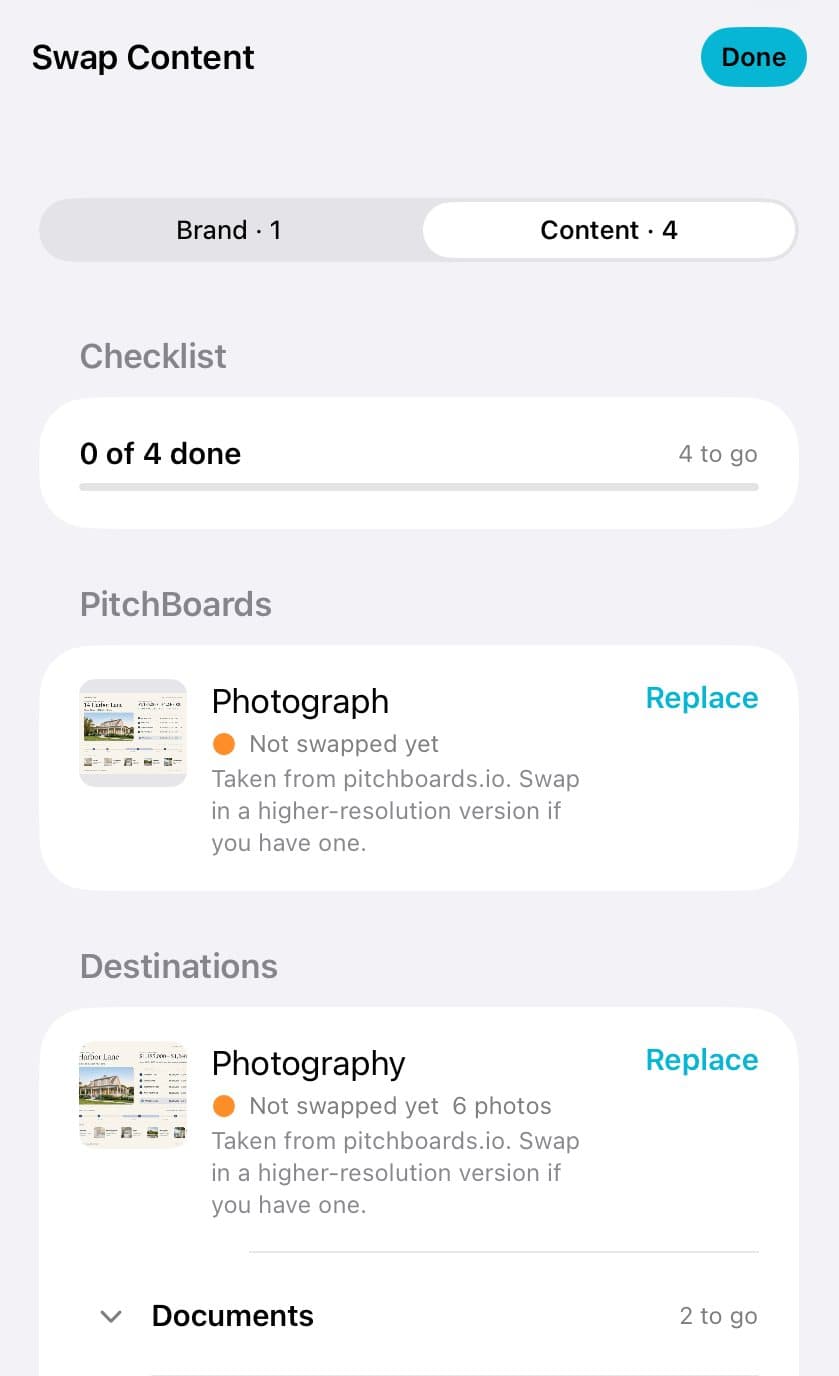
Step 4 of 6
Go down the checklist
Tap Content. This is everything to change for the new listing.
Step 5 of 6
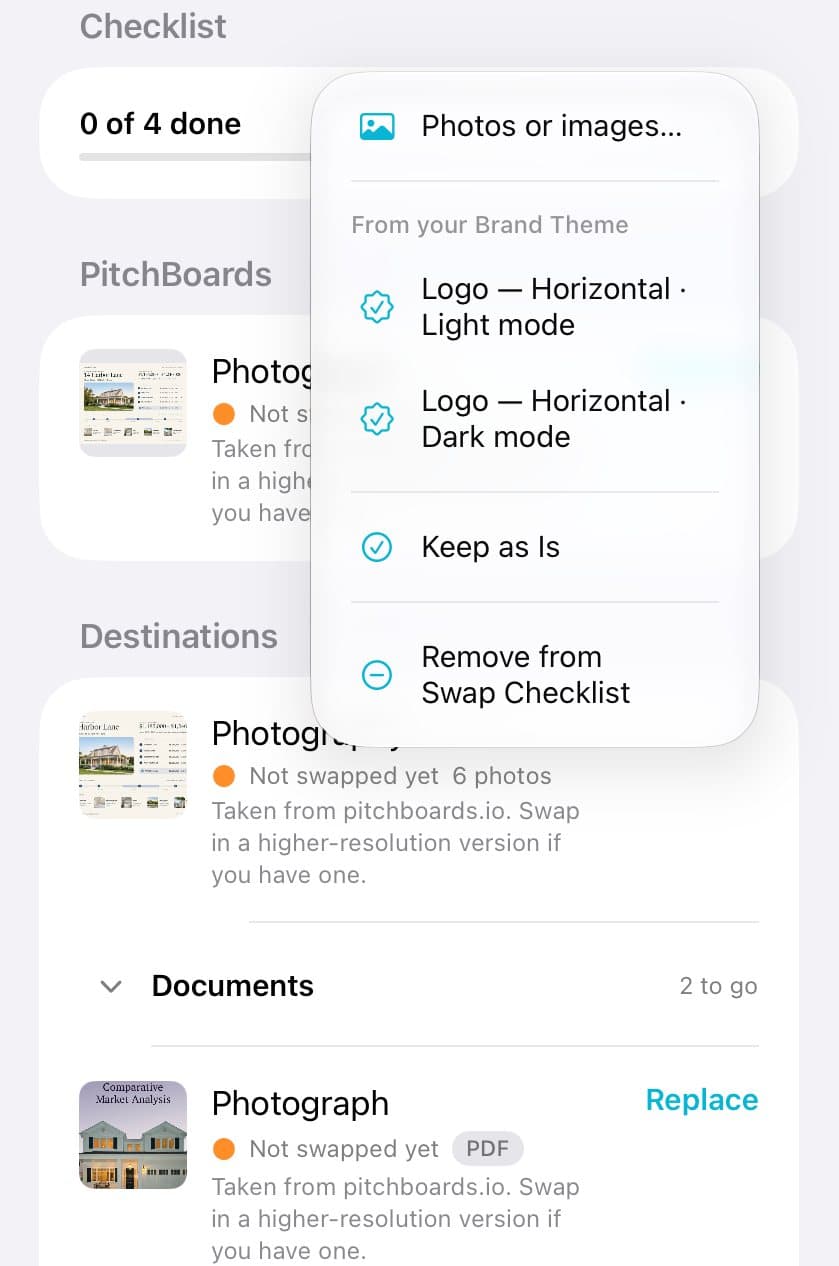
Replace each one
Tap Replace on a row. Pick the new photos, video, or PDF. Or tap Keep as Is.
Step 6 of 6
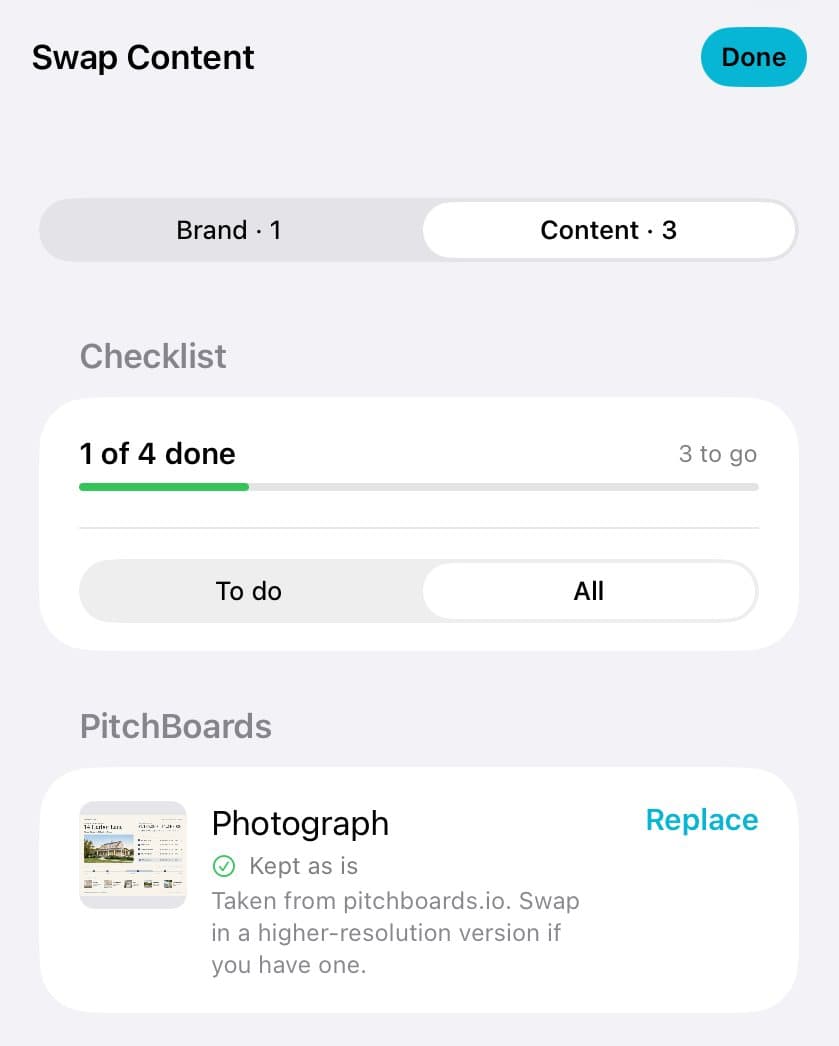
Finish
The count goes up as you go. When you're done, tap Done.
Good to know
Want a tile on the list? Tap its ⋯, then More and Add to Swap Checklist.
Linked tiles aren't swapped. They stay in sync with the original.
On iPad and Mac, you see the board change as you swap.