Reuse
Use one tile on many boards
Save a tile once and use it on many boards. In edit mode, tap ⋯ on the tile, then More and Add to My Tiles. On another board, tap Browse Library, open Tiles, and pick it. Choose Link Tile to keep every copy in sync, or Copy Tile for a separate one.
Updated By Isaac Stalzer
Step 1 of 6
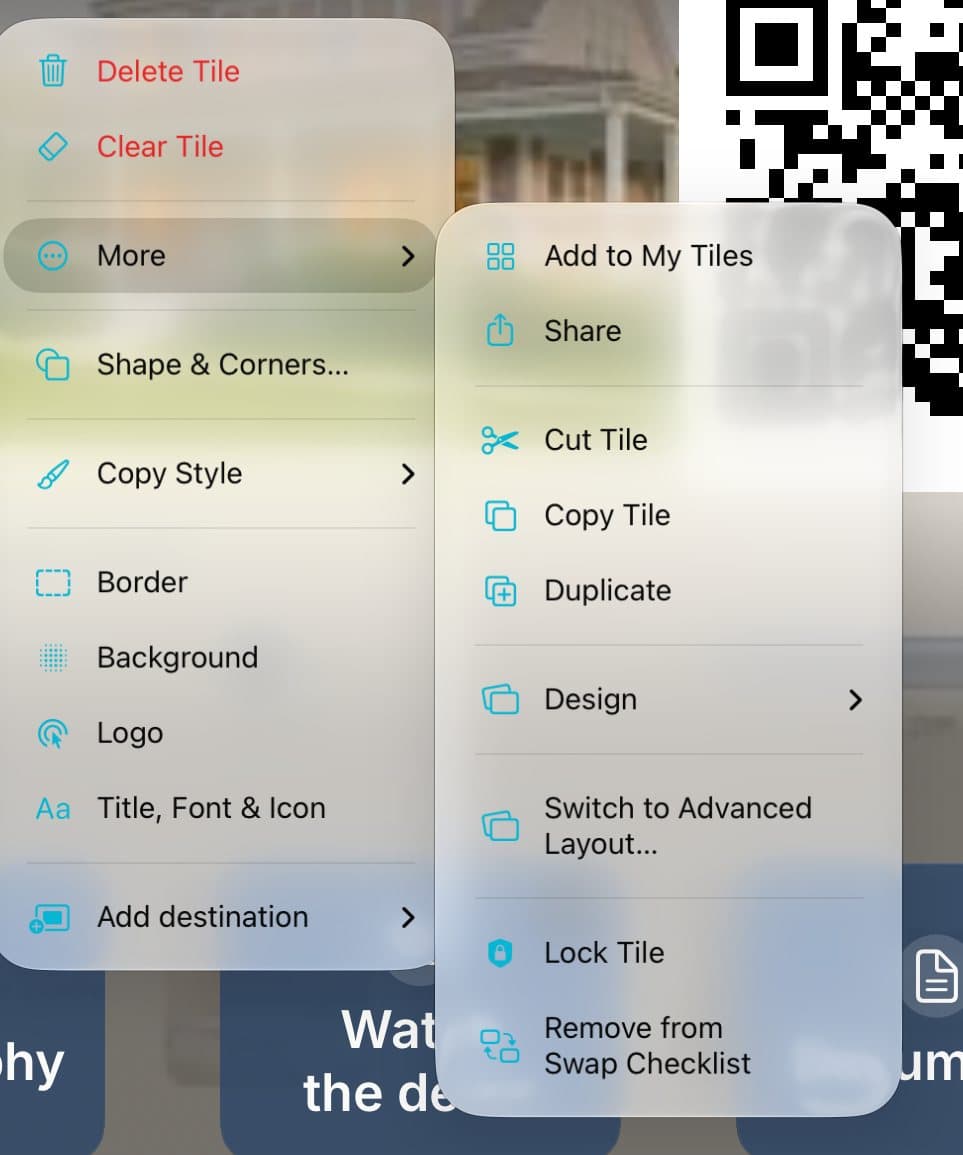
Save the tile
In edit mode, tap ⋯ on a tile. Tap More, then Add to My Tiles.

Step 2 of 6
Find it in Tiles
Tap Tiles in the sidebar to see your saved tiles.
Step 3 of 6
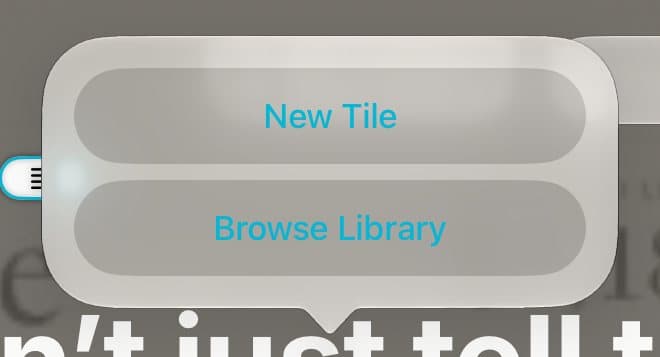
Add it to another board
On another board, tap an empty spot, or + and Tile on a canvas. Tap Browse Library.

Step 4 of 6
Pick it
Tap Tiles, then tap your tile.

Step 5 of 6
Link it or copy it
Tap Link Tile to keep it in sync everywhere. Tap Copy Tile for a separate copy.
Step 6 of 6
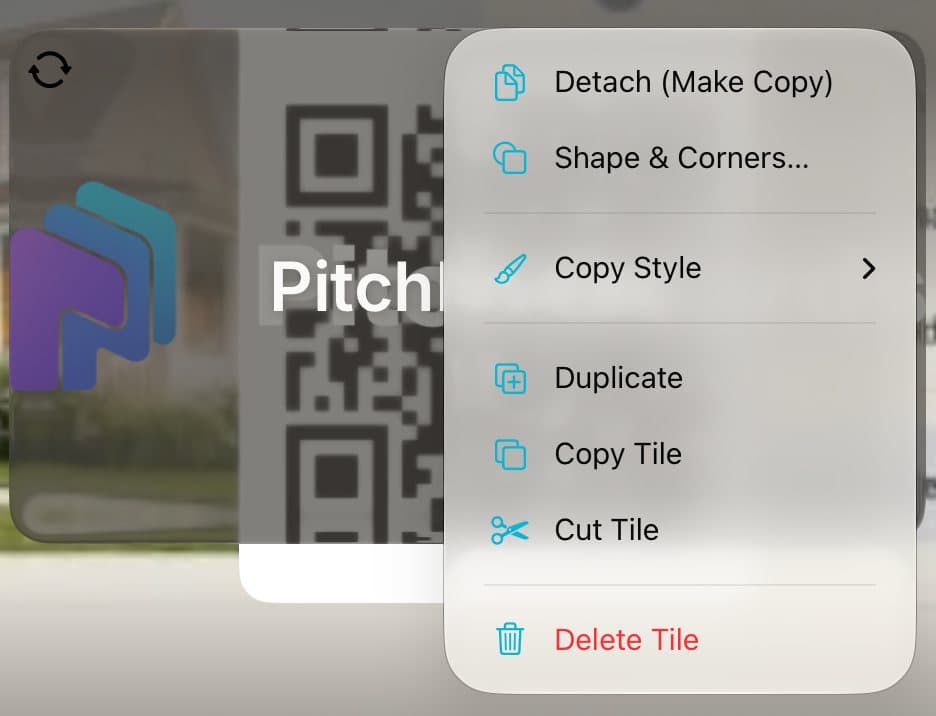
Break the link later
A linked tile has a link badge. To make it separate, tap ⋯, then Detach (Make Copy).
Good to know
Change a linked tile once, and it changes on every board.
The Free plan keeps a few saved tiles active. Paid plans keep them all.