Reuse
Find your files in the Library
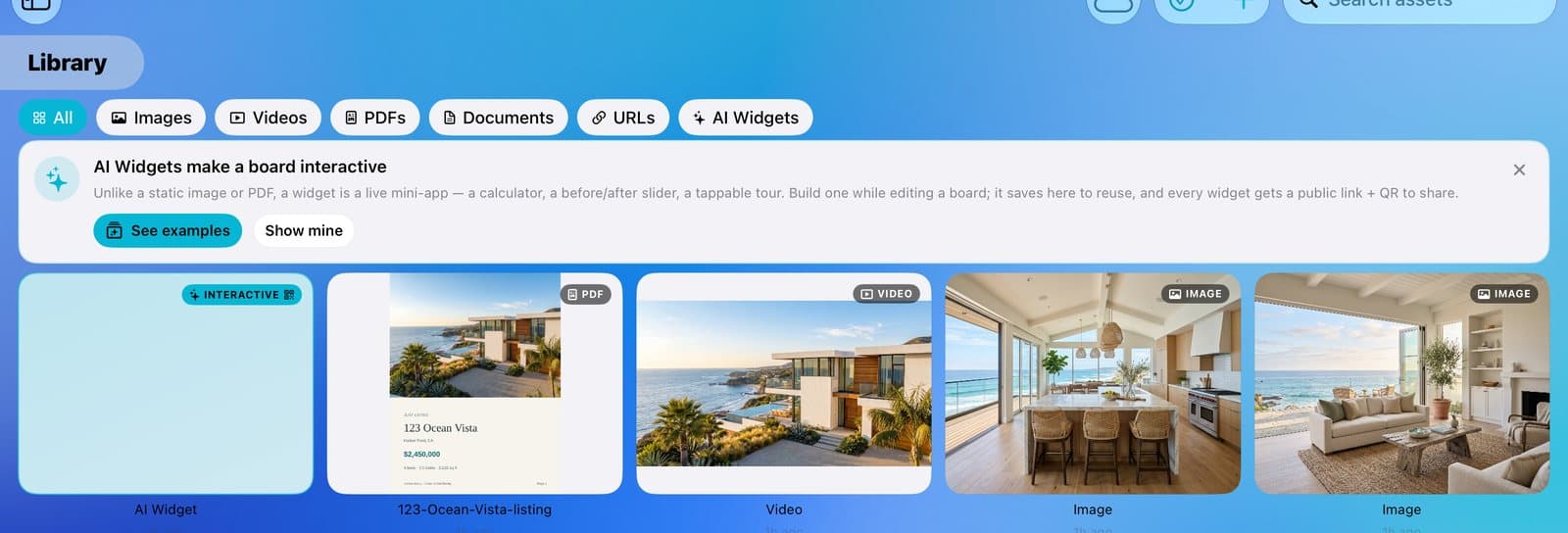
Your Library holds every photo, video, PDF, link, and widget you've added, so you upload each one once. Tap Library in the sidebar to see them. Tap + to add more. Press and hold one to rename, share, or delete it. When you fill a tile, tap Browse Library to use anything here again.
Updated By Isaac Stalzer
Step 1 of 4
Open the Library
Tap Library in the sidebar. Everything you've added to tiles is here.
Step 2 of 4
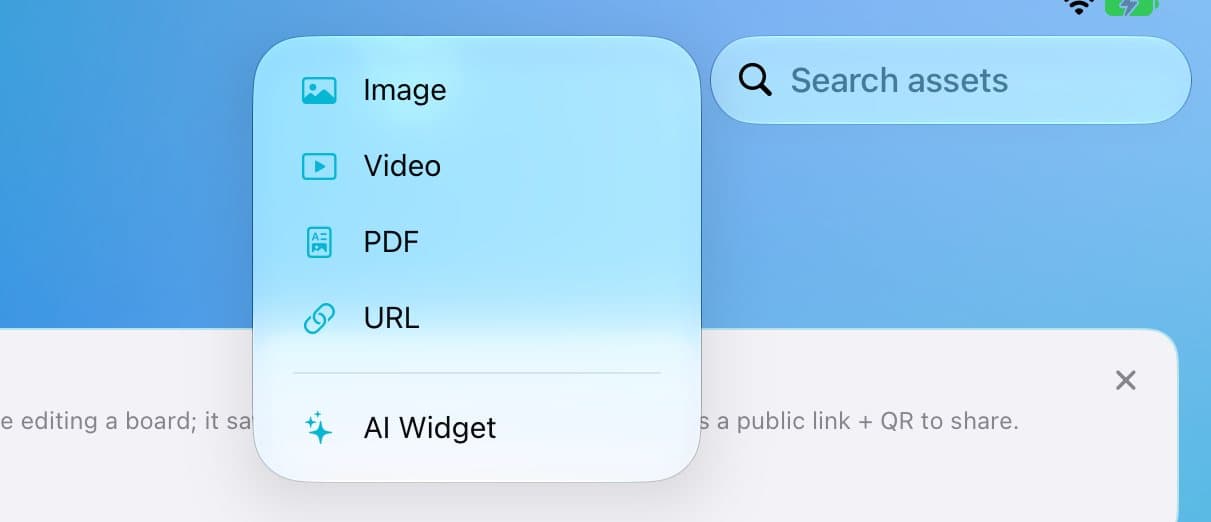
Add something new
Tap + at the top right. Pick Image, Video, PDF, URL, or AI Widget.
Step 3 of 4
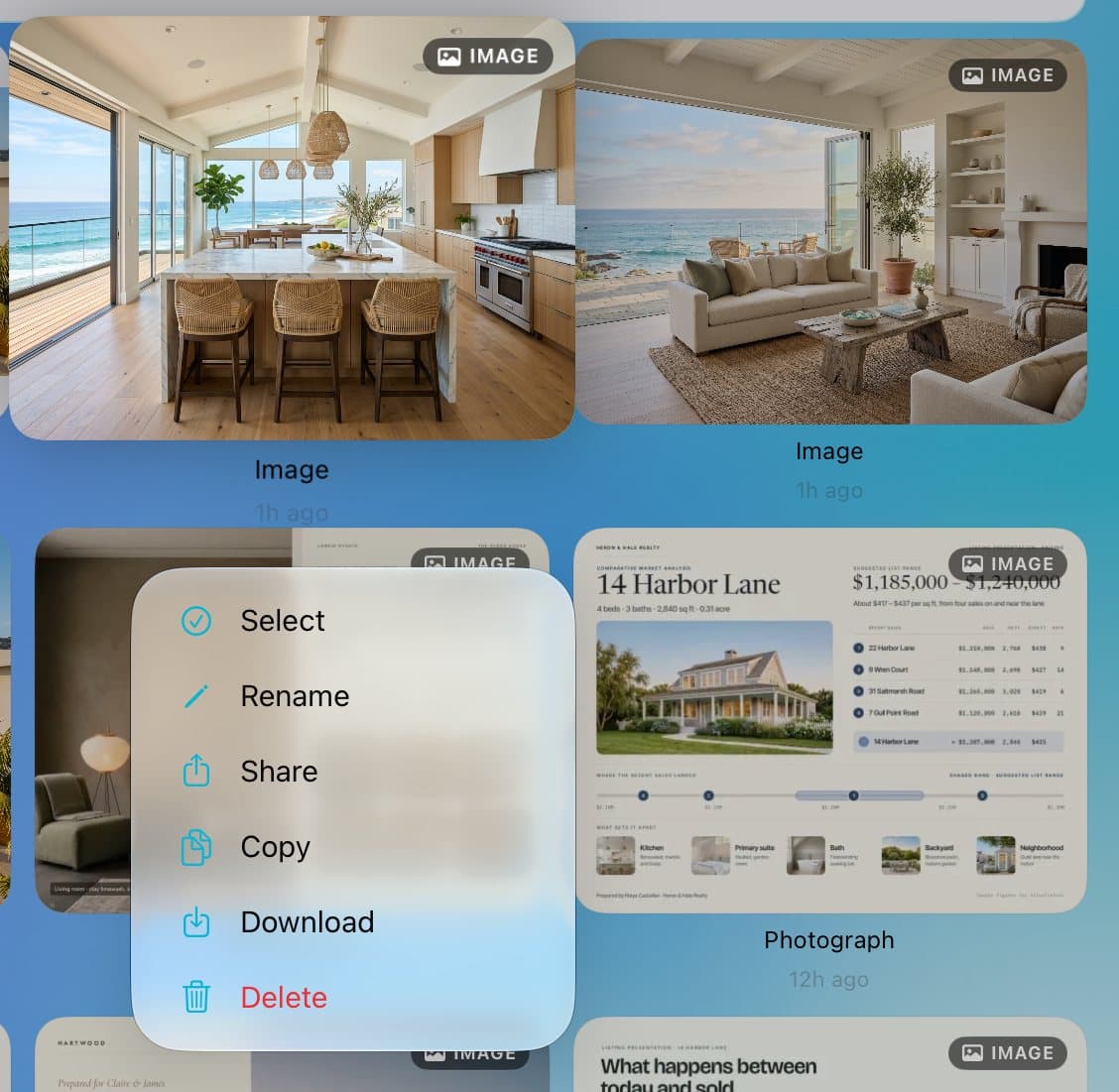
Rename, share, or delete
Press and hold an item. Tap Rename, Share, Download, or Delete.
Step 4 of 4
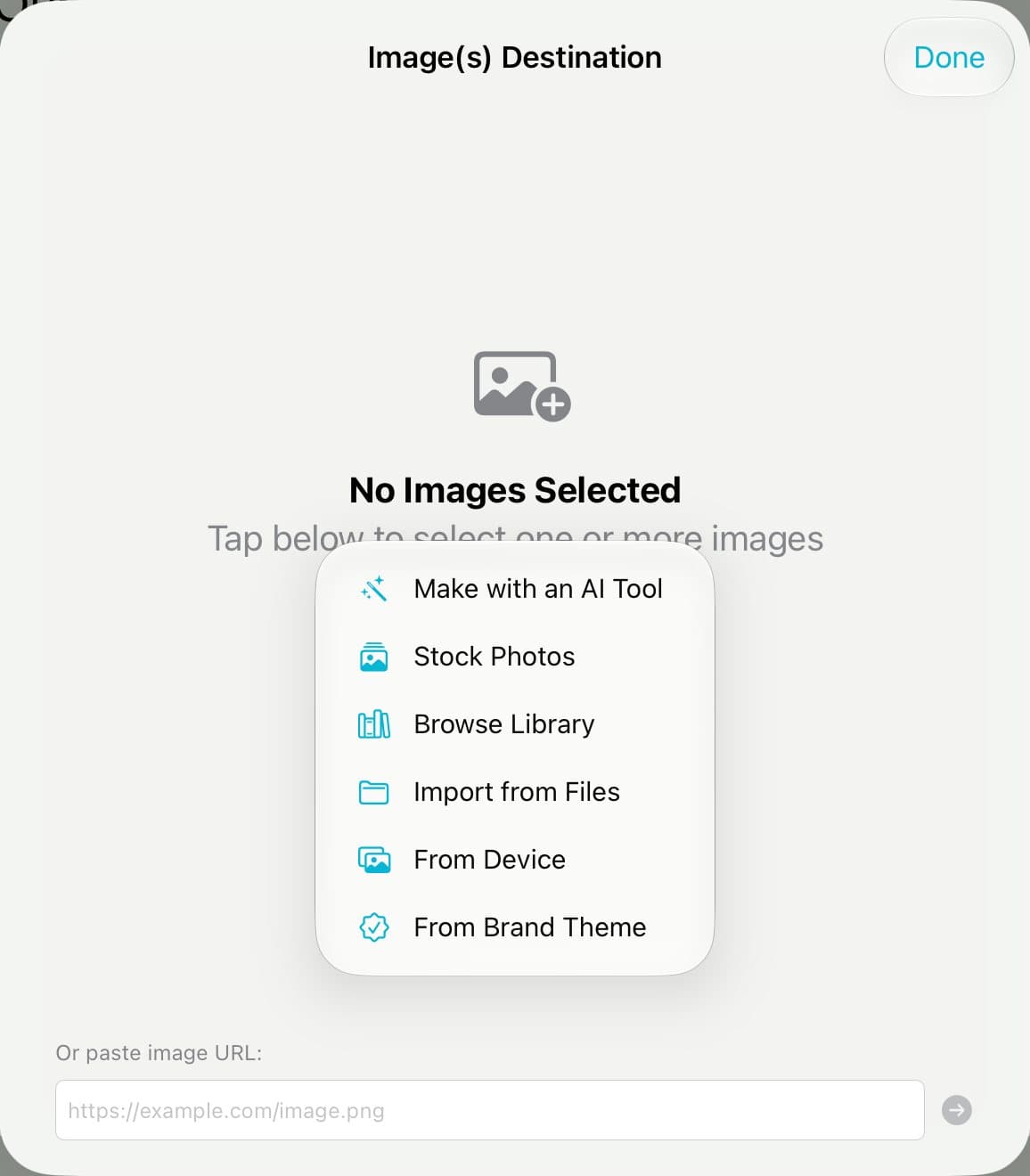
Use it on a tile
When you add photos, a video, or a PDF to a tile, tap Browse Library to pick from here.
Good to know
Tap Images, Videos, or PDFs at the top to see just those.
Deleting moves an item to Trash. You can get it back from there.
Trash keeps things for 90 days.