Reuse
Fill a listing from its PDF
You don't have to type a listing's details. Make a new listing, tap ⋯, then Import from PDF, and pick the flyer. PitchBoards reads the name, address, price, beds, baths, and more. Check the list, turn off anything wrong, and tap Apply. Photos aren't copied, so add them yourself.
Updated By Isaac Stalzer

Step 1 of 5
Make a new listing
Tap Collections in the sidebar and open your listings. Tap + and add a new one.
Step 2 of 5
Import the PDF
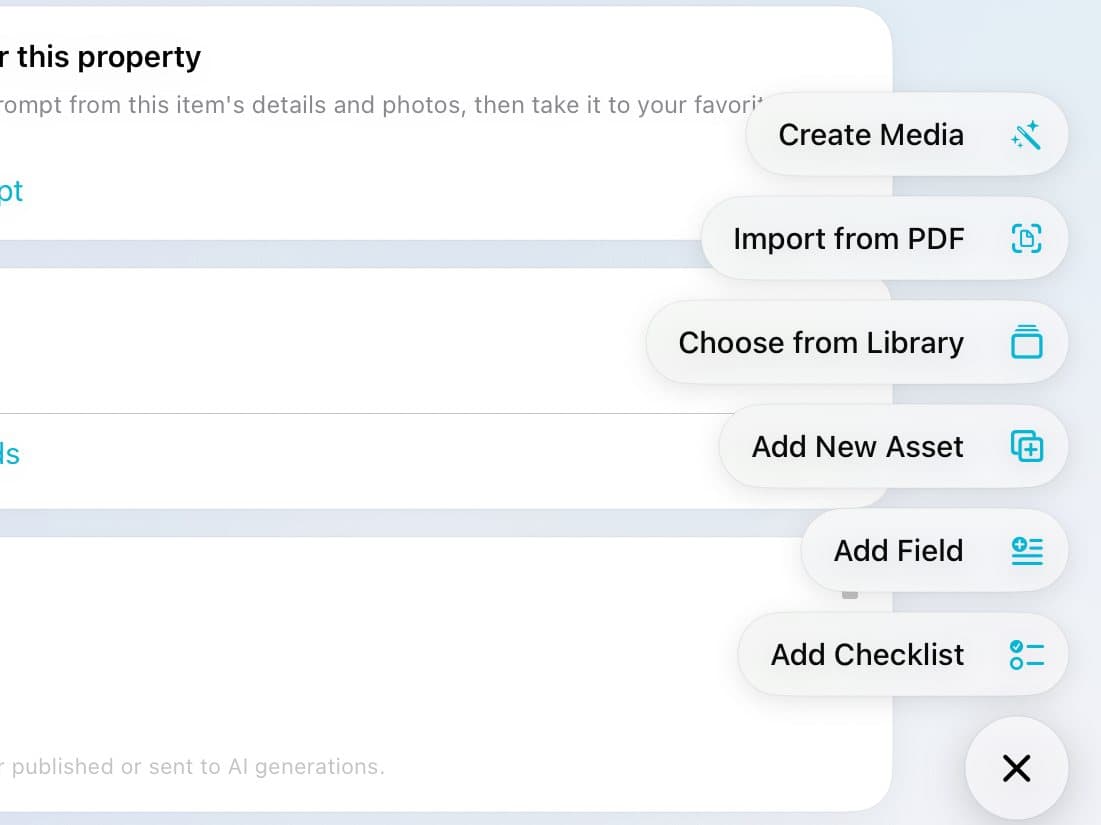
Tap ⋯ at the bottom right. Tap Import from PDF and pick the file.
Step 3 of 5
Check what it found
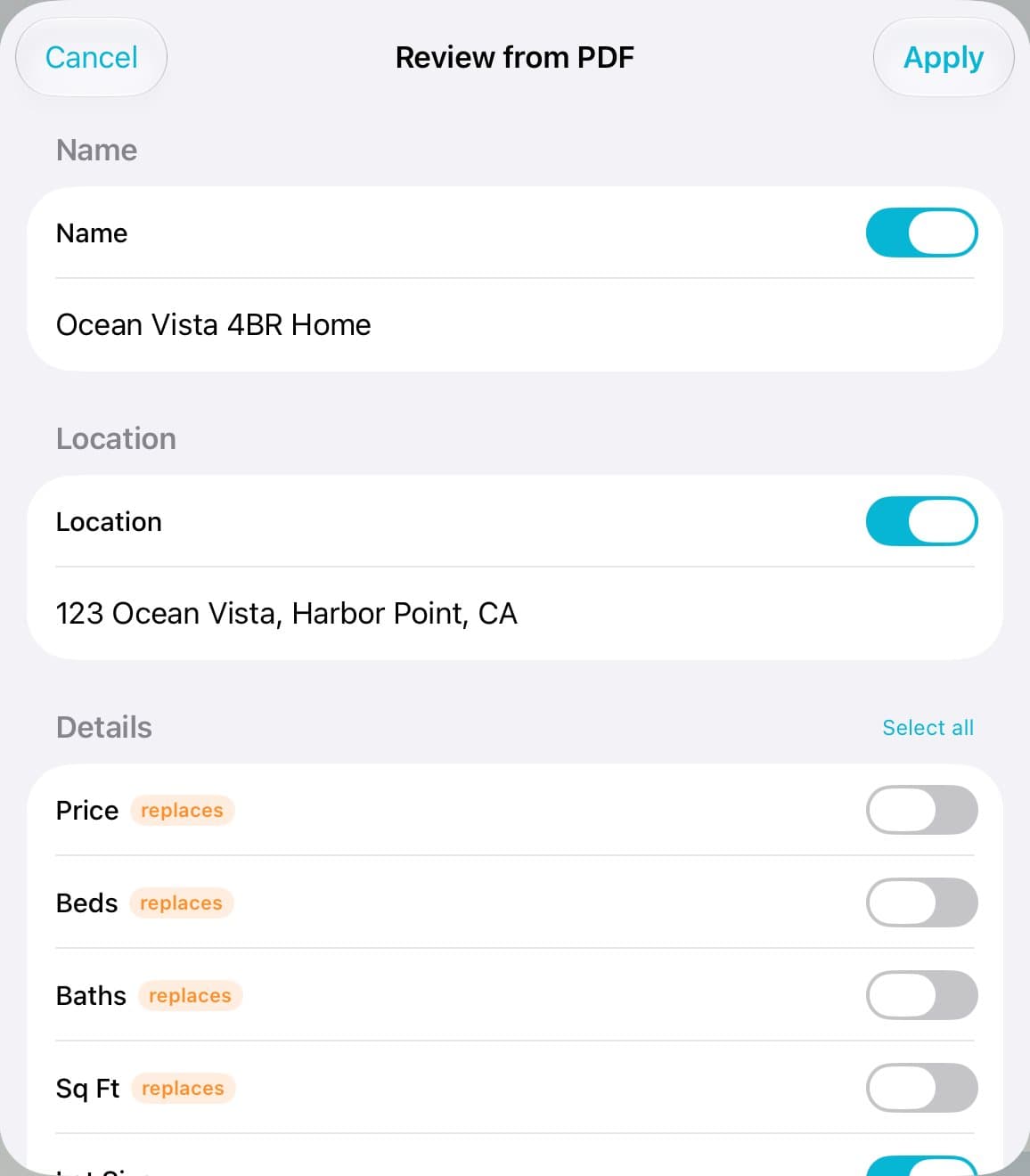
Look over the name, address, and details. Tap Select all to take every detail.
Step 4 of 5
Tap Apply
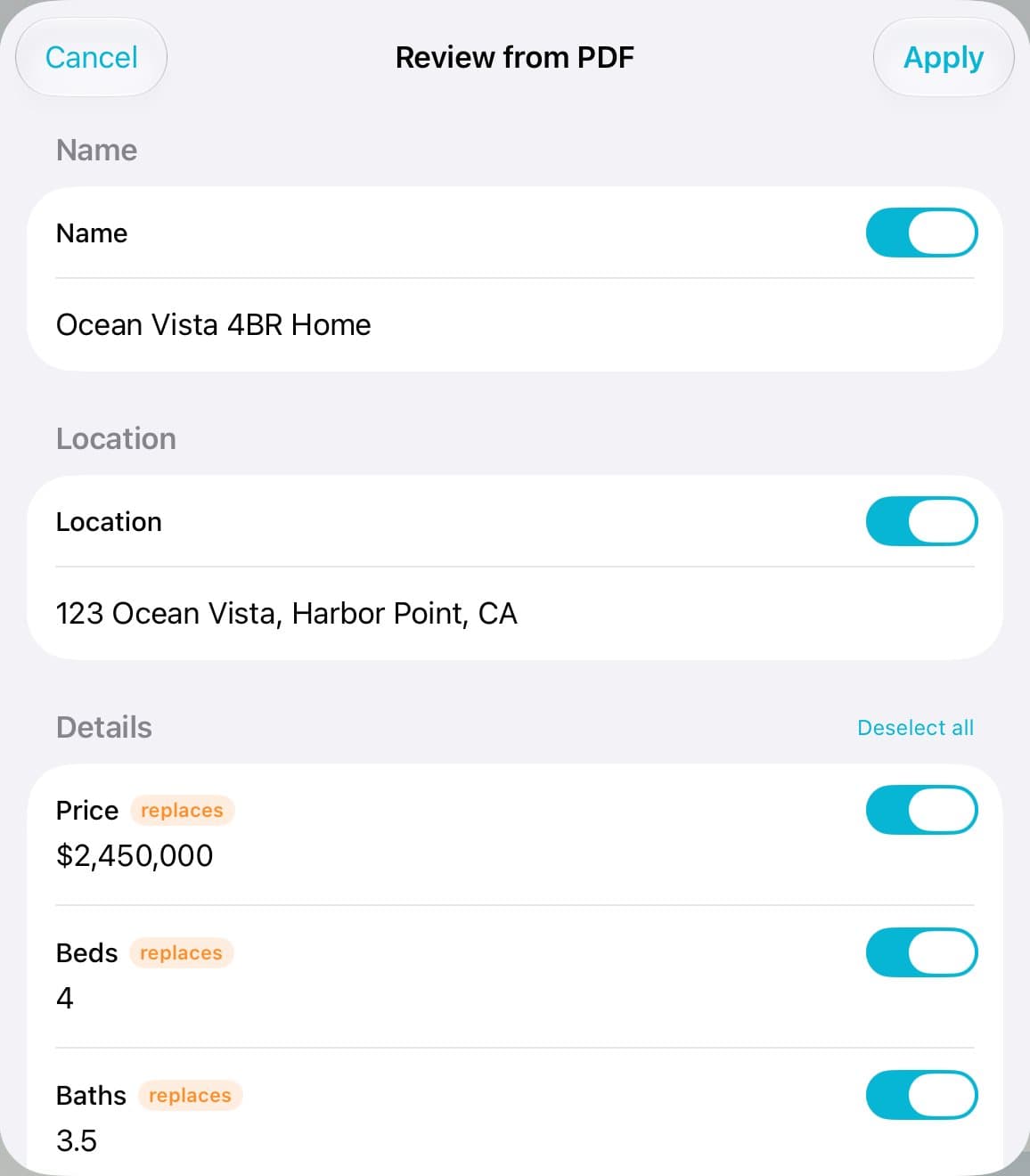
Turn off anything that's wrong. Tap Apply.
Step 5 of 5
It's filled in
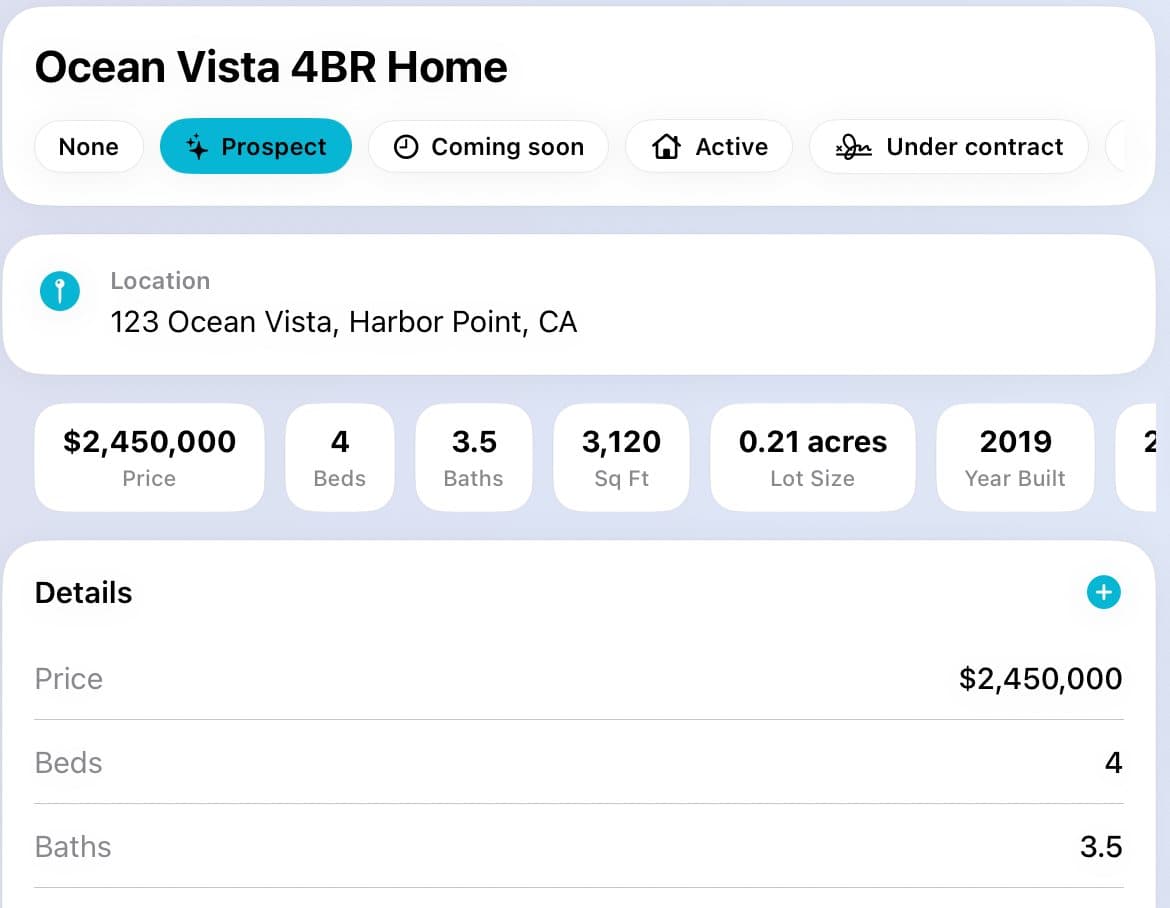
The name, address, price, and details are filled in. Add photos with Add Photos.
Good to know
Photos aren't copied from the PDF.
Details you already typed are switched off, so they aren't replaced unless you turn them on.
Reading a PDF uses your AI allowance.