Build
Use your iPad as an open house sign-in
Turn your iPad into an open house sign-in sheet. On a canvas board in edit mode, tap +, then Sign-in Form. Pick the fields and the listing the sign-ins go to. Present the board by the door. Each guest signs in, sees a thank-you, and the form clears. Sign-ins show on the listing.
Updated By Isaac Stalzer
Step 1 of 5
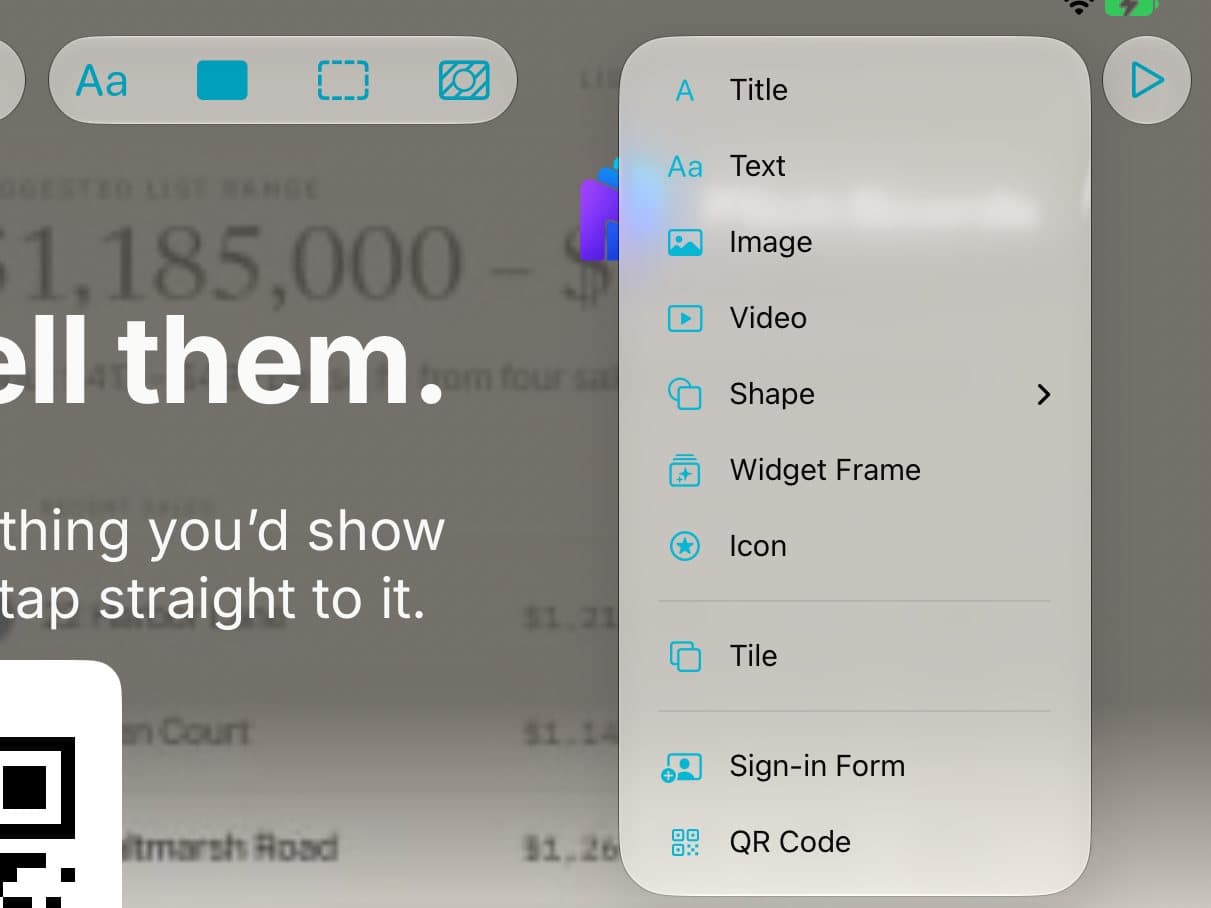
Add the form
Open a canvas board in edit mode. Tap +, then Sign-in Form.
Step 2 of 5
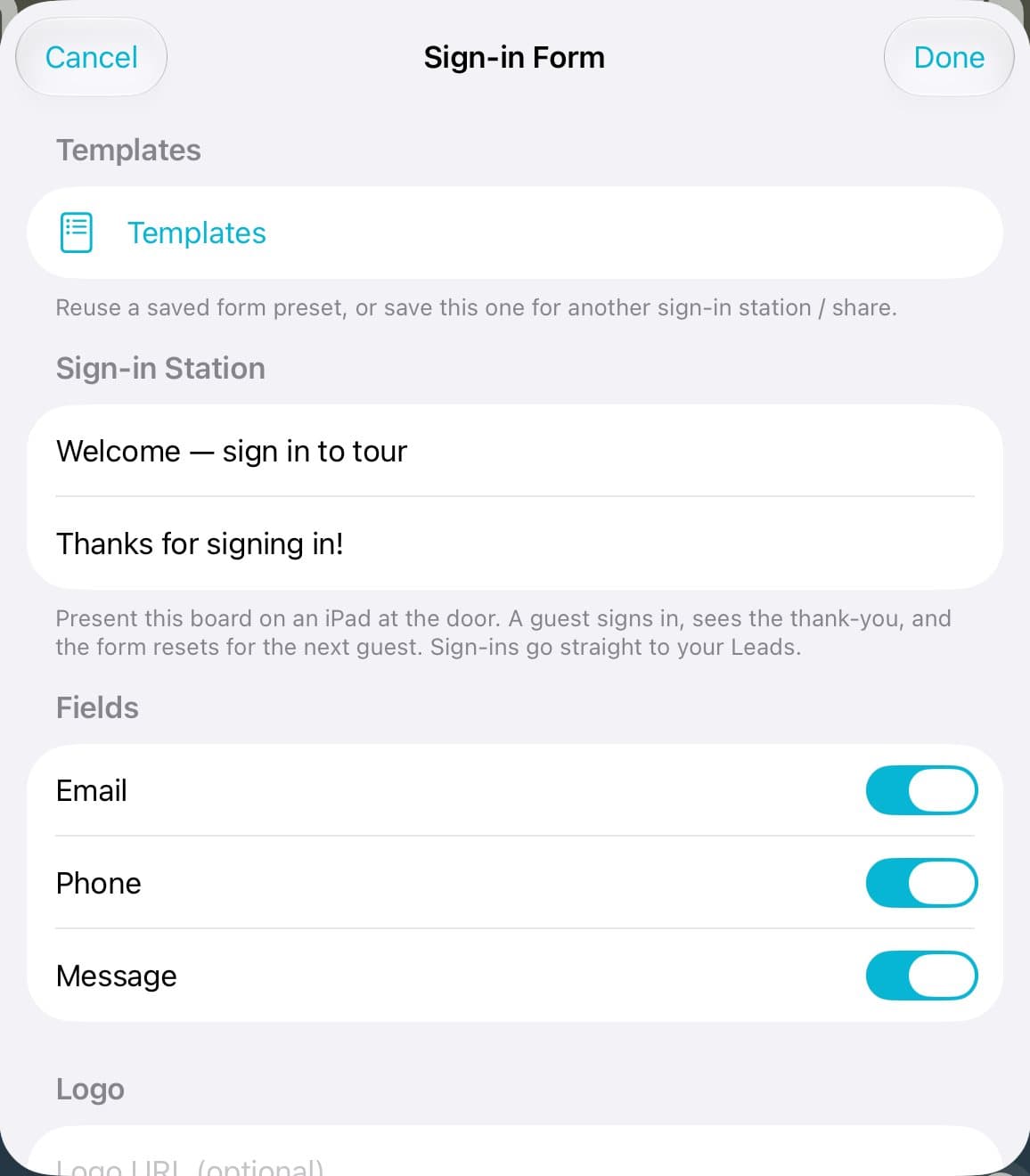
Set it up
Change the welcome and thank-you words. Turn Phone or Message off if you don't need them.
Step 3 of 5
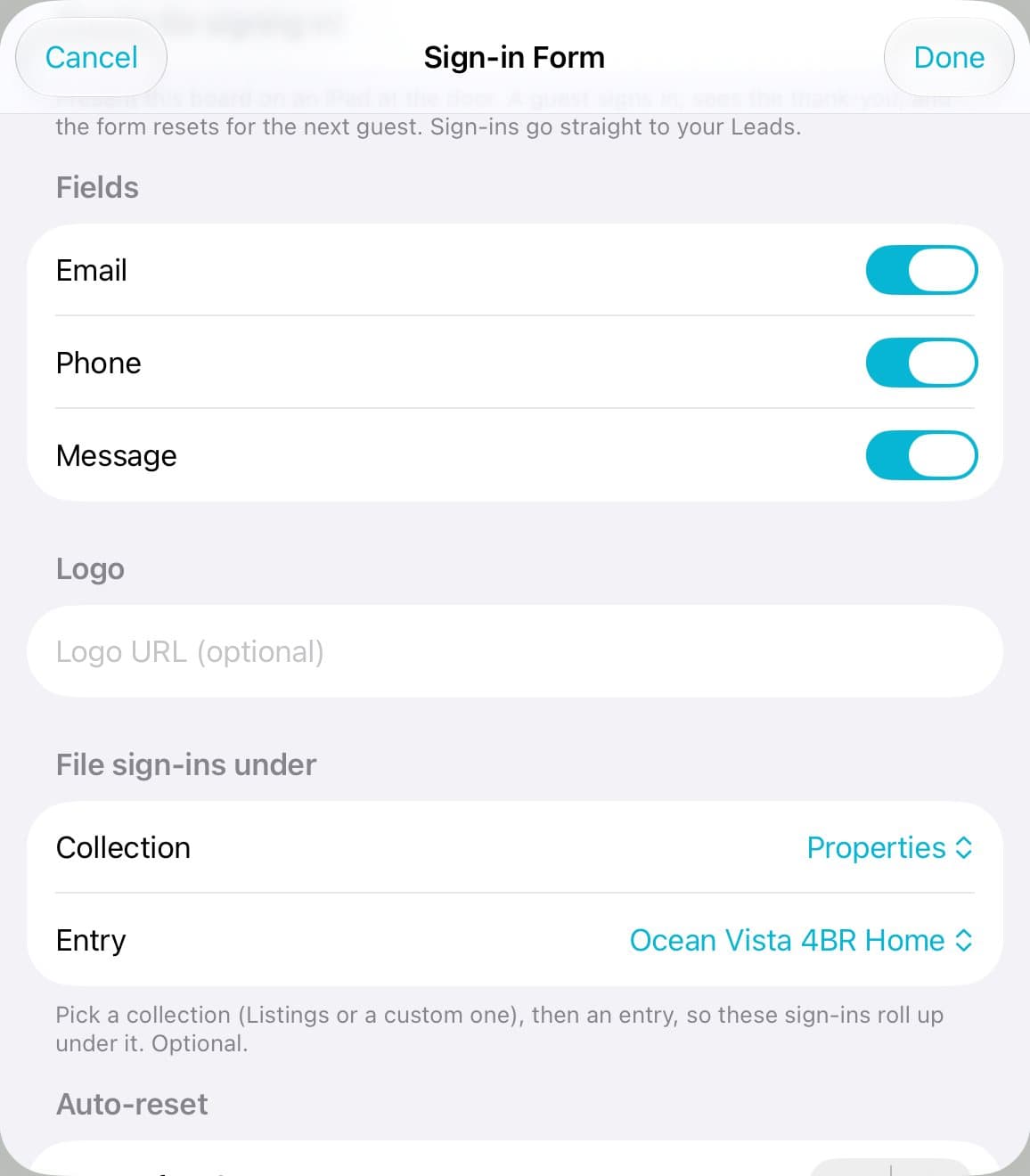
Pick the listing
Under File sign-ins under, pick your collection, then the home. Tap Done.
Step 4 of 5
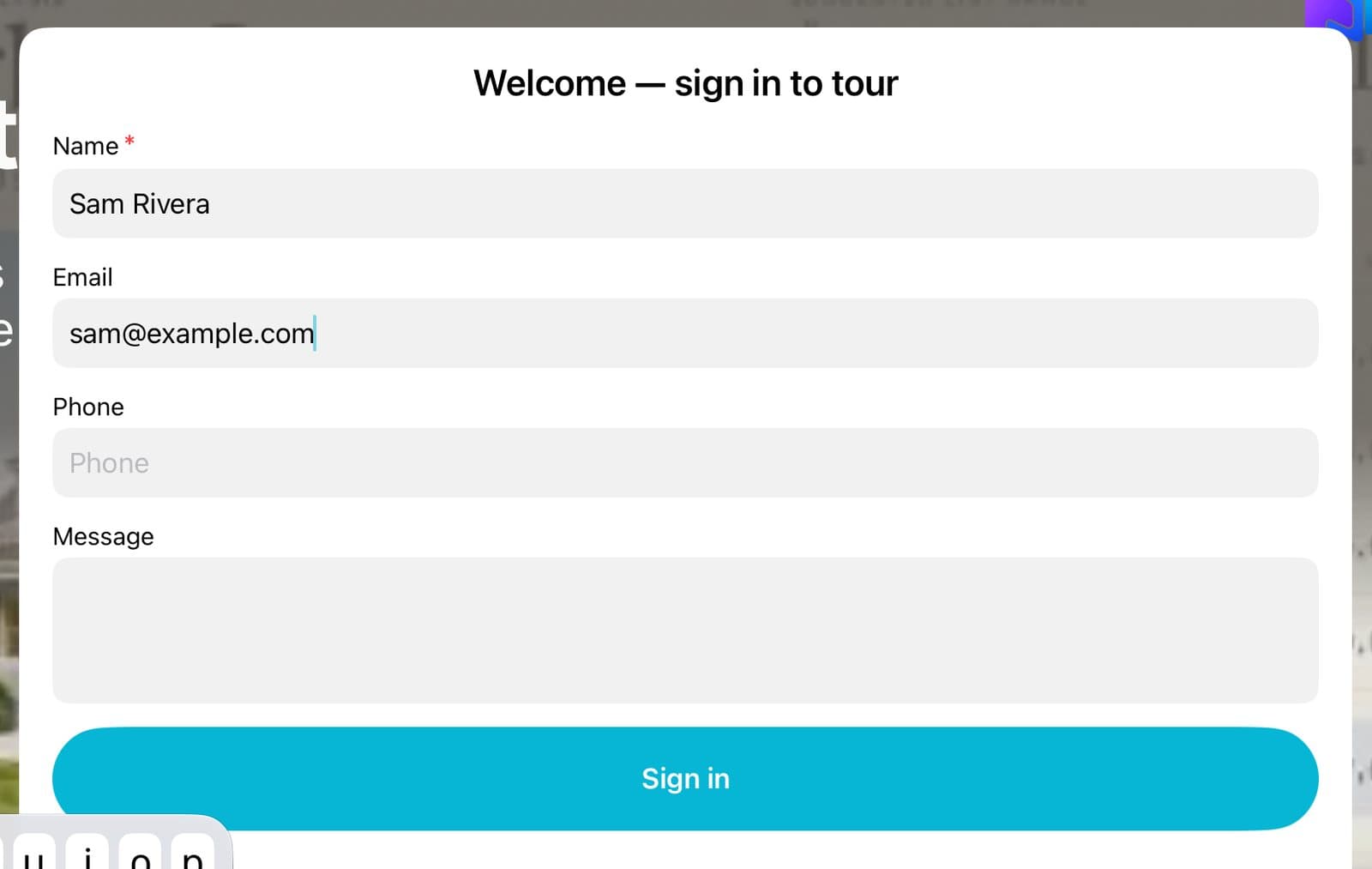
Present it at the door
Tap Presenting. Guests type their name and tap Sign in. The form clears for the next guest.
Step 5 of 5
See who came
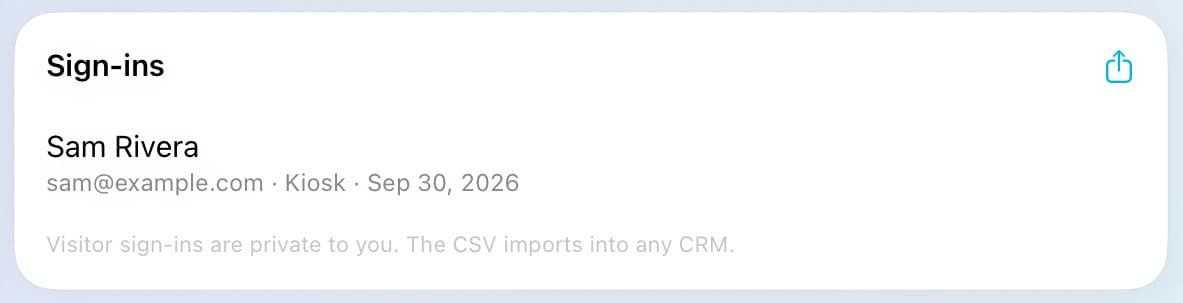
Open the listing. Guests are under Sign-ins. Tap the share button to export them.
Good to know
The Sign-in Form works on iPad.
Always pick a listing, so you can find the sign-ins later.
The form clears after 8 seconds. You can change that under Auto-reset.
Sign-ins are private to you. The export opens in any CRM.