Getting started
Build your first board from your website
New to PitchBoards? Tap Build My First Board on the Welcome screen and type your website. PitchBoards reads your logo, colors, and photos. You check five quick rows, and it makes three boards in your brand. Tap Save to my account, and they're yours to show.
Updated By Isaac Stalzer

Step 1 of 6
Tap Build My First Board
It's at the top of the Welcome screen.
Step 2 of 6
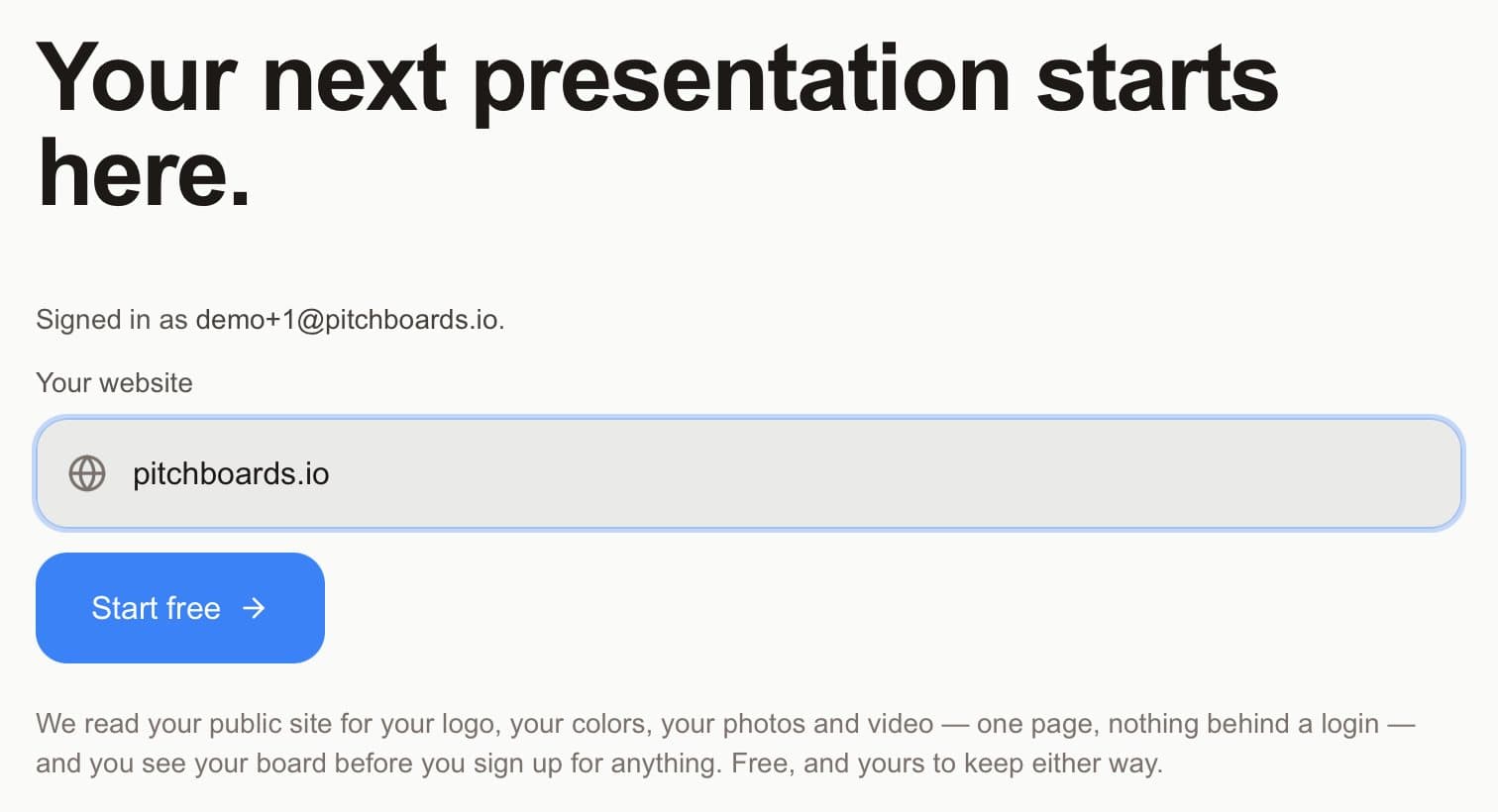
Type your website
Type your website. Tap Start free.
Step 3 of 6
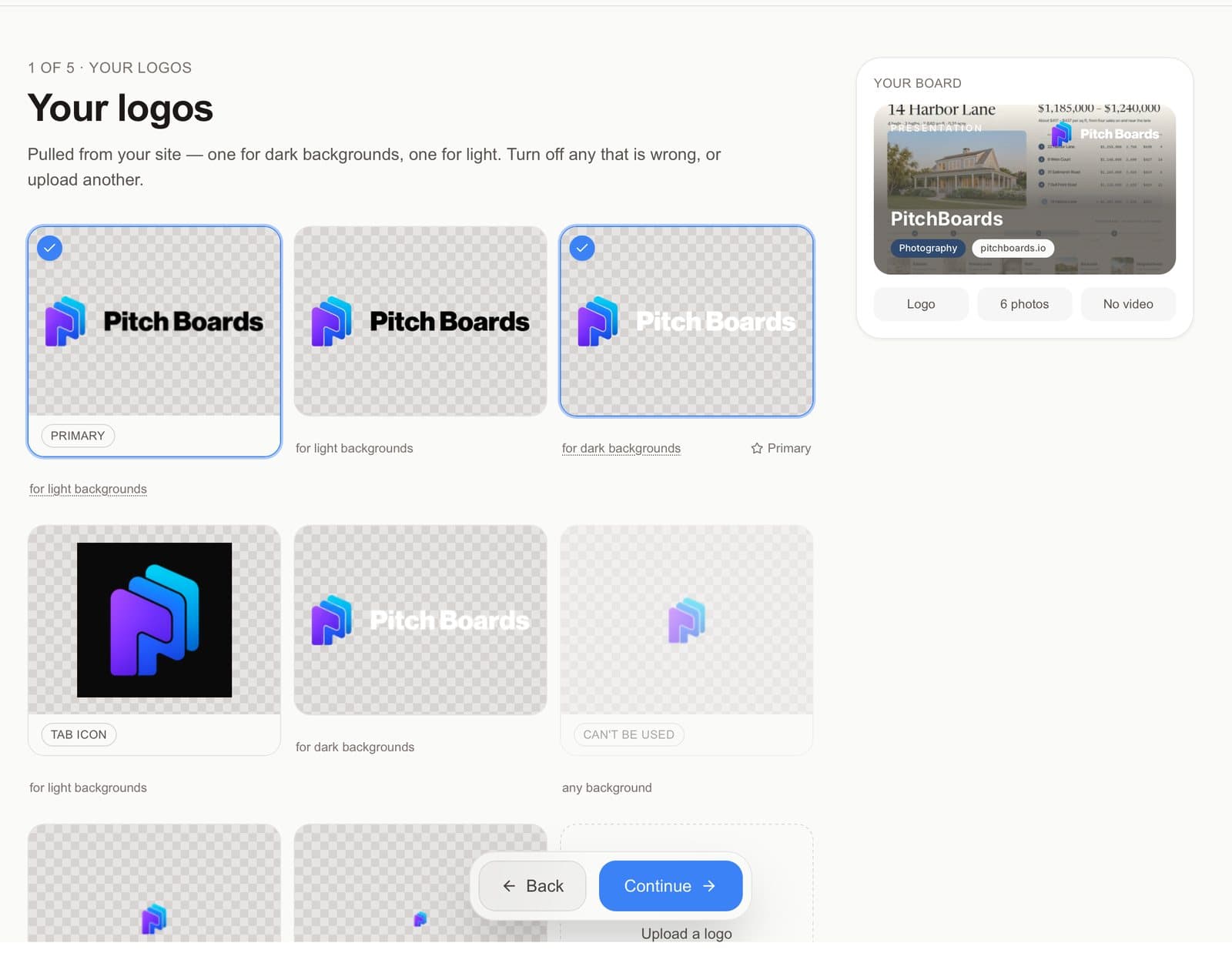
Check each row
Look at your logo, colors, fonts, photos, and video. Tap one to change it. Tap Continue.
Step 4 of 6
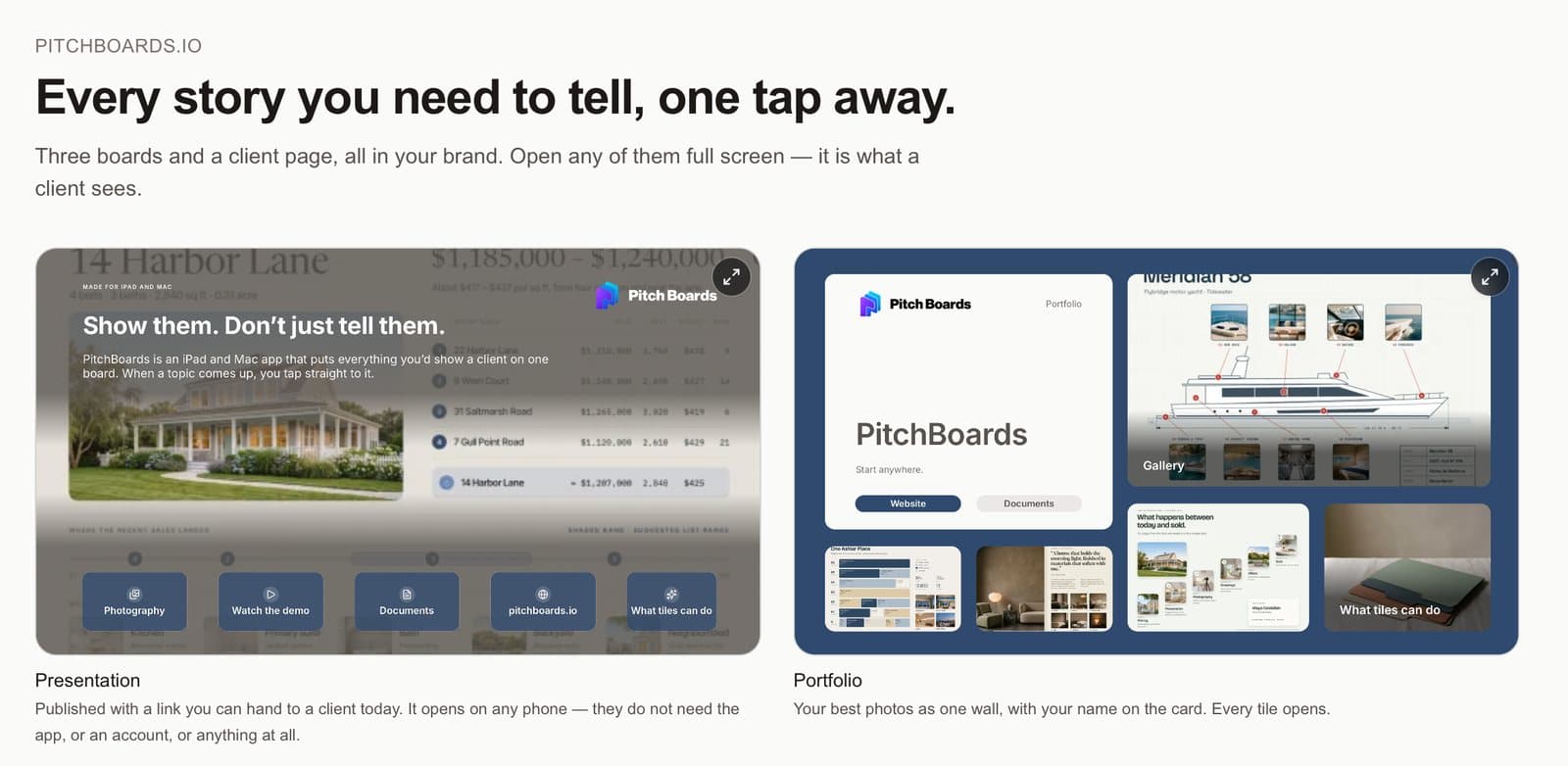
See your boards
Here are your boards, in your brand. Tap the arrows on one to see it big.
Step 5 of 6
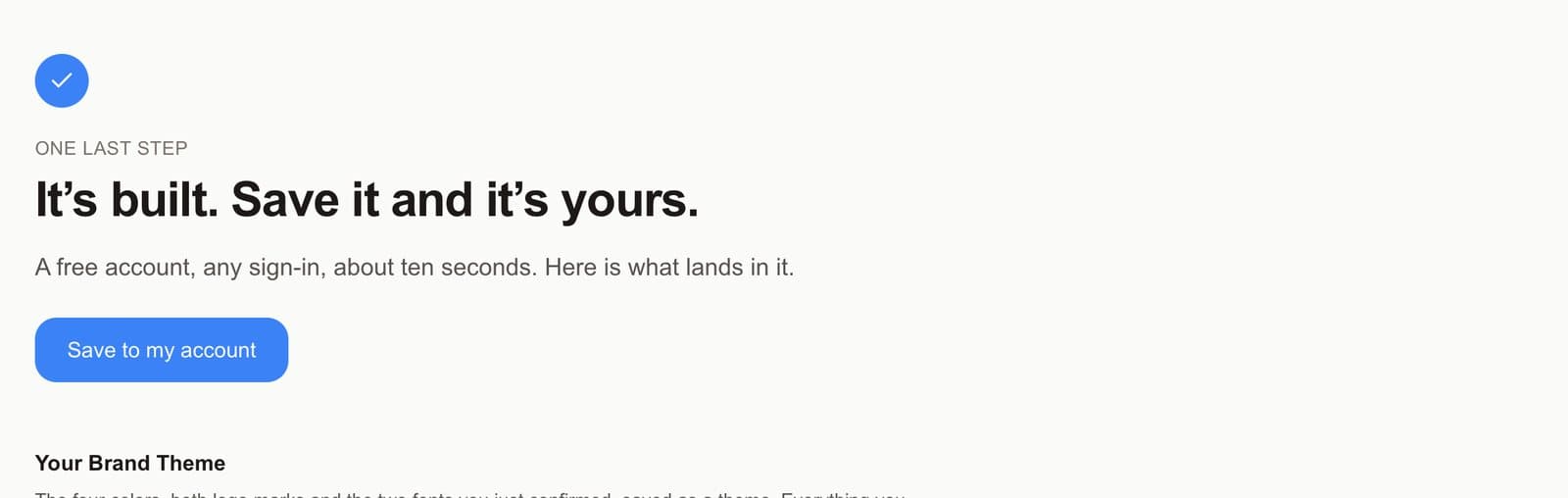
Tap Save to my account
Your boards, brand, and photos go into your account.
Step 6 of 6
It's ready to show
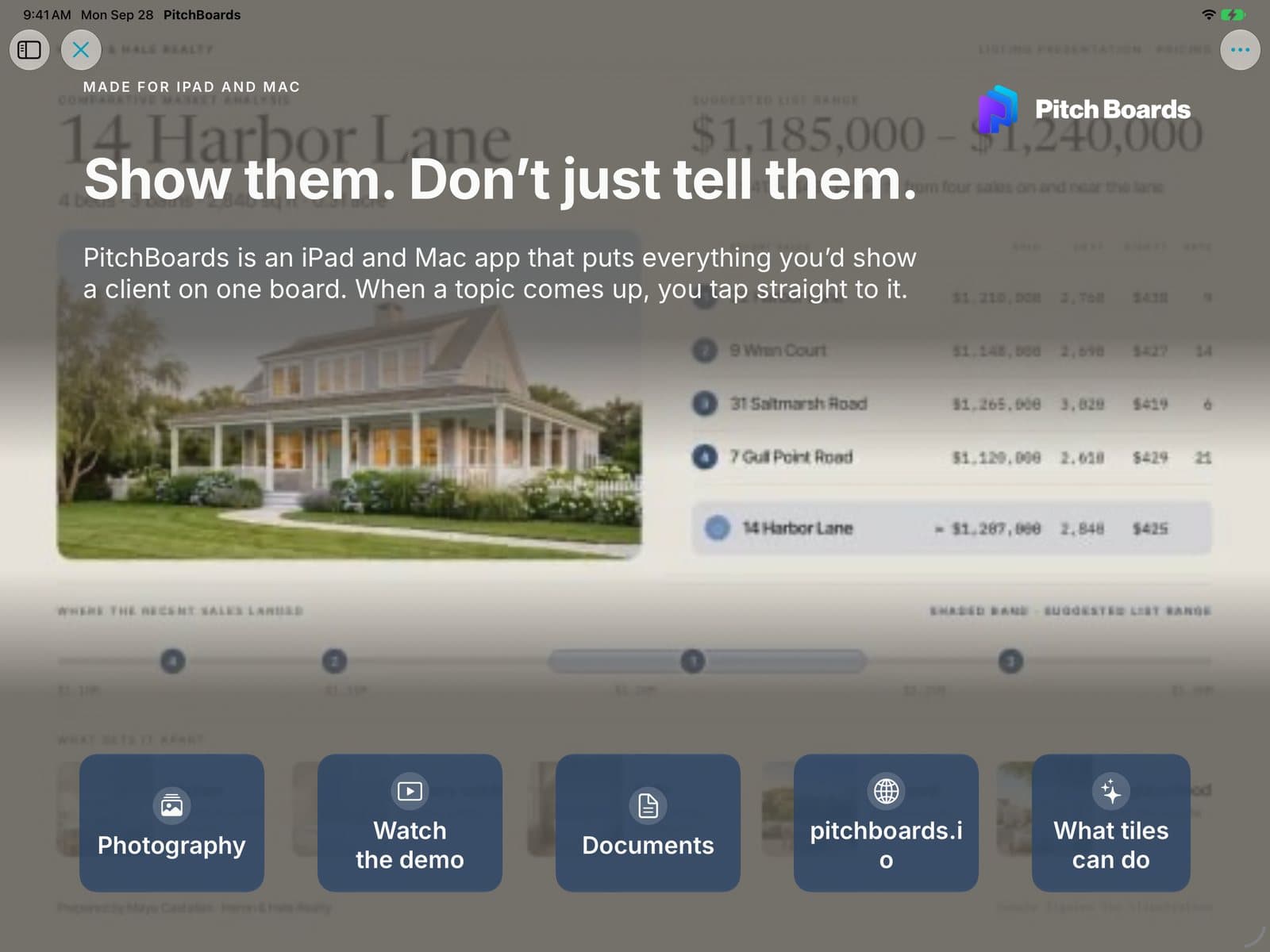
Your first board opens. Tap a tile to see what it does.
Good to know
Build My First Board only shows in a new account with no boards yet.
No website? Tap Skip for Now and start with the starter templates.
Later, you can make a board from a website with + → New Board → From a Website….