Share
Share a widget by link or QR code
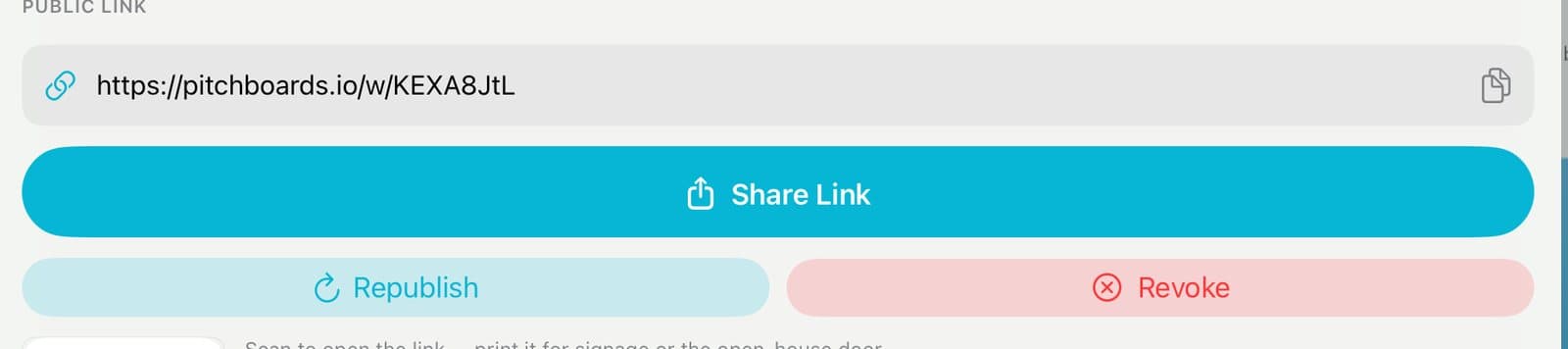
Any widget can have its own web page. Tap Library, then AI Widgets. Press and hold the widget, tap Share, then Public Link, and tap Generate public link. Send the link or print the QR code. Turn on Lead Form to collect sign-ins. After you change the widget, tap Republish.
Updated By Isaac Stalzer
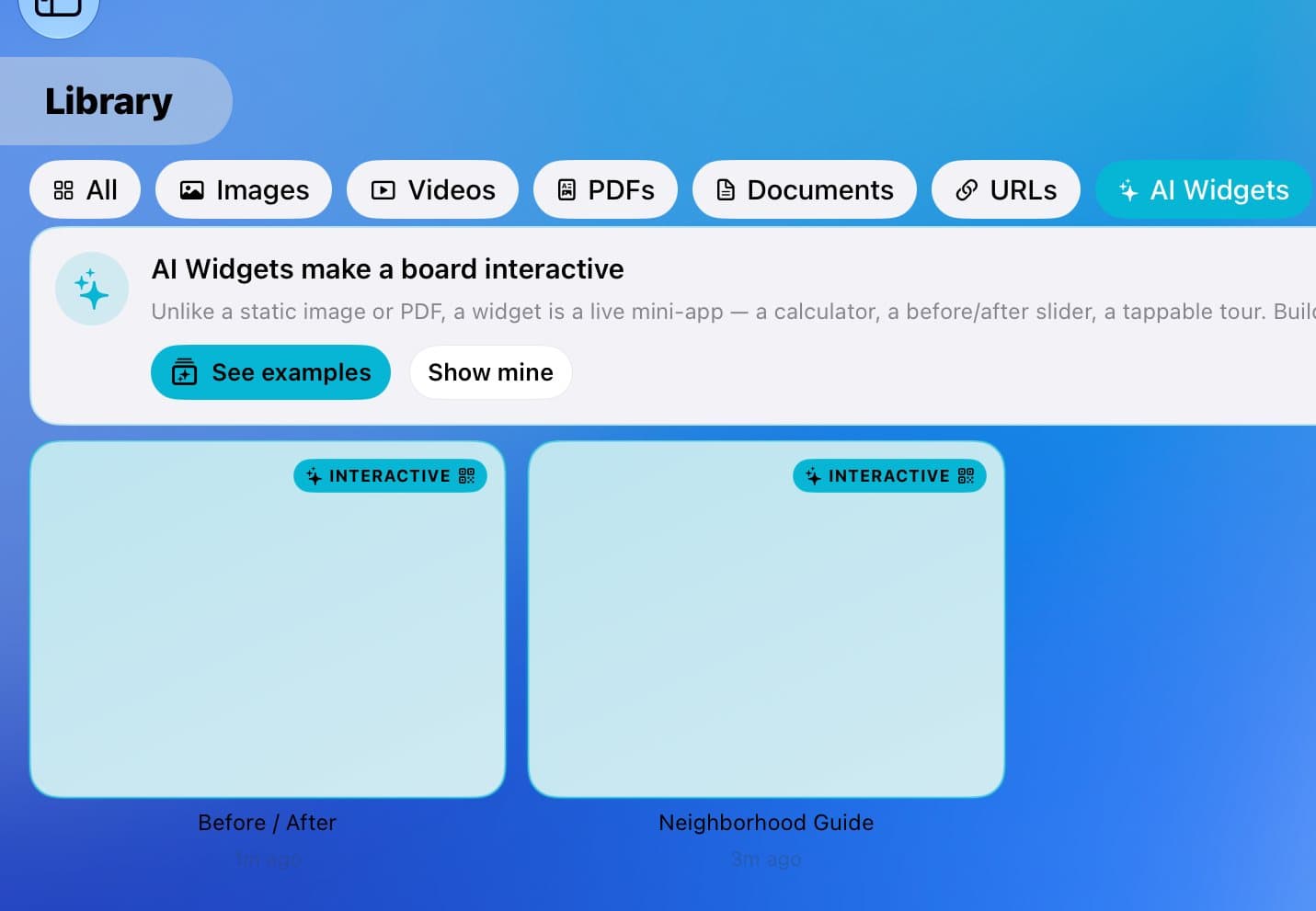
Step 1 of 5
Find your widget
Tap Library, then AI Widgets. Press and hold the widget and tap Share.
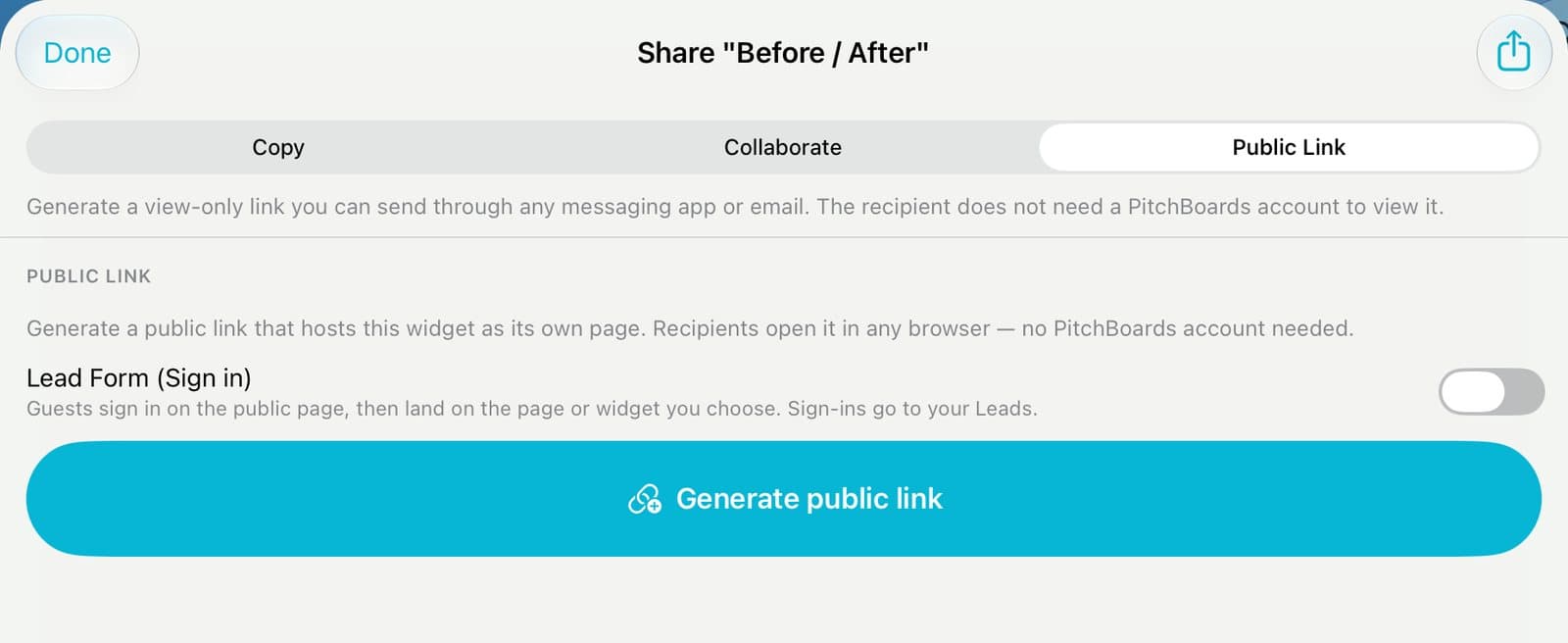
Step 2 of 5
Make the link
Tap Public Link. Tap Generate public link.
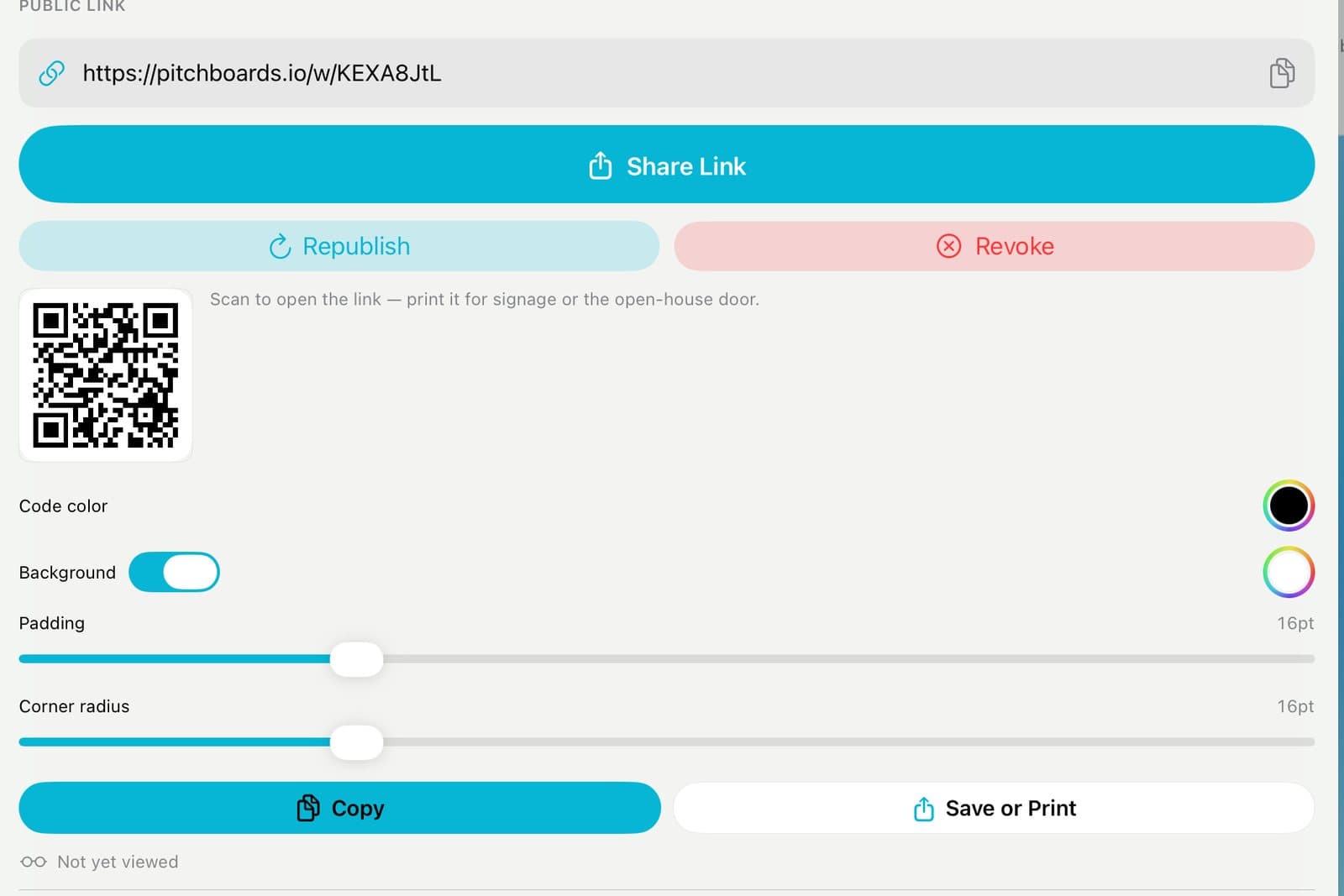
Step 3 of 5
Send it or print it
Tap Share Link to text or email it. Or use the QR code: tap Save or Print.
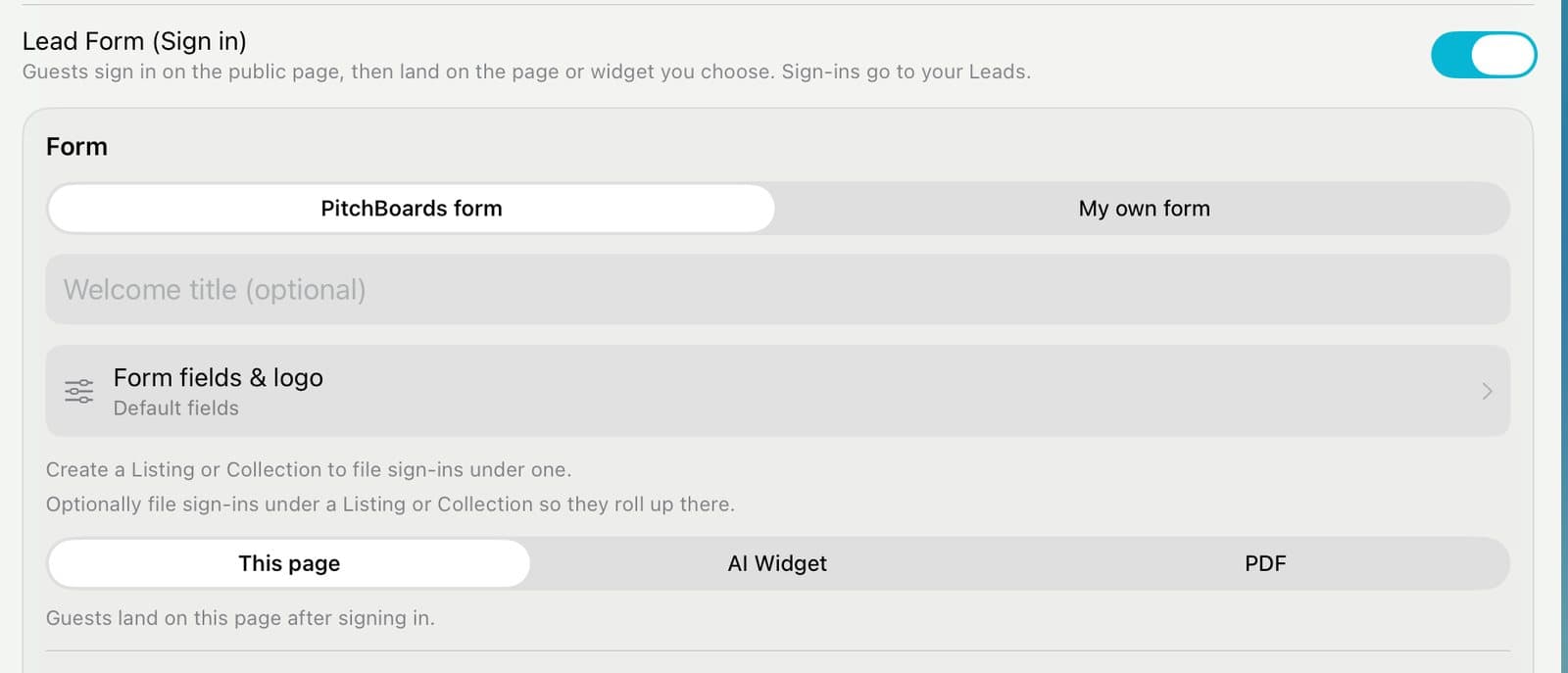
Step 4 of 5
Collect sign-ins
Turn on Lead Form (Sign in). Guests sign in first, then see the widget. Sign-ins go to your Leads.
Step 5 of 5
Changed the widget?
Tap Republish. The link keeps showing the old version until you do.
Good to know
People don't need PitchBoards to open the link.
Revoke turns the link off.